
iOS · iPhone & iPad
Turn Off Do Not Disturb on iPhone
Source-checked About 10 minutes
Answer
Open Control Center, tap the active Focus, and make sure Do Not Disturb is off. If it returns, remove its schedule or linked Lock Screen in Focus settings.
Before you start
Confirm which Focus is active in Control Center and whether it was enabled manually, by schedule, Smart Activation, a linked Lock Screen, an app, or sharing across Apple devices. Turning off one Focus does not disable every automation.
Turn off the active Focus
Open Control Center and tap the active Do Not Disturb or other Focus control to turn it off. Use Control Center to turn off the displayed Focus and confirm the crescent or Focus indicator disappears.
Check recurring schedules
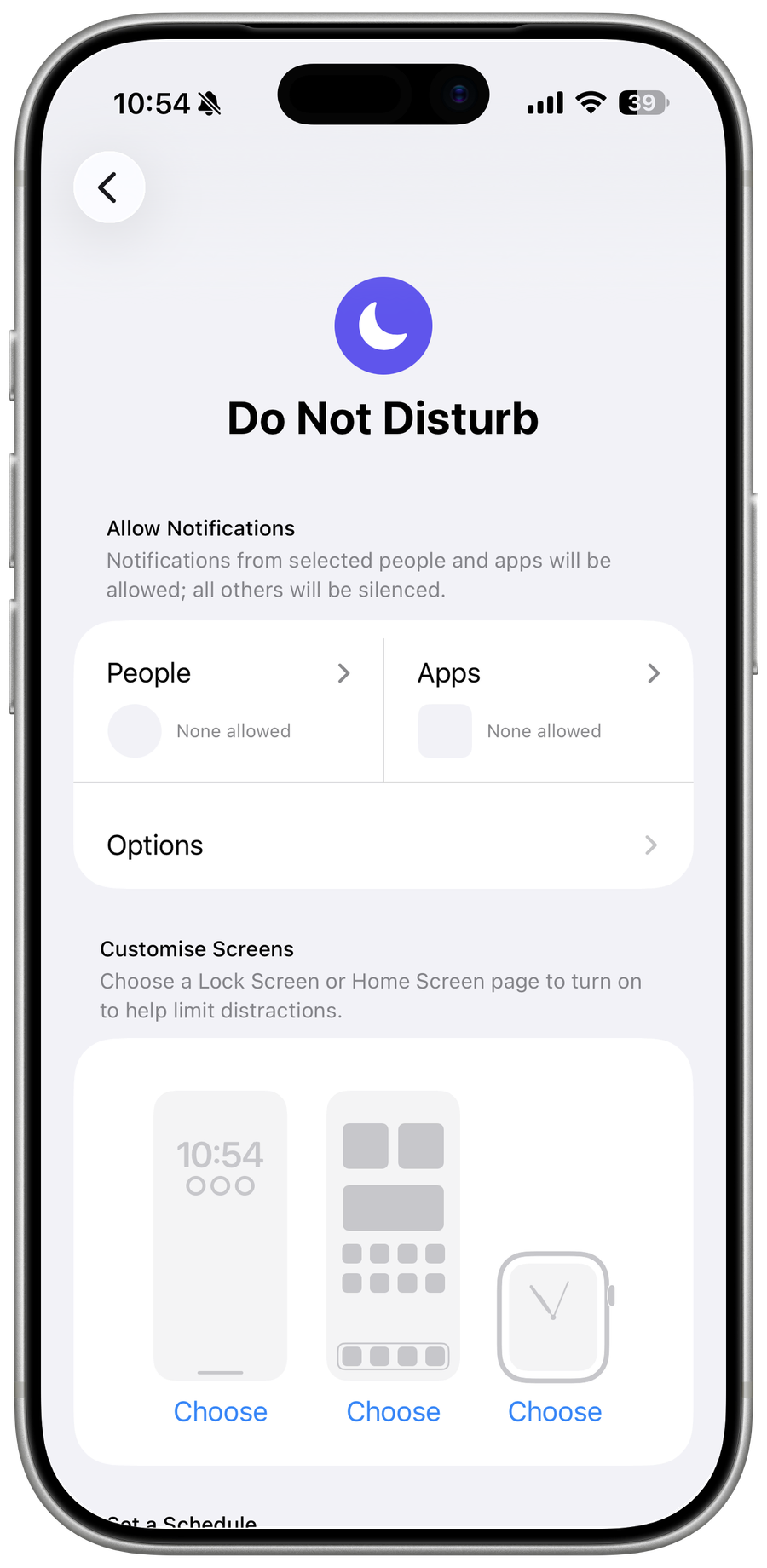
Go to Settings > Focus > Do Not Disturb and turn off an active schedule or automation. Inspect Do Not Disturb schedules, Smart Activation, and app/location/time automations; disable only the rule that explains when it returns.
Check linked Lock Screens
Choose a Lock Screen not linked to Do Not Disturb if the Focus turns on when you change wallpapers. Review linked Lock Screens and Share Across Devices so another wallpaper or Apple device does not reactivate the same Focus unexpectedly.
Verify the result
Lock and wake the iPhone, change to the usual Lock Screen, and wait through the time when Do Not Disturb previously returned. Confirm notifications behave as intended without exposing private alerts.
Troubleshoot Do Not Disturb returning
If Focus still activates, inspect Shortcuts automations and managed-device policies, restart and update iOS, then record the trigger time and active Focus name for Apple Support. Do not reset all settings before identifying the automation.
Video walkthrough
Sources and verification
Checked against official documentation on . Scope: iPhone & iPad.
Follow the linked first-party guidance if labels differ after a platform or app update.