iOS · iPhone & iPad
How To Fix iPhone Apps Crashing (iOS 16)
Original source date
Answer
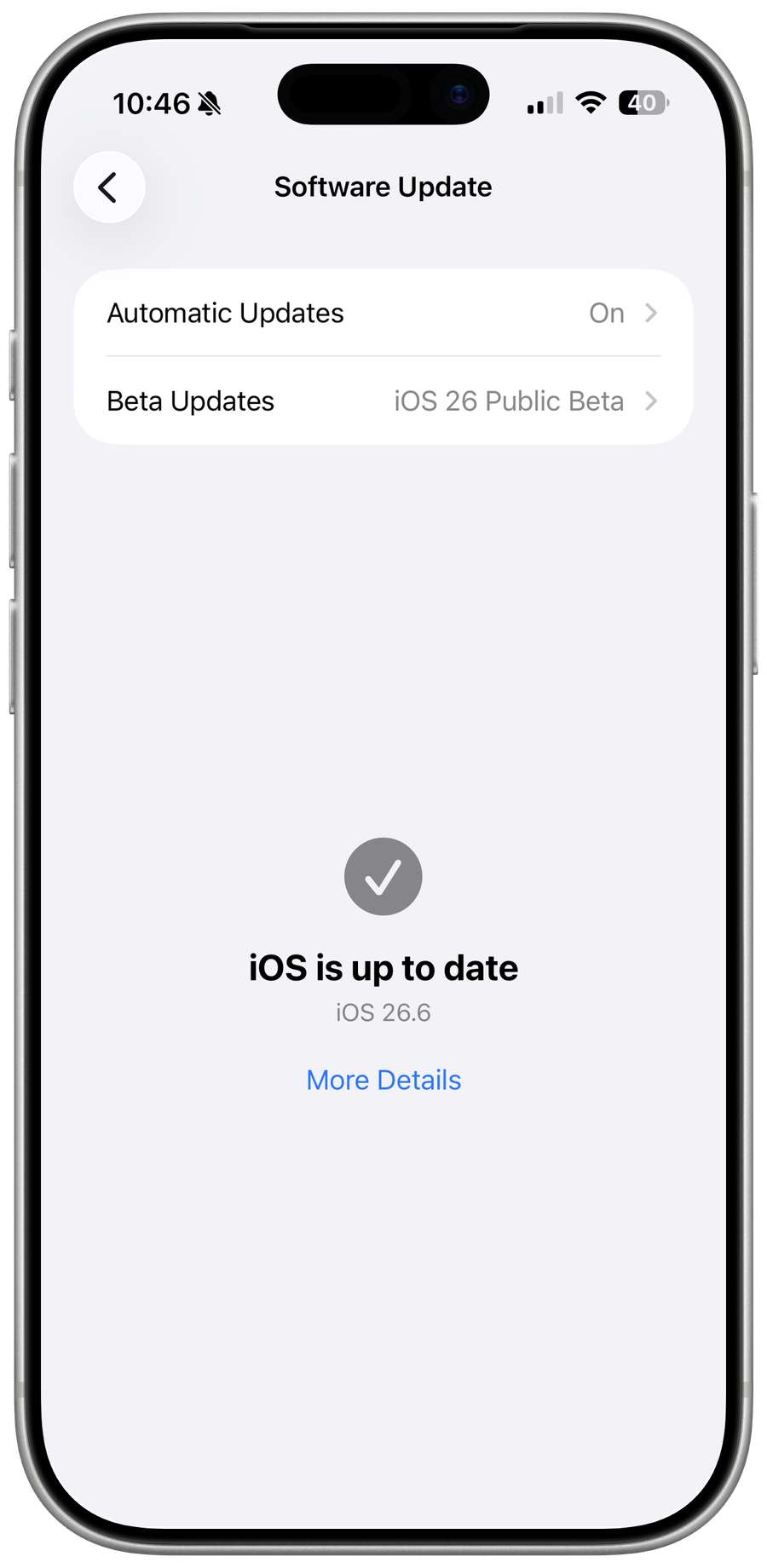
The first thing you should try is updating and restarting your iPhone. Sometimes a simple update can fix the issue. To do this, go to your settings, select general, and then select software update. Make sure your phone is connected to WiFi and let it download and install the update. Once it's finished, restart your iOS device.
Update & Restart iPhone
The first thing you should try is updating and restarting your iPhone. Sometimes a simple update can fix the issue. To do this, go to your settings, select general, and then select software update. Make sure your phone is connected to WiFi and let it download and install the update. Once it's finished, restart your iOS device.

Update Application in the App Store
Next, check if the app that's crashing is up to date. Go to the App Store, look up the application, and check if the app you're having issues with is outdated. If it is, select update and let it download and install the latest version.

Check Device & iOS Compatibility
While in your App Store, scroll down on the app’s page, and under Compatibility, you’ll be able to see which iOS version and device is required to run this app.

Close Background Apps
Another thing to check is if you have any background apps running. Double-press the home button to bring up your recently used apps, or swipe up slowly on newer devices. Swipe up on any apps you're not currently using to close them.

Improve Network Connection
It's also important to test and improve your network connection. Make sure you're in a strong signal area and try switching from WiFi to cellular or vice versa. Sometimes this can prevent apps from crashing, requiring a proper download to launch.
Reinstall or Offload App
If the problem persists, try reinstalling or offloading the app. To reinstall, hold down on the app icon until it starts wiggling, then select delete.

Go to the App Store and download the app again
Go to the App Store and download the app again. To offload the app, go to your settings, select general, and then select iPhone storage. Find the app in question and select offload app.

Disable Content Restrictions & App Limits
While in your storage settings, you should also ensure enough space. Sometimes, applications will read and write data in the background, requiring some storage to work properly. Any recent changes to your iPhone settings, such as restricting background data or parental control settings, can prevent apps from starting up properly. Tap on Screen Time in your main settings. Here, select Content & Privacy Restrictions. Make sure to disable any currently enabled restrictions.

This also includes App and Communication Limits
This also includes App and Communication Limits. Tap on App Limits, and make sure that these are not hindering you from opening up apps on your iPhone.

Disconnect Peripherals & Disable Screen Sharing
Lastly, ensure any external peripherals are disconnected and that screen sharing is off. Sometimes these can cause issues with apps crashing.
Video walkthrough
If it does not work
- If the current interface differs, compare it with the recorded video walkthrough.