iOS · iPhone & iPad

How To Fix Airdrop Not Working on iPhone or iPad

Original source date

Answer

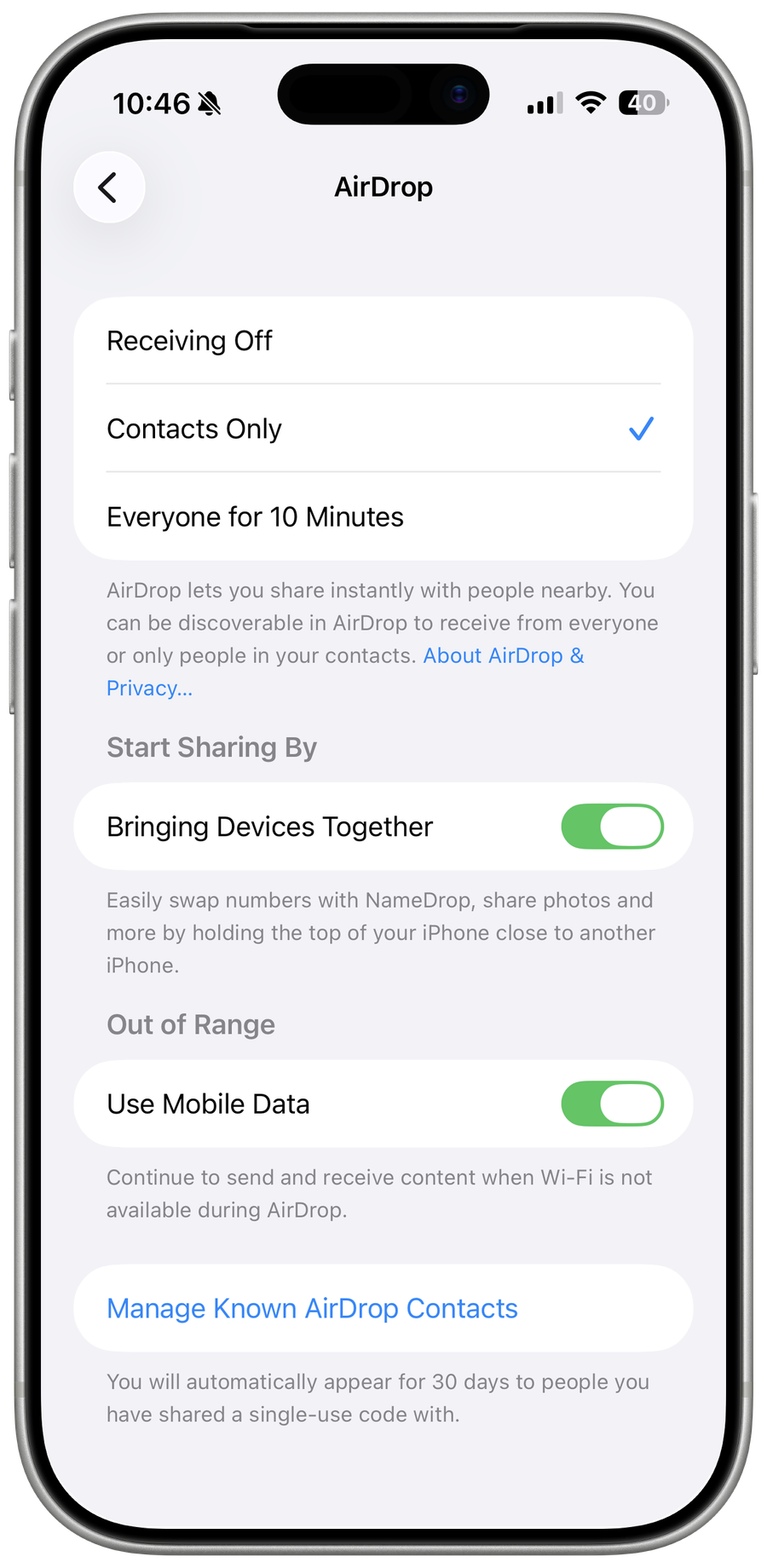
While using your iOS device, open up your settings application. Navigate to the General section and select Airdrop. Ensure Airdrop is not restricted to Contacts Only on the senders’ and recipients’ devices. This option is the most common culprit for Airdrop issues.

Enable Airdrop for All Recipients

While using your iOS device, open up your settings application. Navigate to the General section and select Airdrop. Ensure Airdrop is not restricted to Contacts Only on the senders’ and recipients’ devices. This option is the most common culprit for Airdrop issues.

iPhone Settings > General > Airdrop

Restart WiFi & Bluetooth Connection

Next, restart your WiFi and Bluetooth connection. Open your Control Centre and tap on the Bluetooth and WiFi icon to turn it off and on again.

iOS Control Center
iOS Control Center

Disable Content & Privacy Restrictions

You can then try to send files via Airdrop. If the problem persists, then head back to your device settings. In the Screen Time section, make sure that Communication Limits and Content & Privacy Restrictions are disabled on your device. Select Content & Privacy Restrictions. You can completely disable these restrictions to see if this fixed the Airdrop not working problem you are facing

iPhone Settings > Screen Time > Content & Privacy Restrictions

Update & Restart iOS Device

When this is done, head back to your General iPhone or iPad settings and tap on Software Update. Download the latest update in case there is one available to you. You should then restart your device, which will, in turn, restart all processes and can often fix Airdrop problems.

iPhone Settings > General > Software Update

Reset Network Settings

Lastly, in case nothing helped you out, then it’s suggested to reset your network settings. In your General settings, scroll down and tap on Transfer or Reset iPhone. Next, select Reset and then Reset Network Settings. This will reset your WiFi, Bluetooth, and some other settings back to default and should fix any Airdrop issues you have.

iPhone Settings > General > Transfer or Reset iPhone

Video walkthrough

If it does not work

  • Can I use Airdrop with Android devices?. No, Airdrop is exclusive to Apple devices.
  • How do I know if Airdrop is working on my iPhone or iPad?. If Airdrop is working, you should be able to transfer files between your devices seamlessly. If you're having trouble, try the steps outlined above to fix the problem.
  • What types of files can I transfer using Airdrop?. You can transfer a variety of files including photos, videos, documents, and more using Airdrop
  • Is Airdrop secure for transferring sensitive files?. Airdrop uses encryption to secure transfers, so it is safe for transferring sensitive files.