
Gaming · Windows & macOS
How To Play Call of Dragons on your PC & Mac
Original source date
Answer
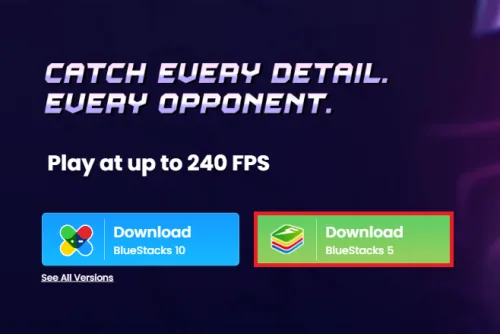
To enjoy Call of Dragons on your computer, you'll need an Android emulator like BlueStacks. Widely recognized for its exceptional performance, BlueStacks is designed to optimize PC mobile gaming. The download and installation process is straightforward and quick – follow the on-screen instructions provided by the setup wizard. With BlueStacks installed, you'll be all set to experience Call of Dragons in a whole new way on your PC or Mac.
Download & Install BlueStacks
To enjoy Call of Dragons on your computer, you'll need an Android emulator like BlueStacks. Widely recognized for its exceptional performance, BlueStacks is designed to optimize PC mobile gaming. The download and installation process is straightforward and quick – follow the on-screen instructions provided by the setup wizard. With BlueStacks installed, you'll be all set to experience Call of Dragons in a whole new way on your PC or Mac.
Download Call of Dragons
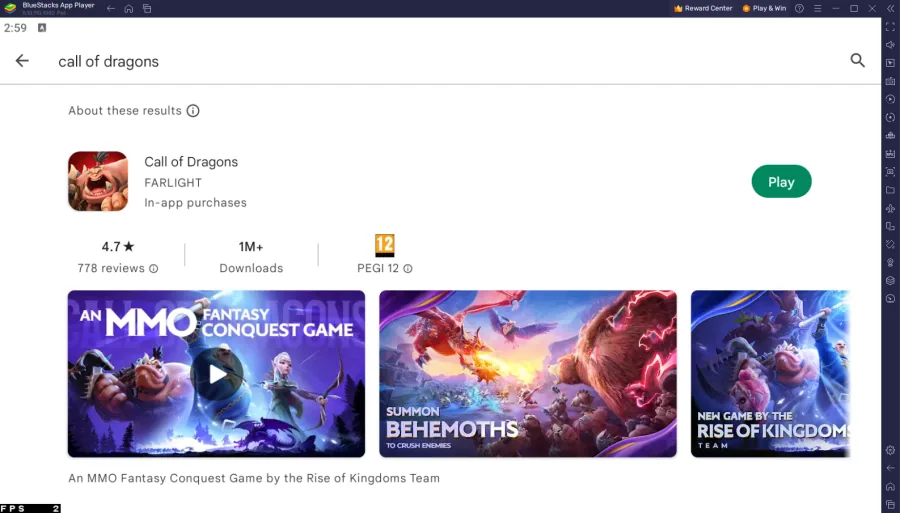
Open your Play Store and log in with your Google account. Search for Call of Dragons and download the game to your BlueStacks emulator. This might take a few minutes to complete depending on your network connection.
Optimize BlueStacks Performance Settings
As you download Call of Dragons, take a moment to adjust the emulator's settings for optimal performance. Click the gear icon to access the settings menu, and then head to the Performance tab. Here, you can allocate CPU cores and memory based on your computer's capabilities. If you aren't running multiple applications simultaneously, feel free to dedicate more CPU cores. For memory allocation, choose a Low setting if your system has 4GB or less RAM. This way, you'll ensure a smooth gaming experience on your PC or Mac.
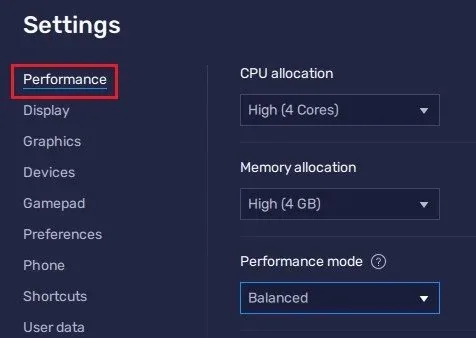
Under Performance Mode, set the option to Balanced
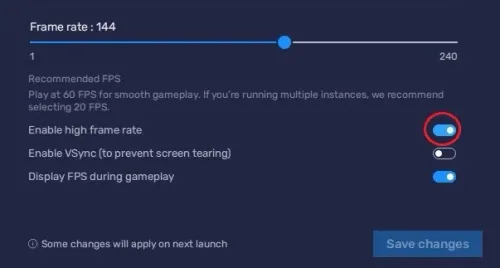
Under Performance Mode, set the option to Balanced. This will reduce the memory and CPU usage if your PC lags or you otherwise encounter low performance. I prefer to enable the high FPS option and set the frame rate of the emulator according to my screen refresh rate.
BlueStacks Display Settings
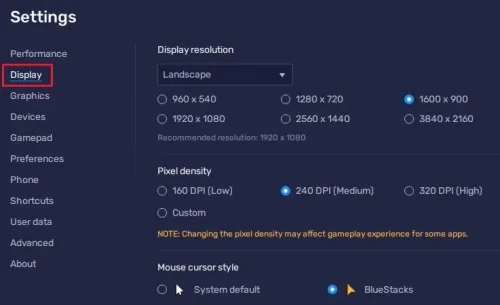
In your Display settings, set the display orientation to landscape, and choose a proper resolution to play Call of Dragons on your monitor. You can also adjust the size of this window by dragging its corners.
Call of Dragons In-Game Controls
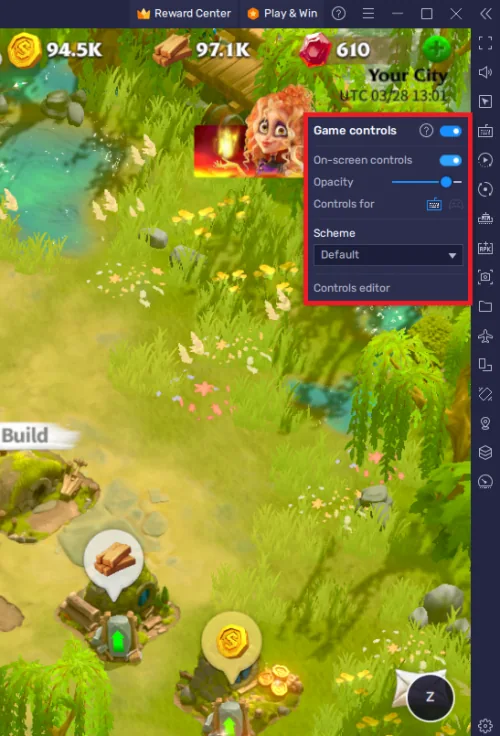
Delving into the captivating realm of Call of Dragons, you'll be eager to ensure the game runs smoothly on your PC, providing an optimal gaming experience. With default settings typically serving as a solid starting point, you can easily begin your dragon-taming journey and assess the game's performance on your system. As you become more immersed in the game, you may wish to customize your experience further. One such aspect you can tailor to your preferences is the "On-Screen Controls" feature. To access this option, simply click on the keyboard icon located on the right side of your window, and toggle the feature on or off. This handy setting not only aids in mastering the keyboard controls but also allows you to personalize the way you interact with the game. For example, you can choose to use the classic WASD keys for navigation or opt for the arrow keys, depending on your comfort and familiarity with these input methods. By providing such versatile and user-friendly options, Call of Dragons ensures that every player can enjoy a seamless gaming experience tailored to their unique preferences. The game's ability to adapt to different play styles and hardware configurations is just one of the many reasons why Call of Dragons continues to captivate players and dominate the fantasy gaming landscape. So, whether you're a casual gamer or a seasoned veteran, you can rest assured that Call of Dragons will deliver an unforgettable adventure on your PC.
Call of Dragons In-Game Settings
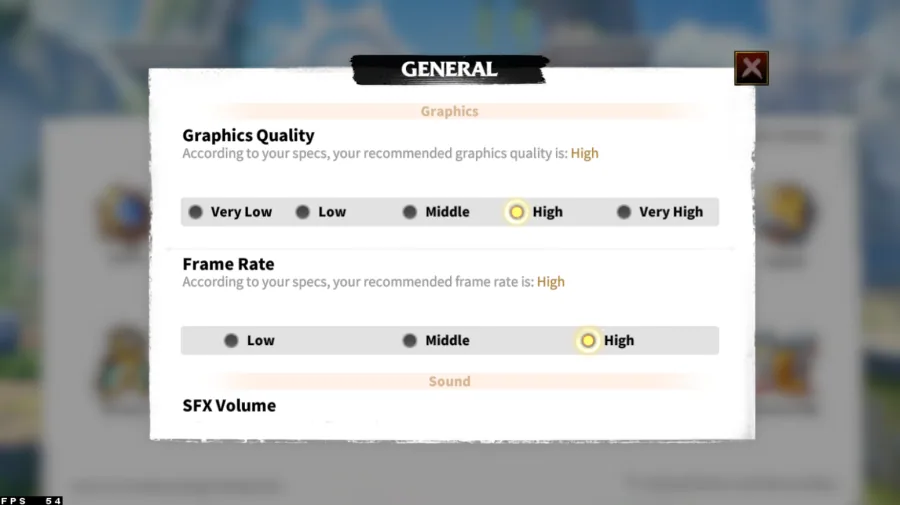
Launch the game and head over to your in-game settings. The General section of your settings is where you can adjust the Graphics Quality of the game. By default, the Graphics Quality is set to "High," but you can adjust it to "Low" or "Medium" if you experience any performance issues. For instance, if you're playing on an older computer or mobile device, lowering the Graphics Quality can help prevent lags or freezes. On the other hand, if you're playing on a large screen, you may want to increase the Graphics Quality to enjoy the game's stunning graphics fully. Similarly, you can adjust your frame rate to "Middle" or "High," depending on your device's performance settings and capped frame rate for the emulator. Adjusting your frame rate can help reduce screen tearing and provide a smoother gaming experience. Apart from graphics and frame rate, you can also adjust other gameplay settings such as sound effects, music, and voice volume. These settings allow you to customize your game's audio to suit your preferences. For example, if you find the sound effects too loud, you can reduce the volume to a comfortable level. Lastly, in your Account settings, you can link your social media accounts to your game account and preview your account information. This feature enables you to share your gaming experience with your friends and also view your progress and achievements.
How to troubleshoot common problems with BlueStacks on Windows
How To Fix “Device Isn’t Compatible With Bluestacks” Error; Best BlueStacks Settings for Low-End PC - Fix Lag & Boost FPS; How To Fix BlueStacks 5 Not Launching or Loading on Windows; How To Run Android 11 Apps & Games on Windows 11
Video walkthrough
If it does not work
- What is BlueStacks?. BlueStacks is a popular Android emulator that allows users to run mobile applications on their PC or Mac.
- Can I use BlueStacks to play Call of Dragons on my PC or Mac?. Yes, BlueStacks is one of the most popular Android emulators and can be used to play Call of Dragons on your PC or Mac.
- How do I download BlueStacks to my computer?. To download BlueStacks to your computer, go to the BlueStacks website and click on the "Download BlueStacks" button. Once the download is complete, follow the installation instructions to install BlueStacks on your computer.