
Gaming · Platform not recorded
Get and Use A Star Code in Roblox! - Support A Star Tutorial
Original source date
Answer
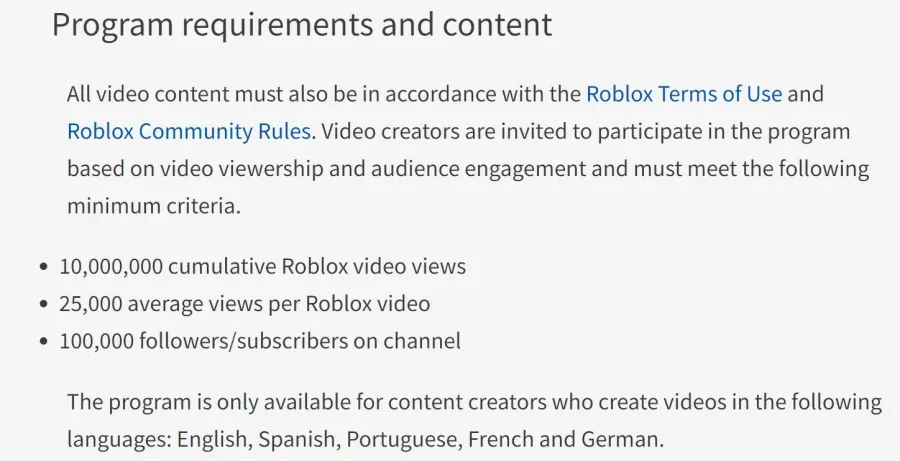
Roblox Video Stars is a program for top Roblox video content creators. Roblox provides “video stars” with benefits and tools to better engage with their fans and build their businesses. The requirement to be accepted in the Stars program is that the user's content must be in accordance with the Roblox terms of use and Roblox Community Rules. You will need at least 10 million cumulative Roblox video views, 25’000 average views per Roblox video, and at least 100’000 followers or subscribers on your channel. You can preview these requirements when visiting this page.
Roblox Video Star Requirements
Roblox Video Stars is a program for top Roblox video content creators. Roblox provides “video stars” with benefits and tools to better engage with their fans and build their businesses. The requirement to be accepted in the Stars program is that the user's content must be in accordance with the Roblox terms of use and Roblox Community Rules. You will need at least 10 million cumulative Roblox video views, 25’000 average views per Roblox video, and at least 100’000 followers or subscribers on your channel. You can preview these requirements when visiting this page.
How To Join the Roblox Video Star Program
In addition, the program is only available for content creators who create videos in English, Spanish, Portuguese, French, or German. To join the Roblox Video Stars program, you must email videostars@roblox.com, and it could take up to 2 weeks to get a response. You should include your associated channel in the email.
Program Benefits
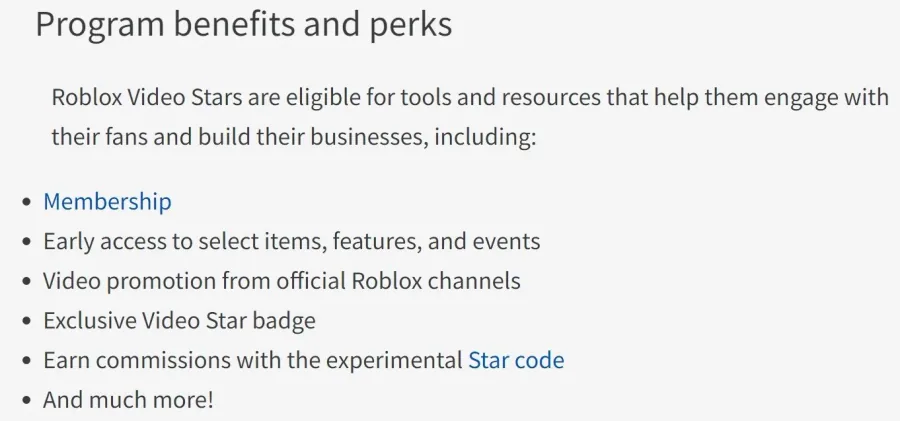
The benefits of being accepted into the program include a premium membership and early access to select items, features, and events. In addition, you will get video promotion from official Roblox channels, an exclusive video star badge, and a commission of 5% of every Robux sale when someone uses your star code. After a positive review, you will most likely get a star code assigned to your account.
Use Your Star Code
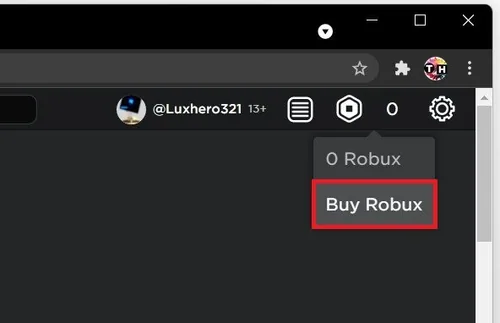
Open your browser and ensure you are logged in with your Roblox account. Click on Robux on the top right, and select to buy Robux.
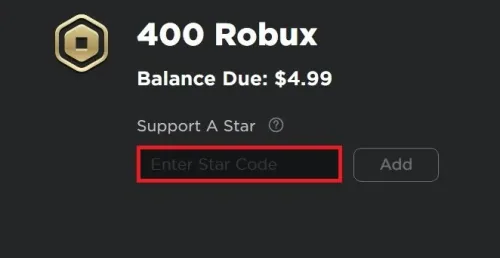
On the page, click on Click Here to add a Star Code
On the page, click on Click Here to add a Star Code. This will allow you to add a start code to support your favorite creator.
Video walkthrough
If it does not work
- If the current interface differs, compare it with the recorded video walkthrough.