
Windows 11 · Windows
Fix the Xbox App Not Opening in Windows 11
Source-checked About 10 minutes
Answer
Update Windows and Microsoft Store apps, repair the Xbox app first, then reset it or reinstall Gaming Services only if the supported repair does not work.
Record the Xbox app failure
Note whether the Xbox app shows a window, closes, or reports a Gaming Services or sign-in error. Record the Windows and app versions before repairing or resetting it.
Update Windows and Store apps
Install Windows updates, then open Microsoft Store > Library and select Get updates.
Repair the Xbox app
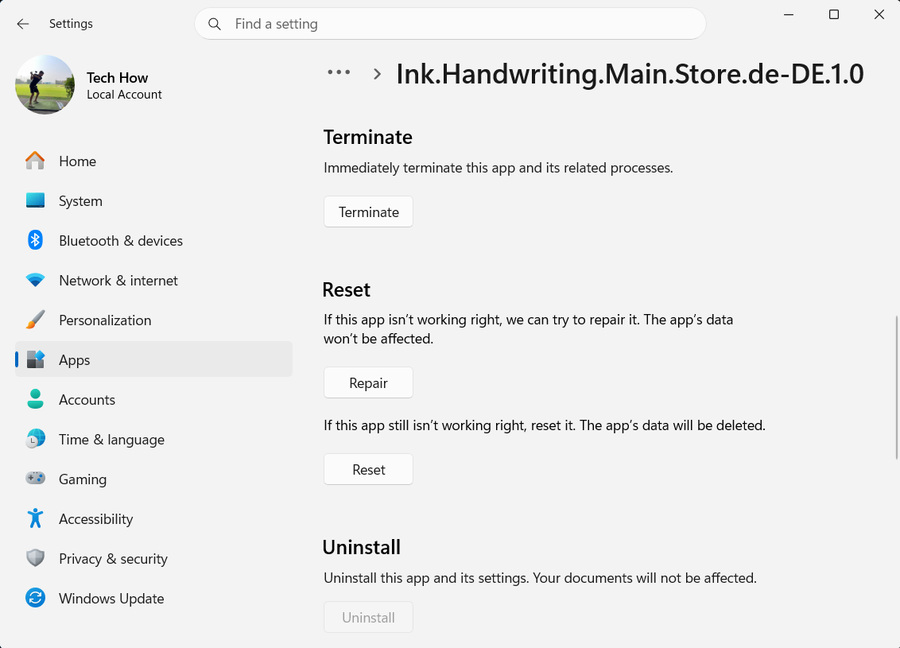
Open Settings > Apps > Installed apps > Xbox > Advanced options and select Repair. Test the app before resetting anything.
Reset only if needed
Return to Advanced options and select Reset if Repair fails. You will need to sign in again.
Reinstall from Microsoft Store
Uninstall the Xbox app and install it again from Microsoft Store. Use Microsoft or Xbox support for Gaming Services errors rather than third-party scripts.
Verify the Xbox app opens
Open the Xbox app twice, confirm the intended account and library load, and start one installed game's normal launch flow without reinstalling or repurchasing it.
Escalate Gaming Services separately
If the app opens but Gaming Services reports an error, preserve that exact code and use Microsoft or Xbox Support. Do not run third-party PowerShell removal scripts.
Video walkthrough
If it does not work
- If “Fix the Xbox App Not Opening in Windows 11” remains unresolved, identify the first numbered step that produces a different result and preserve that screen, log, file, or message. Recheck the specific account, permission, storage, connection, driver, or hardware prerequisite above, then follow only the matching Microsoft Support recovery path; do not combine unrelated resets, bypasses, unofficial installers, or third-party repair tools.
Sources and verification
Checked against official documentation on . Scope: Windows.
Follow the linked first-party guidance if labels differ after a platform update.