Windows 11 Ā· Windows

How To Set a Password on Windows 11

Original source date

Answer

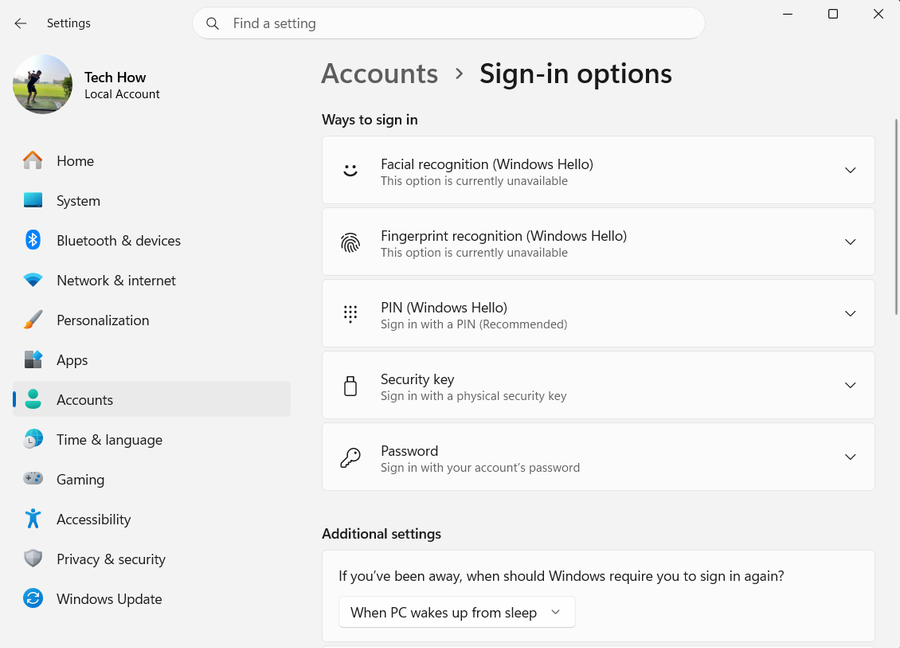
Launch Settings: Click on the Start menu and type ā€œSettingsā€, then select the Settings application from the list.; Access Account Settings: Within the settings window, navigate to the Accounts tab to explore user account related settings.; Locate Sign-In Options: Click on the Sign-In options to reveal different sign-in methods available.

Navigating to Password Settings šŸ› ļø

Launch Settings: Click on the Start menu and type ā€œSettingsā€, then select the Settings application from the list.; Access Account Settings: Within the settings window, navigate to the Accounts tab to explore user account related settings.; Locate Sign-In Options: Click on the Sign-In options to reveal different sign-in methods available.

sign in options
sign in options

Enabling Password Setup šŸ”

Troubleshoot Password Section Visibility: If the Password section is not visible, it might be due to the Windows Hello feature being prioritized for sign-in.Adjust Windows Hello Settings: Under Additional settings, toggle the option ā€œFor Improved security, only allow Windows Hello sign-in for Microsoft accounts on this deviceā€ to OFF.; Adjust Windows Hello Settings: Under Additional settings, toggle the option ā€œFor Improved security, only allow Windows Hello sign-in for Microsoft accounts on this deviceā€ to OFF. With these steps, you are now ready to either set up or change your password, tailoring your sign-in preferences for enhanced security on your Windows 11 PC.

isable hello sign in

Configuring Your Password šŸ”‘

Revisiting Account Settings:Navigate back to the Accounts tab and select Sign-In options to access the password settings once more.; Navigate back to the Accounts tab and select Sign-In options to access the password settings once more.; Locate Password Section:Under the Ways to sign in, you'll find the Password section. Click to unveil the options available.; Under the Ways to sign in, you'll find the Password section. Click to unveil the options available.; Adding a Password:If you haven’t set up a password previously, you’ll see an Add option. Click on it to proceed with setting up your new password.; If you haven’t set up a password previously, you’ll see an Add option. Click on it to proceed with setting up your new password.; Modifying Existing Password:If a password is already in place but you wish to change it, you'll notice a Change button instead.Click on Change to initiate the process of updating your password, ensuring your Windows 11 PC remains securely protected with a fresh password.; If a password is already in place but you wish to change it, you'll notice a Change button instead.; Click on Change to initiate the process of updating your password, ensuring your Windows 11 PC remains securely protected with a fresh password.

change password
change password

Video walkthrough

If it does not work

  • How do I set up a password on Windows 11 for the first time?. Navigate to Settings, select the Account tab, go to Sign-In options, find the Password section and click on the ā€œAddā€ button to set up your password.
  • I can’t find the Password section in Sign-In options on Windows 11, what should I do?. In the Sign-In options, look for ā€œAdditional settingsā€ and toggle off the option ā€œFor Improved security, only allow Windows Hello sign-in for Microsoft accounts on this deviceā€. Then, return to the Password section.
  • How do I change my existing password on Windows 11?. Under Sign-In options, locate the Password section, click on the ā€œChangeā€ button, and follow the prompts to update your password.
  • Is there a way to remove the password option on Windows 11?. Windows 11 emphasizes secure access; hence removing the password is not recommended. However, you can set up Windows Hello for quicker access.
  • What other sign-in options are available in Windows 11 besides password?. Windows 11 offers various sign-in methods including Windows Hello face recognition, fingerprint, a security key, or a PIN.