
Windows 11 · Windows 11
Fix Games and Apps Crashing in Windows 11
Source-checked About 25 minutes
Answer
Start with the one app that crashes: note when it closes, update it and Windows, check its requirements, and use Repair or Verify files. If many unrelated apps crash, test a clean boot and repair Windows files. Change one thing at a time so you know what fixed it.
- Name the affected appsOne app and every app are different diagnoses.
- Save the crash detailsTime, code, and action make logs useful.
- Repair before reinstallingKeep settings and downloads when possible.
Define the crash
Note the app, exact action, time, message, and whether it freezes, closes, or restarts the PC.
Check scope and requirements
Test one other trusted app. Compare the failing app's current Windows, memory, graphics, and storage requirements with the PC.
Install supported updates
Update the app from its store or publisher, install Windows updates, and use the PC or GPU maker's official graphics driver.
Repair the app
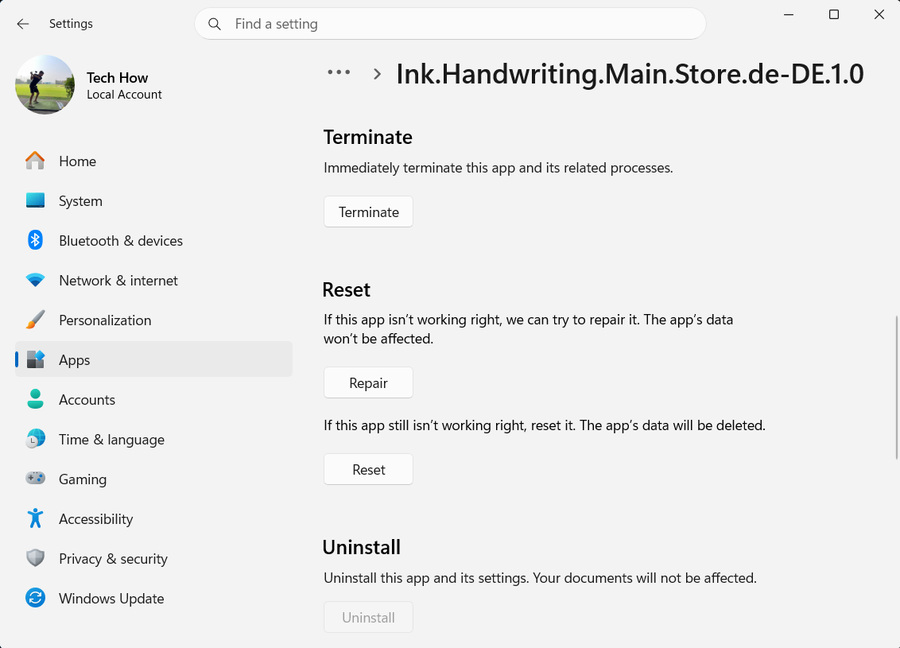
For Store apps, use Settings > Apps > Installed apps > Advanced options > Repair. For games, use the launcher's Verify or Repair command.
Remove optional conflicts
Disable the app's mods, plug-ins, overlays, and overclocks for one test. Keep security software enabled unless it reports a specific block.
Test a clean boot for widespread crashes
If several unrelated apps fail, use Microsoft's clean-boot instructions, retest, then re-enable services in groups to find the conflict.
Repair Windows for widespread errors
Run DISM RestoreHealth and then `sfc /scannow` only when built-in and unrelated apps also fail. Verify the original action twice afterward.
If it does not work
- If the whole PC restarts or shows a blue screen, record the stop code and check hardware and drivers rather than reinstalling one game.
- If only an online match closes, check the game's service status and network separately from rendering crashes.
- If Repair removes app data, stop and back up saves or project files before using Reset or reinstall.
Sources and verification
Checked against official documentation on . Scope: Windows 11.
The written instructions were checked against the current official pages linked below. The older video is kept for reference and may show different menus.