Windows 11 · Windows

How To Fix Runtime Error in Windows 11

Original source date

Answer

The first step in our troubleshooting journey involves ensuring your Windows 11 operating system is up-to-date. As a best practice, Microsoft regularly rolls out updates and patches that address a range of known issues, including those that can cause runtime errors. Here's how you can check for and install updates: Navigate to your Windows Settings.; In the settings menu, locate and click on 'Window Update.'; Once there, press 'Check for Updates.' If updates are available, go ahead and download them. Following their successful download, proceed with their installation. In certain instances, your PC might need to restart to properly integrate these updates - it's a small inconvenience that could well resolve the runtime error plaguing your system.

Keeping Your Windows 11 OS Updated

The first step in our troubleshooting journey involves ensuring your Windows 11 operating system is up-to-date. As a best practice, Microsoft regularly rolls out updates and patches that address a range of known issues, including those that can cause runtime errors. Here's how you can check for and install updates: Navigate to your Windows Settings.; In the settings menu, locate and click on 'Window Update.'; Once there, press 'Check for Updates.' If updates are available, go ahead and download them. Following their successful download, proceed with their installation. In certain instances, your PC might need to restart to properly integrate these updates - it's a small inconvenience that could well resolve the runtime error plaguing your system.

windows update
windows update

Managing 3rd Party Software and Conducting a Clean Boot

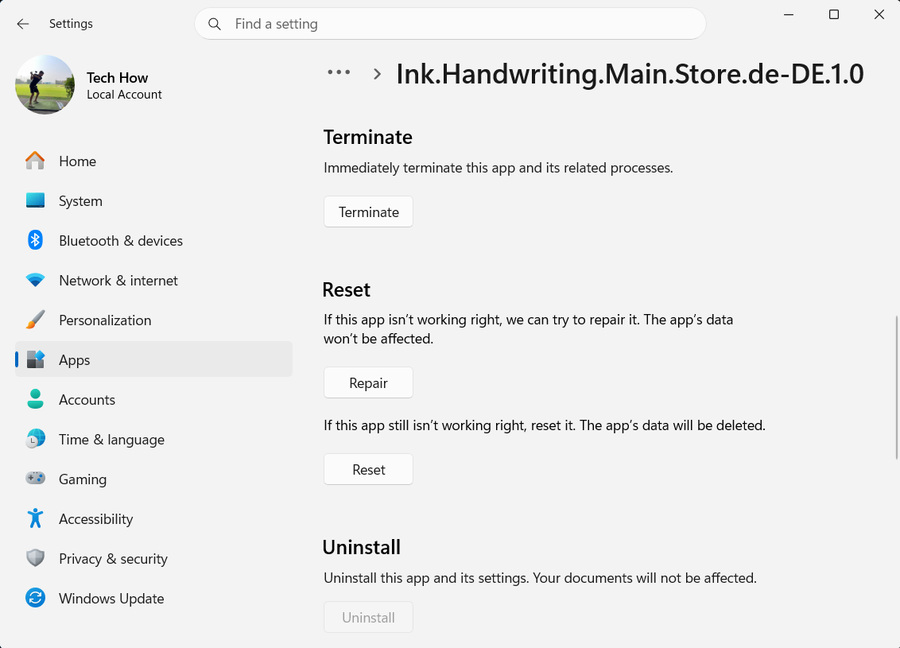
On occasion, third-party software may clash with your system, leading to runtime errors. When faced with such a problem, consider any new applications or software that you've recently installed. Either uninstalling or updating the problematic software can be a potential solution. However, if you're uncertain about the software causing the error, initiating a clean boot can be an effective way to isolate and resolve the issue. A clean boot ensures your system starts up with only essential drivers and startup programs, eliminating potential software conflicts.

uninstall apps
uninstall apps

Follow these steps to perform a clean boot:

Initiate the Windows Services Manager application by typing 'msconfig' into your start menu search.; Opt for 'Hide all Microsoft services,' then press 'Disable all.'; Continue to the 'Startup' tab and choose 'Open Task Manager.'; Now, disable each startup item one by one. After executing these steps, reboot your PC to check if the runtime error persists.

windows system config

Revamping Device Drivers

Runtime errors can frequently be attributed to outdated or corrupted device drivers. Fixing this issue involves updating your device drivers, with a special emphasis on the graphics card and chipset drivers. To execute this, launch your Device Manager through your start menu search. Upon locating the respective device, right-click, select 'Update Driver,' and then 'Search automatically for driver software.' Refresh your computer after completing the driver updates to ensure all changes are properly implemented.

update driver
update driver

Conducting a Comprehensive Malware Scan

Occasionally, malware or other undesired files can be the culprits behind the runtime error you're encountering. A thorough scan with a trustworthy antivirus program becomes essential under these circumstances. If you haven't installed an antivirus yet, don't fret. You can employ the built-in Windows Security app for this task. To begin, go to your Windows settings and click 'Windows Security' under the 'Privacy & Security' section. Navigate your way to 'Virus & Threat Protection,' and initiate a full system scan. Follow the on-screen instructions to eliminate any threats detected by the scan.

virus protection
virus protection

Execute the SFC Scan on your Windows 11 System

On certain occasions, corrupted system files might be the underlying cause of the runtime errors you're encountering. To investigate and substitute these corrupted files with functional copies, you can leverage the utility of your command prompt application. To initiate this, search for 'Command Prompt' in your start menu search. Bear in mind, it's important to open this application with administrative rights to conduct the scan successfully. At this juncture, input the command sfc /scannow and press enter. This command embarks on a comprehensive scan of your system files. The process may require a few minutes, during which it detects and automatically repairs any found corruption. Rest assured, this scan will fortify your Windows 11 system against runtime errors, improving overall system stability.

SFC scan on windows
SFC scan on windows

Video walkthrough

If it does not work

  • What is a Runtime Error in Windows 11?. A runtime error in Windows 11 refers to a software or hardware problem that prevents certain applications or programs from working correctly. It's often due to issues like outdated OS, conflicting third-party software, corrupted drivers, malware, or system file corruption.
  • How do I fix a Runtime Error in Windows 11?. There are several methods to resolve runtime errors in Windows 11. Keeping your system up-to-date, disabling conflicting third-party software, updating outdated drivers, scanning for malware, and running an SFC scan are some effective solutions.
  • How can I prevent Runtime Errors on my Windows 11 PC?. Regular maintenance like updating your Windows 11 OS, keeping your drivers current, regularly scanning for malware, and conducting periodic system file checks can help prevent runtime errors.
  • Does updating my drivers help fix runtime errors in Windows 11?. Yes, outdated or corrupted drivers can often trigger runtime errors. Updating your device drivers, especially those for the graphics card and chipset, can resolve these errors.
  • What is the SFC /scannow command?. The 'sfc /scannow' command is a System File Checker tool in Windows that scans and repairs corrupted system files, potentially resolving runtime errors.