Windows 11 · Windows

WiFi Not Working on Windows 11 Fix - Not Showing, Not Connecting

Original source date

Answer

Open up your Windows Services Manager by searching for Services in your start menu search. Click on any service and start typing WLAN AutoConfig. Right-click the service and navigate to its properties.

Restart the Wi-Fi Process on your PC

Open up your Windows Services Manager by searching for Services in your start menu search.

Services > Windows Services Manager

Click on any service and start typing WLAN AutoConfig

Click on any service and start typing WLAN AutoConfig. Right-click the service and navigate to its properties.

WLAN AutoConfig > Properties

In the General tab, ensure the Startup Type is set to Automatic, and the status i…

In the General tab, ensure the Startup Type is set to Automatic, and the status is running. Otherwise, click on Start to start the service.

WLAN AutoConfig Properties > General > Services Status

Update Network Adapter Driver

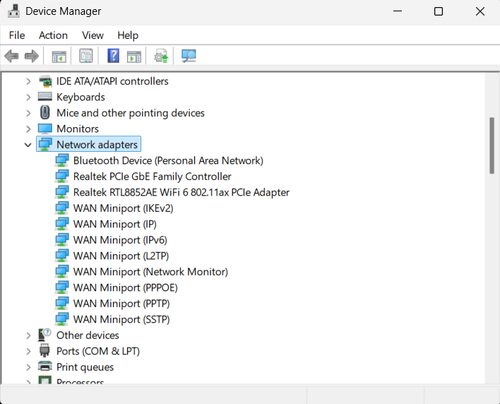
You should ensure that your network adapter’s driver is current. Search for Device Manager to open it up. Expand your Network Adapters, right-click the one you are using, and select Update Driver. Search automatically for drivers, which will take a second to ensure that your network adapter is running the latest driver.

Device Manager > Device > Update Driver

Disable Network Connection Bottleneck

Open up your Windows settings when this is done, and you’re still experiencing WiFi-related issues. In the Network & Internet section, you can preview your current internet connection. Ensure that the WiFi option is enabled.

Windows Settings > Network & Internet > WiFi

Click on WiFi and then on Manage known networks

Click on WiFi and then on Manage known networks.

WiFi > Manage Known Networks

Click on the WiFi connection that is not working on your system and make sure tha…

Click on the WiFi connection that is not working on your system and make sure that the Metered connection option is disabled.

Manage Known Networks > Disable Metered Connection

Reset Your Network Connection

Navigate to your Advanced Network Settings in your Network & Internet settings.

Windows Settings > Network & Internet > Advanced Network Settings

Click on Network Reset

Click on Network Reset. This will allow you to reset your current WiFi connection. This can help a lot when you’re unable to connect to the internet, even though you’re able to connect to your router. While resetting your connection, you should also restart your router or modem if you haven’t done this in a while.

Advanced Network Settings > Network Reset

Troubleshoot Common Internet Connection Issues

If nothing helped you, then navigate to your System settings and select Troubleshoot.

System Settings > Troubleshoot

Under Other Trouble-shooters, run the Internet Connections troubleshooter

Under Other Trouble-shooters, run the Internet Connections troubleshooter.

Troubleshoot > Other Troubleshooters

This will take a moment to detect common issues with your connection

This will take a moment to detect common issues with your connection.

Run the Internet Connections trouble-shooter

Restart Windows 11

Restart your PC after making all of these changes. Restarting your PC will restart some processes and services which could prevent you from connecting to the internet.

Video walkthrough

If it does not work

  • Why is my WiFi not working on Windows 11?. There are various reasons why your WiFi may not be working on Windows 11, such as outdated drivers, incorrect network settings, and hardware issues. It could also be due to a recent software update or a virus on your device.
  • How can I check if my WiFi is turned on in Windows 11?. To check if your WiFi is turned on, click on the network icon in the taskbar, which should be on the right-hand side of the screen. If WiFi is turned off, click on the WiFi button to turn it on.
  • What can I do if my WiFi is slow on Windows 11?. If your WiFi is slow on Windows 11, you can try moving closer to your router or modem, clearing your browser cache, or resetting your network settings. You can also try disabling any unnecessary applications or programs that may be using up your network bandwidth.
  • Can I troubleshoot my WiFi issues on Windows 11 by myself?. Yes, you can troubleshoot your WiFi issues on Windows 11 by yourself, using the steps provided in this article. However, if you are still experiencing issues or are not comfortable troubleshooting on your own, it is recommended to seek professional help.