
Windows 11 · Windows
Fix high CPU usage in Windows 11
Source-checked About 10 minutes
Answer
Sort Task Manager by CPU, update the app causing sustained usage, reduce unnecessary startup work, and isolate third-party services with a clean boot.
Measure sustained usage
Open Task Manager and sort Processes by CPU. Ignore short spikes and identify the process that stays high.
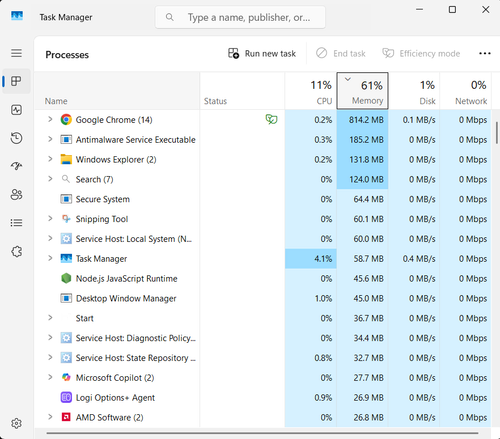
Update the responsible app
Save work, close the app, install its current update, and test the same action again.
Reduce background load
Disable unnecessary Startup apps, close unused apps, and run a Windows Security scan.
Isolate the cause
Install Windows updates and perform a clean boot if the owner is unclear. Do not disable Windows security services as a performance fix.
Verify the result for the sustained CPU process
Idle CPU settles after startup and the representative workload completes without the original sustained spike or loss of system protection.
Narrow down problems with the sustained CPU process
If usage returns after reboot, System interrupts dominates, one service cannot be identified, or high temperature and clock reduction continue, stop broad resets and return to the last known state. Capture the exact error, versions, hardware or account scope, and failed step before using the linked official support channel.
Video walkthrough
If it does not work
- If the sustained CPU process is unchanged after the documented check, return to the first observed condition and identify whether it affects one app, account, device, or every task before repeating steps.
- If the labels differ after an update or the device is managed, retain the exact condition and use the linked owner source before removing data, resetting Windows, or installing an unrelated tool.
Sources and verification
Checked against official documentation on . Scope: Windows.
Follow the linked first-party guidance if labels differ after a platform or app update.