
Windows 11 · Windows
Turn on Bluetooth and connect a device in Windows 11
Source-checked About 10 minutes
Answer
Turn on Bluetooth, put the accessory in pairing mode, select Add device, and remove and re-add it if the first pairing fails.
Check the accessory and adapter
Charge the exact accessory, confirm it is not connected to another nearby device, and verify Windows shows a Bluetooth toggle before removing pairings or changing drivers.
Choose first pairing or reconnection
For a new accessory, put it in pairing mode and use Add device. For a saved accessory, try Connect first and remove the pairing only if reconnection fails.
Prepare the accessory
Charge the device, turn it on, and place it in pairing mode within range of the PC.
Turn on Bluetooth
Open Settings > Bluetooth & devices and turn on Bluetooth.
Add the device
Select Add device > Bluetooth and choose the accessory when it appears.
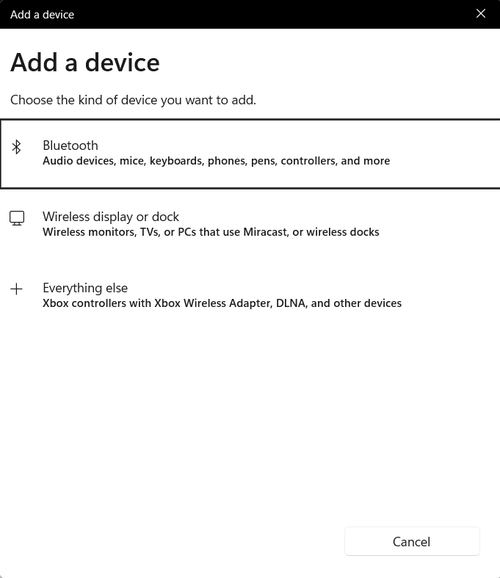
Fix a failed pairing
Remove the device, restart Bluetooth, and add it again. Run the Bluetooth troubleshooter and update the driver if it remains unavailable.
Verify the result for the Bluetooth accessory
The exact accessory connects, exposes the intended audio or input profile, and reconnects after being powered off and on. Repeat the original task once after reopening the relevant app or settings page, so a temporary screen refresh is not mistaken for a completed result.
Narrow down problems with the Bluetooth accessory
If the device never advertises, a duplicate stale entry returns, only one Bluetooth profile connects, or Device Manager shows no adapter, stop broad resets and return to the last known state. Capture the exact error, versions, hardware or account scope, and failed step before using the linked official support channel.
Video walkthrough
If it does not work
- If the Bluetooth accessory is unchanged after the documented check, return to the first observed condition and identify whether it affects one app, account, device, or every task before repeating steps.
- If the labels differ after an update or the device is managed, retain the exact condition and use the linked owner source before removing data, resetting Windows, or installing an unrelated tool.
Sources and verification
Checked against official documentation on . Scope: Windows.
Follow the linked first-party guidance if labels differ after a platform or app update.