
Windows 11 · Windows
Fix the Wi-Fi Option Missing from Windows 11 Settings
Source-checked About 10 minutes
Answer
Turn off Airplane mode, enable the Wi-Fi adapter in Device Manager, restart WLAN AutoConfig, and reinstall the PC maker's wireless driver if the adapter is missing.
Confirm whether Windows detects Wi-Fi hardware
Check Airplane mode, Quick Settings, and Device Manager. Record the PC model and wireless adapter name before installing a driver or restarting a service.
Check hardware controls
Turn off Airplane mode and enable any physical wireless switch or keyboard Wi-Fi key on the laptop.
Enable the adapter
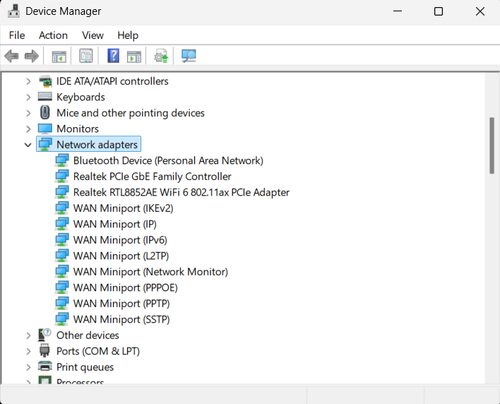
Open Device Manager > Network adapters, right-click the wireless adapter, and choose Enable device if available.
Restart the Wi-Fi service
Press Windows + R, enter services.msc, open WLAN AutoConfig, set it to Automatic, and restart the service.
Install the correct driver
Use Windows Update optional updates or download the exact wireless driver from the PC manufacturer on another device.
Check missing hardware
If no wireless adapter appears even after Scan for hardware changes and restart, check BIOS settings or contact the PC maker for hardware service.
Verify Wi-Fi survives a restart
Confirm the Wi-Fi control appears, the intended network is discovered, and Windows reconnects after restart with the same official adapter driver.
Video walkthrough
If it does not work
- If Wi-Fi remains absent, verify the PC has a detected wireless adapter and hardware switch and use its maker's exact driver. Do not install a guessed adapter package.
Sources and verification
Checked against official documentation on . Scope: Windows.
Follow the linked first-party guidance if labels differ after a platform update.