Productivity · Windows
How To Fix Wi-Fi Icon Not Showing Up on Windows 10/11
Original source date
Answer
Occasional glitches with system components like the Network Adapter may lead to the disappearance of the Wi-Fi icon. A simple power flush can be a quick fix to this hiccup: Step 1: Press and hold the Power button for about 60 seconds to completely turn off your system.; Step 2: Wait for a brief 10 to 15 seconds before turning on your system again.; Step 3: Check if the Wi-Fi icon has reappeared on your taskbar.
Power Flushing: A Quick Reset
Occasional glitches with system components like the Network Adapter may lead to the disappearance of the Wi-Fi icon. A simple power flush can be a quick fix to this hiccup: Step 1: Press and hold the Power button for about 60 seconds to completely turn off your system.; Step 2: Wait for a brief 10 to 15 seconds before turning on your system again.; Step 3: Check if the Wi-Fi icon has reappeared on your taskbar.
Enabling Your Network Adapter: A Direct Approach
An accidentally disabled Wi-Fi network adapter can also be the culprit behind the missing Wi-Fi icon. Here’s how to ensure it’s enabled: Step 1: Navigate to your Control Panel, and head over to "Network and Internet" > "Network and Sharing Center".; Step 2: Click on "Change Adapter Settings" which will display a list of network connections.; Step 3: Right-click on your wireless network adapter, and select 'Enable'. If it’s already enabled, try disabling and then re-enabling it to refresh the connection. These straightforward techniques address the common issues that might be hiding the Wi-Fi icon, ensuring you stay connected to the digital realm effortlessly.

Utilizing Network Connections Troubleshooter
Windows has built-in troubleshooters designed to identify and rectify various component issues. The Internet Connections troubleshooter is your go-to tool for Wi-Fi related problems: Step 1: Open your Windows settings and navigate to "System" > "Troubleshoot".; Step 2: Under “Other Troubleshooters”, locate and run the “Internet Connections” troubleshooter.; Step 3: Allow a few seconds for Windows to diagnose and address any Wi-Fi related issues, potentially restoring the Wi-Fi icon to your taskbar.

Activating WLAN Autoconfig Service
The WLAN Autoconfig service is pivotal for Wi-Fi functionality. If it's inactive or not set to “Automatic”, the Wi-Fi icon might play hide-and-seek with you. Here's how to ensure it's properly set up: Step 1: Access the Windows Services manager by typing “services.msc” in your start menu search.; Step 2: Begin typing “WLAN AutoConfig” to quickly locate the service, then right-click to access its properties.; Step 3: If the service is running, stop it, then start it again to refresh its settings.; Step 4: Restart your PC to ensure all changes take effect, checking for the reappearance of your Wi-Fi icon. By employing these troubleshooting steps, you're on a robust path to reclaiming the elusive Wi-Fi icon, ensuring a steady sail in your online adventures.

Updating Network Adapter Driver
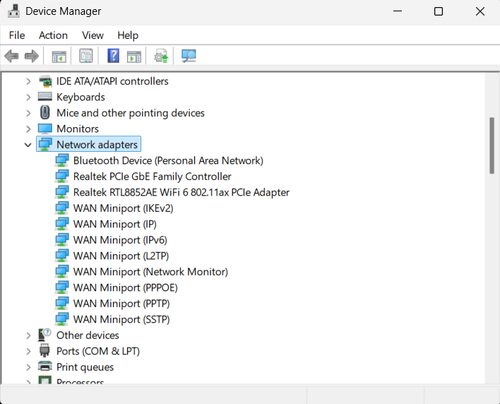
An outdated or corrupted network adapter driver could be the invisible wall between your system and its Wi-Fi icon. Ensuring your driver is up-to-date is crucial: Step 1: Launch "Device Manager" from your start menu or control panel.; Step 2: In the Device Manager window, expand the 'Network Adapters' section to view all network devices.; Step 3: Right-click on the network adapter in use (for example, "Realtek PCIe GBE Family Controller") and select "Update Driver."; Step 4: Opt to "Search automatically for updated driver software" and allow Windows to find and install the latest driver for your adapter.

Resetting Network Settings
When the usual fixes fall short, a network settings reset could be the silver bullet: Step 1: In the start menu search bar, type "Network Reset" and select the option that appears.; Step 2: In the new window, click on “Reset Now” to initiate the network settings reset.; Step 3: Acknowledge the warning prompt, understanding that this action will reinstall all network adapters and reset network configurations to their default settings. A fresh start with updated drivers or reset network settings can often clear the clouds, bringing back the essential Wi-Fi icon on your Windows 10/11 taskbar.

Video walkthrough
If it does not work
- Why is my Wi-Fi icon not showing up on Windows 10/11?. The absence of a Wi-Fi icon could stem from various issues including disabled network adapter, outdated network adapter drivers, or system glitches that can be resolved through power flushing, driver updates, or resetting network settings.
- How can power flushing help in restoring the Wi-Fi icon?. Power flushing helps in resetting any temporary configurations that might be hindering the display of the Wi-Fi icon. It involves shutting down the system completely, waiting for a few seconds, and then restarting it.
- What steps should I take if my network adapter is disabled?. Navigate to Control Panel > Network and Internet > Network and Sharing Center > Change Adapter Settings. Right-click on your wireless network adapter and select 'Enable'. If it's already enabled, toggle it by disabling and then re-enabling.
- How can updating the network adapter driver fix the Wi-Fi icon issue?. Updating the network adapter driver ensures that any bugs or incompatibilities are rectified, potentially restoring the Wi-Fi icon on your taskbar.
- What does resetting network settings do and how can it help?. Resetting network settings reinstalls all network adapters and resets all network configurations to their default settings. This fresh start can help in resolving any persistent issues blocking the Wi-Fi icon display.