
Windows 11 · Windows
Fix Voice Typing ‘Something Went Wrong’ in Windows 11
Source-checked About 10 minutes
Answer
Select a working microphone, allow microphone access, connect to the internet, place the cursor in a text box, and use a supported input language before pressing Windows + H.
Confirm the symptom and protect the current Windows state
Record the Windows build, affected app or device, exact message, and the last change before the symptom began. Save open work, keep installers and recovery credentials, and create a current backup or restore point when the supported recovery may change apps, drivers, partitions, or system files. Test one supported change at a time so a useful result can be attributed and reversed.
Start with the supported check
Open Settings > System > Sound > Input and select and test the microphone.
Apply the current setting
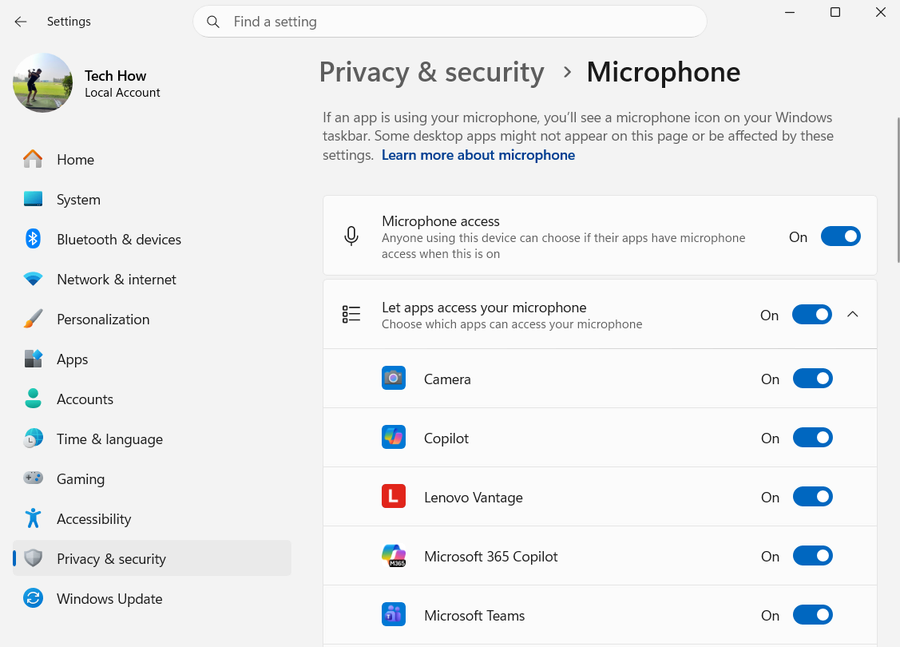
Open Settings > Privacy & security > Microphone and allow microphone access for desktop apps.
Test the result
Connect to the internet, place the cursor in a text field, and press Windows + H.
Escalate safely
If the language is unsupported, install or switch to a supported voice typing language.
Verify the intended result before broader recovery
Repeat the exact task described by “Fix Voice Typing ‘Something Went Wrong’ in Windows 11” with a harmless test. Confirm the affected app, account, device, file or setting now matches the Answer, then recheck it after one fresh session or restart when that is part of the supported workflow. Keep the original data and recorded starting state until the result is stable; if only one component still fails, keep further recovery limited to that component.
Video walkthrough
If it does not work
- If voice typing still fails, verify internet access, microphone permission and input, supported language and cursor focus in an editable field. Test the microphone in Sound settings; do not reinstall audio drivers when recording works and only the unsupported language or app is affected.
Sources and verification
Checked against official documentation on . Scope: Windows.
Follow the linked first-party guidance if labels differ after a platform update.