
Gaming · Windows
Valorant - Has Encountered An Error (Connection Problem Fix) - Windows 11
Original source date
Answer
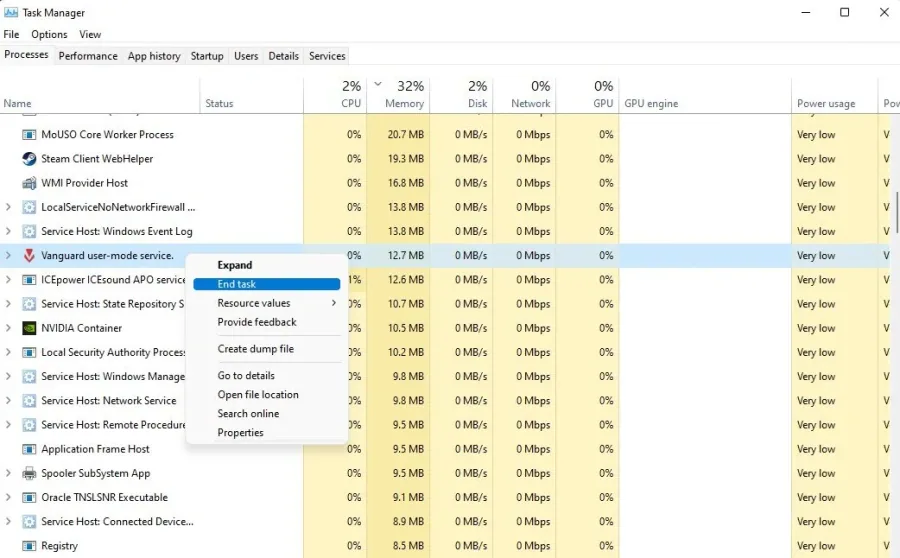
Ensure Valorant is not running on your system. Open up your Task Manager, by searching for it in your start menu search. In the Processes tab, end all Valorant, Riot Games, and Vanguard processes from running in the background while following the next steps. You should also exit out of Vanguard in your system tray.
End Valorant & Riot Games Processes on your PC
Ensure Valorant is not running on your system. Open up your Task Manager, by searching for it in your start menu search. In the Processes tab, end all Valorant, Riot Games, and Vanguard processes from running in the background while following the next steps. You should also exit out of Vanguard in your system tray.
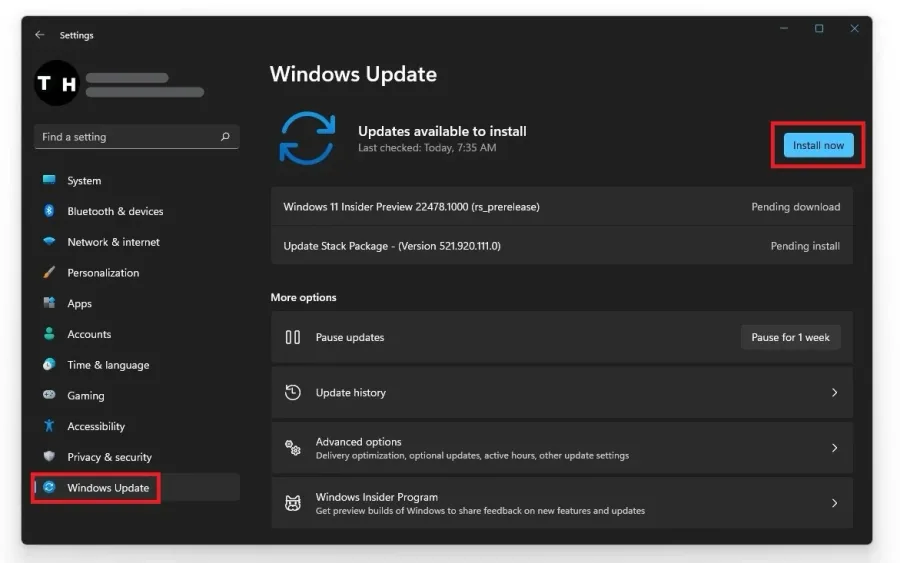
Windows Operating System Update
To update your operating system, search for Update to open up your check for updates system settings window. Click on Check for updates, Download, or Install now, to install the update to your system. This step could in some cases already fix startup and black screen issues, but if the problem persists, then you will need to reinstall Riot Vanguard to your system which is recommended by Riot themselves.
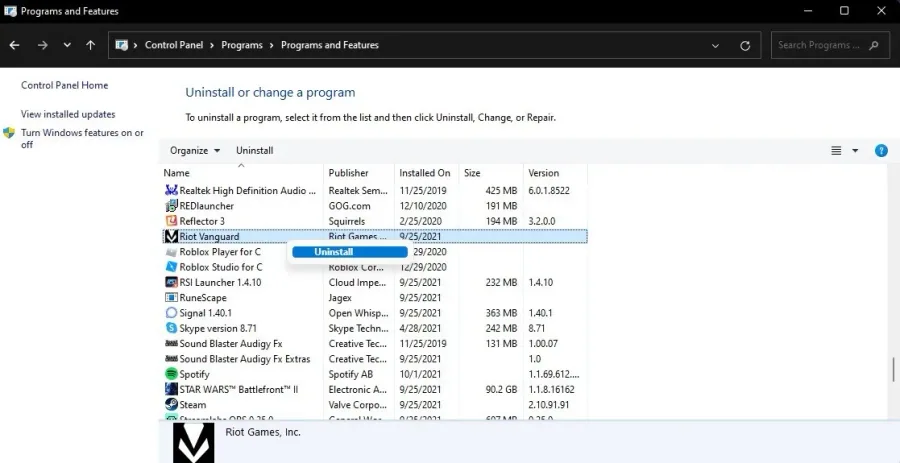
Uninstall Riot Vanguard
To do so, search for Control Panel in your start menu search to open up your Control Panel. View by: Category; under Programs, click Uninstall a program. In the list of applications, select any program and start typing Riot Vanguard. The Riot Vanguard application will show up. Right-click the app and select Uninstall, which will take a second. After relaunching Valorant, your launcher will open up, download the uninstalled program, and reinstall it to your system.
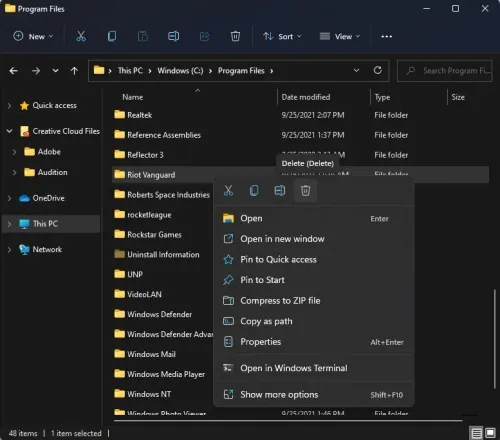
Delete the Riot Vanguard Folder
Before reinstalling Vanguard, open up your File Explorer. Navigate to your C: drive > Program Files, and delete the Riot Vanguard folder completely. After this, the game launcher will redownload and reinstall the missing files on your system.
Reset your Network Adapter
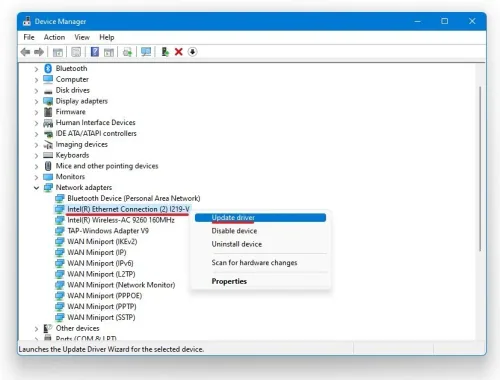
This should fix the error for most of you, but in case the problem persists, reset your network adapters and set other networking components back to their original settings. Rebooting your router or modem, as well as restarting your PC, can help you out a lot. Especially if you have network-related problems with other games or applications on your system.
Video walkthrough
If it does not work
- If the current interface differs, compare it with the recorded video walkthrough.