
Windows 11 · Windows
Update a Graphics Driver in Windows 11
Source-checked About 10 minutes
Answer
Use Windows Update first, identify the display adapter, then install a matching driver from Microsoft, the PC manufacturer or the GPU manufacturer.
Record the current display driver
Save open work. In Device Manager > Display adapters, note every listed adapter and each driver version before updating, especially on laptops with integrated and discrete graphics.
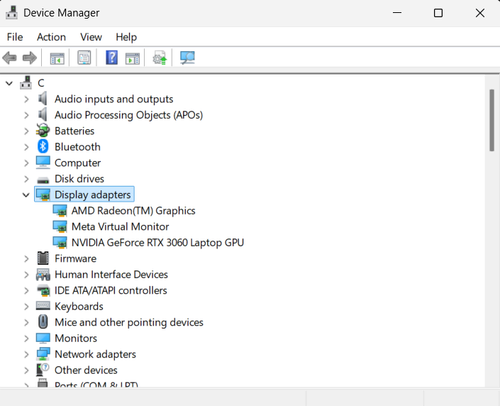
Install Windows updates
Check Windows Update and relevant Optional updates, then restart.
Update the specific adapter
Right-click the adapter > Update driver > Search automatically. If needed, use the PC or GPU manufacturer's official download tool.
Roll back a bad update
If a new driver caused the problem, open Properties > Driver > Roll Back Driver when available, then report the issue to the manufacturer.
Confirm the new driver and display behavior
Restart Windows, reopen Device Manager, and confirm the intended adapter shows the new driver version without a warning icon. Repeat the app or display task that required the update and check for flicker, crashes, or reduced resolution.
Recover from a failed driver update
If display problems begin after the update, use Roll Back Driver when available. Otherwise reinstall the exact driver from the PC or GPU maker and keep the adapter name, old and new driver versions, Windows build, and error for the manufacturer's support team.
Optional sponsored tool
Updating or rolling back a graphics driver does not require PassFab FixUWin. This optional link is retained from the original tutorial; Tech How may earn a commission at no extra cost to you.
Video walkthrough
If it does not work
- If Windows replaces the manufacturer driver again, compare the driver offered by Windows Update with the latest driver approved for the exact PC model before installing another package.
- If the screen is unusable after an update, start Windows in Safe Mode and recover the display driver rather than installing unrelated repair utilities.
Sources and verification
Checked against official documentation on . Scope: Windows.
Follow the linked first-party guidance if labels differ after a platform update.