
Windows 11 · Windows
Update Drivers Safely in Windows 11
Source-checked About 10 minutes
Answer
Windows 11 installs recommended drivers through Windows Update; you do not need to update every device manually. Check Windows Update first, then review Advanced options > Optional updates > Driver updates. Use Device Manager or the hardware manufacturer's official site only when a specific device still needs help.
Open Windows Update
Save open work, press Windows + I, and select Windows Update. Driver installation can require a restart.
Install recommended updates first
Select Check for updates. Let Windows download and install the offered recommended updates, then restart if Windows asks you to.
Review optional driver updates
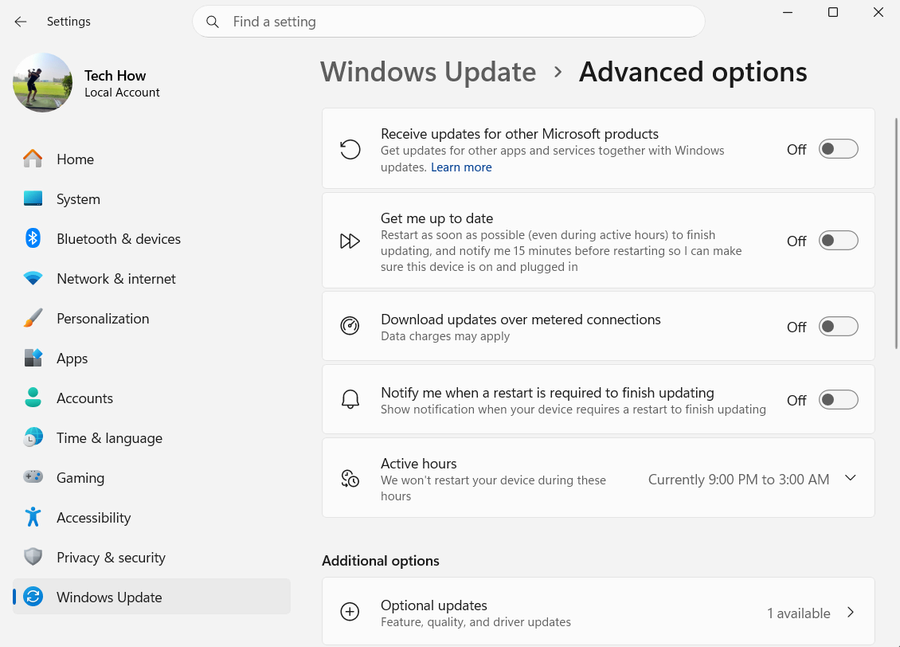
Select Advanced options. Turn on Receive updates for other Microsoft products, then under Additional options select Optional updates. Expand Driver updates if it appears, select only entries for hardware you use or a problem you are diagnosing, and choose Download and install. Do not select an unrelated preview Windows update.
Restart and test the affected hardware
When installation finishes, right-click Start and select Shut down or sign out > Restart. Repeat the exact task that previously failed, such as connecting to Wi-Fi, playing audio, printing, or opening the camera. Stop if the device now works.
Update one unresolved device
Right-click Start > Device Manager, expand the correct category, right-click the exact device, select Update driver, then Search automatically for drivers. If Windows finds nothing, use only the PC or hardware manufacturer's official support page and match the package to this Windows version and architecture.
Roll back a driver that caused a new problem
Using an administrator account, open Device Manager, right-click the device > Properties > Driver > Roll Back Driver, choose a reason, confirm Yes, and restart if prompted. If Roll Back Driver is unavailable, Windows has no previous driver stored.
Video walkthrough
If it does not work
- If Driver updates is absent, Windows Update currently has no optional driver to offer; that is not an error.
- If Device Manager finds nothing, use Windows Update or the manufacturer's official support page, not a third-party driver updater.
- If hardware stopped working immediately after an update, roll back that one driver before changing other devices.
- If Windows blocks a driver, look for a newer publisher-signed package; do not disable Windows driver security as a routine workaround.
Sources and verification
Checked against official documentation on . Scope: Windows.
Follow the linked first-party guidance if labels differ after a platform update.