
Windows 11 · Windows
Turn off a stuck Airplane mode in Windows
Source-checked About 10 minutes
Answer
Use Quick Settings or Settings > Network & internet > Airplane mode, restart Windows, then check Windows Update and the wireless adapter if the control remains stuck.
Isolate the connection, adapter, or service involved
Record whether the failure affects Wi-Fi, Ethernet, Airplane mode, one adapter, one app, or every device on the same network. Note the adapter model, connection status, exact error, and whether a known-good cable, port, network, or device works. Save VPN and organization settings before a reset, and avoid generic driver packages or broad network changes before the narrower checks.
Start with the supported check
Open Quick Settings from the network, volume, or battery area and turn Airplane mode off.
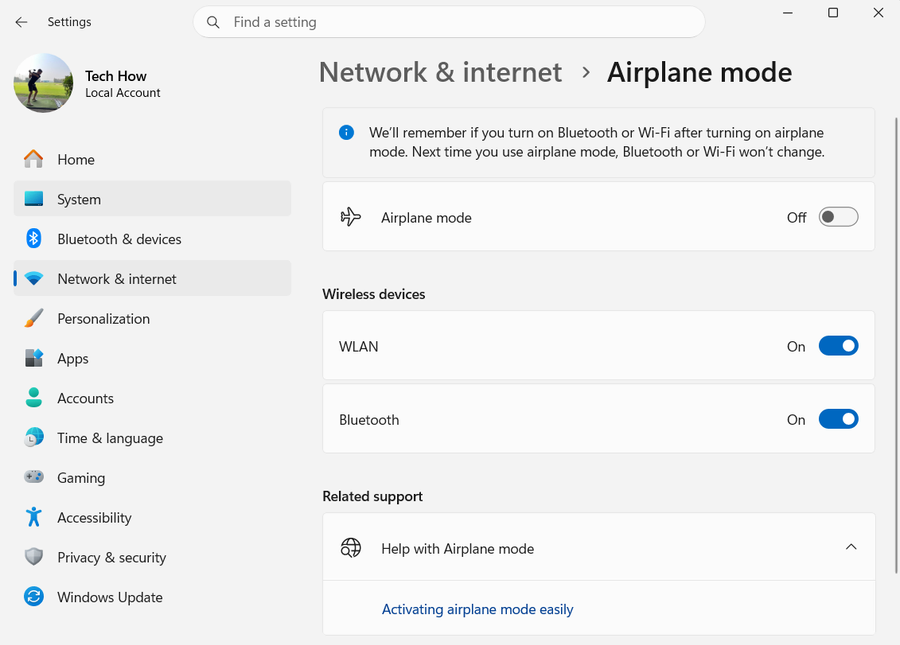
Apply the current setting
If the tile does not respond, open Settings > Network & internet > Airplane mode and turn it off there.
Test the result
Restart Windows, install updates, and check the wireless adapter in Device Manager if the setting still will not change.
Verify the intended result before broader recovery
Repeat the exact task described by “Turn off a stuck Airplane mode in Windows” with a harmless test. Confirm the affected app, account, device, file or setting now matches the Answer, then recheck it after one fresh session or restart when that is part of the supported workflow. Keep the original data and recorded starting state until the result is stable; if only one component still fails, keep further recovery limited to that component.
Optional affiliate links
Affiliate disclosure: these preserved source links may earn Tech How a commission at no additional cost to you. They are optional and do not replace the supported procedure above.
Video walkthrough
If it does not work
- If Airplane mode remains locked, confirm whether Wi-Fi and Bluetooth adapters appear in Device Manager and whether a hardware radio key or organization policy controls them. Use the PC maker's exact driver and Microsoft diagnostics rather than registry edits or a guessed adapter package.
Sources and verification
Checked against official documentation on . Scope: Windows.
Follow the linked first-party guidance if labels differ after a platform update.