
iOS · iPhone & iPad
Turn Off a Screen Time Passcode on iPhone
Source-checked About 10 minutes
Answer
For your own Screen Time settings or a child you manage, choose Change Screen Time Passcode, then Turn Off Screen Time Passcode and authenticate.
Confirm which Screen Time settings you manage
Use these steps for your own Screen Time passcode or for a child whose settings you manage through Family Sharing. Turning off the Screen Time passcode allows the corresponding limits and restrictions to be changed without that code; it does not remove the iPhone's device-unlock passcode.
Open the relevant Screen Time page
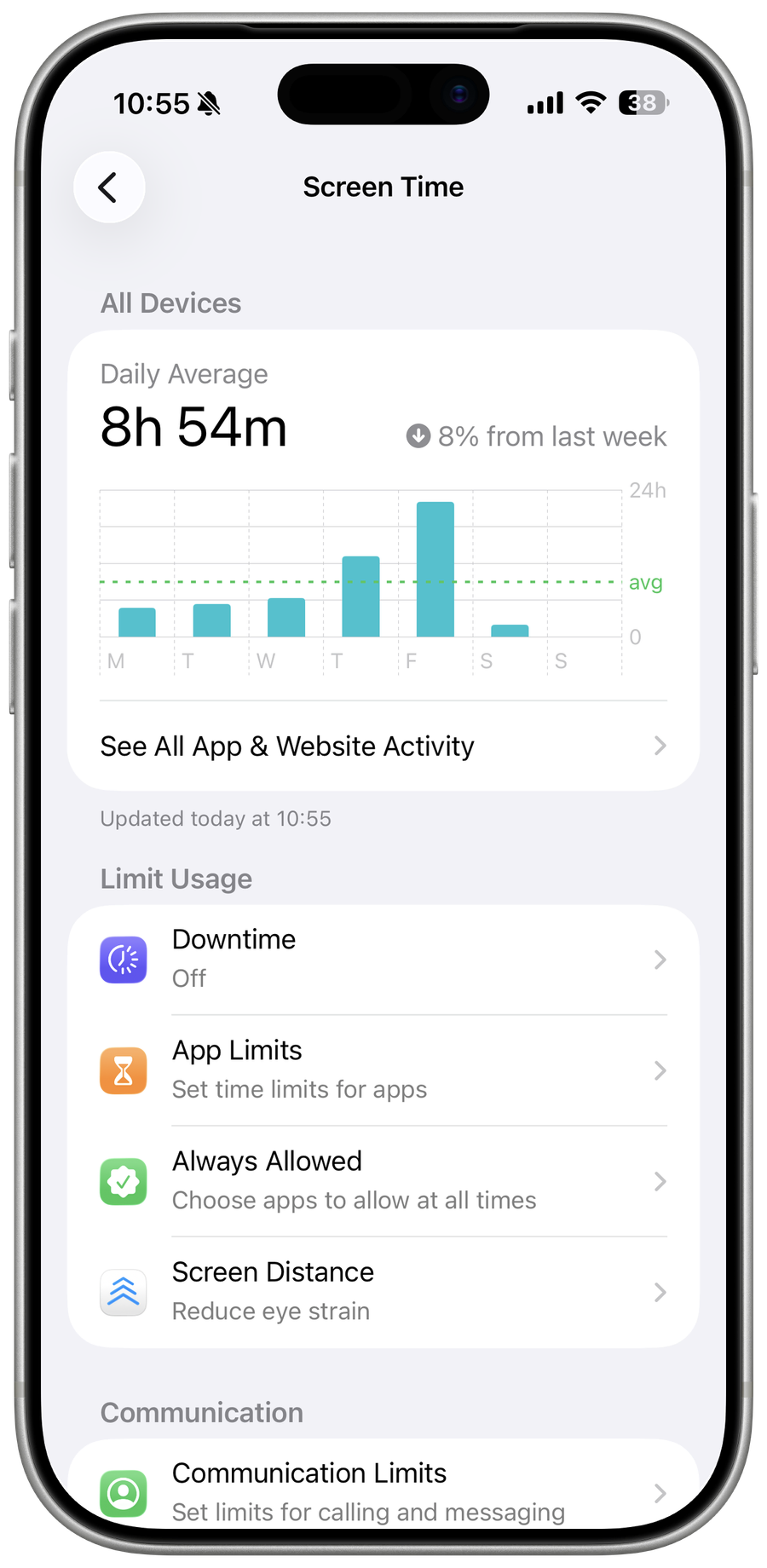
For your own device, open Settings > Screen Time. For a child in your Family Sharing group, open Settings > Screen Time, select the child under Family, then open Manage Screen Time. Confirm the displayed Apple Account or family member before changing anything.
Open the passcode control
Tap Change Screen Time Passcode, then choose Turn Off Screen Time Passcode. The wording can differ if Screen Time is managed for a child, but use the supported management page rather than attempting a shortcut, configuration-profile removal, or third-party bypass.
Authenticate and confirm
Enter the existing Screen Time passcode or complete the Apple Account authentication Apple requests. Follow the on-screen confirmation, then return to the Screen Time page and check whether Change Screen Time Passcode is still offered. Keep any Downtime, App Limits, and Content & Privacy settings you still want enabled.
Check the intended result
Open one previously restricted setting and confirm it can be changed without the Screen Time passcode. If this is a child's device, confirm that removing the passcode did not unintentionally make purchase, content, communication, or privacy restrictions editable by the child.
Troubleshoot a forgotten or managed passcode
If you forgot the code, use Apple's Forgot Passcode path with the Apple Account originally used to create it. If the child is not shown under Family, the wrong organizer is signed in, or the control is restricted by device management, stop and resolve that ownership or administration issue instead of erasing settings or following bypass instructions.
Optional sponsored tool
The supported procedure above does not require this third-party product. This optional link is retained from the original tutorial; Tech How may earn a commission at no extra cost to you.
Video walkthrough
Sources and verification
Checked against official documentation on . Scope: iPhone & iPad.
Follow the linked first-party guidance if labels differ after a platform or app update.