
iOS · iPhone & iPad
Turn Off Screen Time on iPhone
Source-checked About 10 minutes
Answer
Turn off App & Website Activity in Screen Time after reviewing the loss of reports, Downtime, App Limits, and Always Allowed settings.
Before you start
Review whether you want to stop all App & Website Activity or only change Downtime, App Limits, communication, or content restrictions. For a child, use the family organizer's device and understand that disabling activity also stops reports and related controls.
Open Screen Time
Go to Settings > Screen Time and select the relevant child if you manage one through Family Sharing. Open Screen Time for the correct person and inspect the active limits before turning everything off.
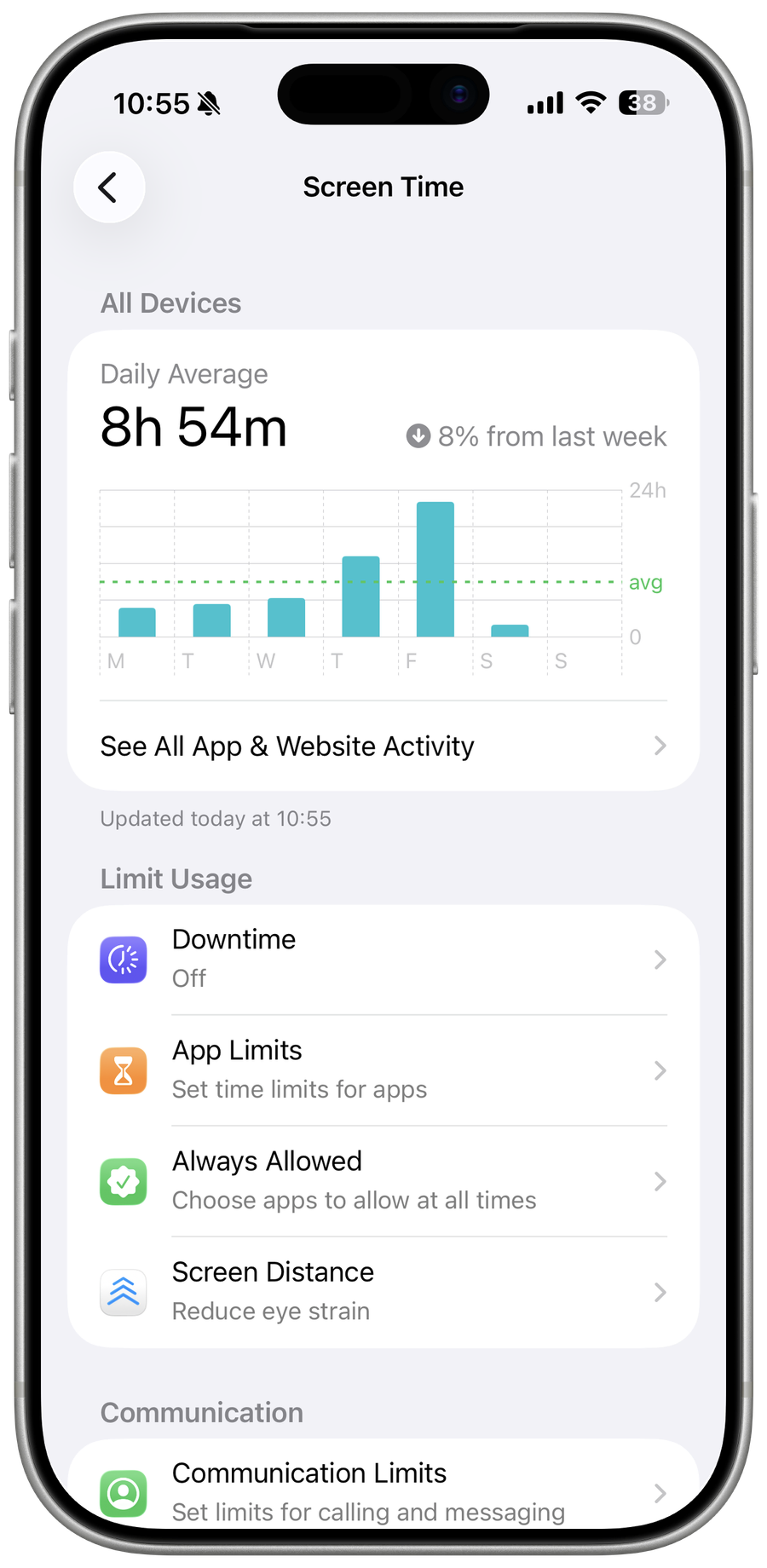
Turn off App & Website Activity
Scroll down and tap Turn Off App & Website Activity, then confirm. Use Turn Off App & Website Activity and authenticate with the Screen Time passcode or managing Apple Account when requested.
Review remaining limits
Check Downtime and App Limits if you want to remove only selected restrictions instead of all Screen Time activity. Confirm which reports, Downtime, App Limits, and Always Allowed settings will stop rather than assuming only a single app limit is removed.
Verify the result
Return to Screen Time and verify activity reporting is off, then test one formerly limited app. For a child, confirm the change from both organizer and managed device.
Troubleshoot turning off Screen Time
If the control is missing or a passcode is forgotten, use Apple's authorized recovery or Family Sharing path. If a management profile enforces restrictions, contact the administrator; do not erase the device to bypass it. You can turn activity reporting on again later, but previous limits may need to be reviewed or recreated.
Video walkthrough
Sources and verification
Checked against official documentation on . Scope: iPhone & iPad.
Follow the linked first-party guidance if labels differ after a platform or app update.