
Gaming · Platform not recorded
Steam - How To Fix Slow Download Speed
Original source date
Answer
Your download speed will largely depend on your network connection, though there are a few things you can immediately do to better your connection and download speed for Steam. First, we will change the Steam server proximity, as Steam servers are regional. Those can incorrectly read your location or be set to a suboptimal location when using a VPN service for example. Open up Steam, and click on Steam in the top left corner.
Adjust the Steam Download Settings
Your download speed will largely depend on your network connection, though there are a few things you can immediately do to better your connection and download speed for Steam. First, we will change the Steam server proximity, as Steam servers are regional. Those can incorrectly read your location or be set to a suboptimal location when using a VPN service for example. Open up Steam, and click on Steam in the top left corner.
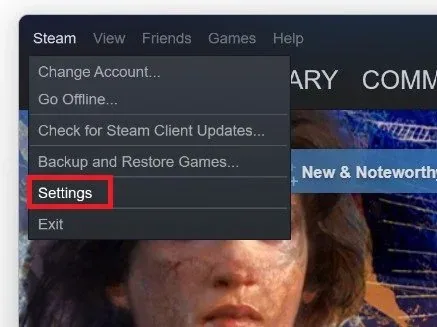
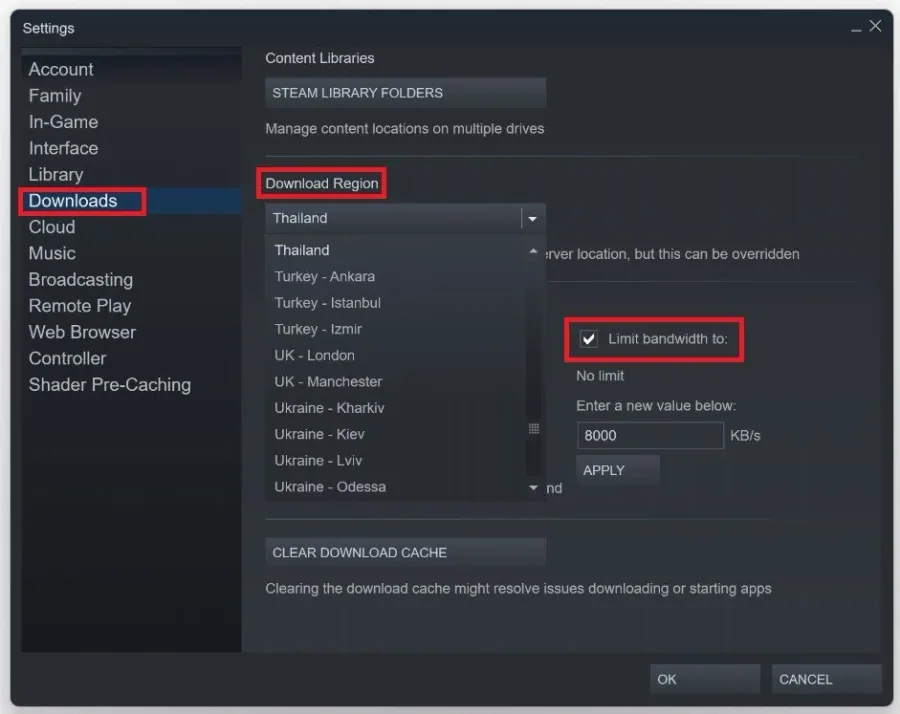
In your settings, navigate to the Downloads tab
In your settings, navigate to the Downloads tab. Select the region nearest to you for Download Region while disabling all VPN and other network services. For added measure, set the bandwidth limit to No Limit. Clear your download cache below if you haven’t done this in a while.
Update Network Adapter Driver
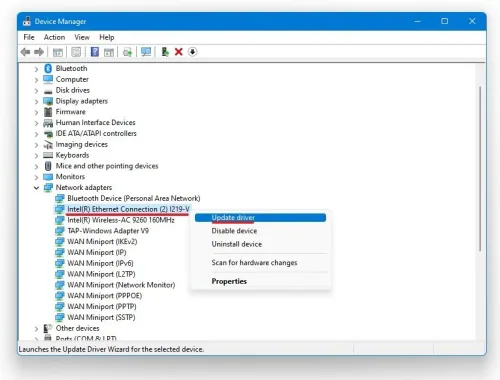
If the issue persists, ensure your network adapter driver is up to date. In your taskbar search, search for Device Manager to open up your device manager. Expand the Network adapter and locate the network adapter you are using. If you’re unsure which one you are using, repeat this step for each one. Right-click the network adapter and select Update Driver, Search automatically for updated driver software. This will make sure that your network adapter driver is up to date.
Test your Internet Connection
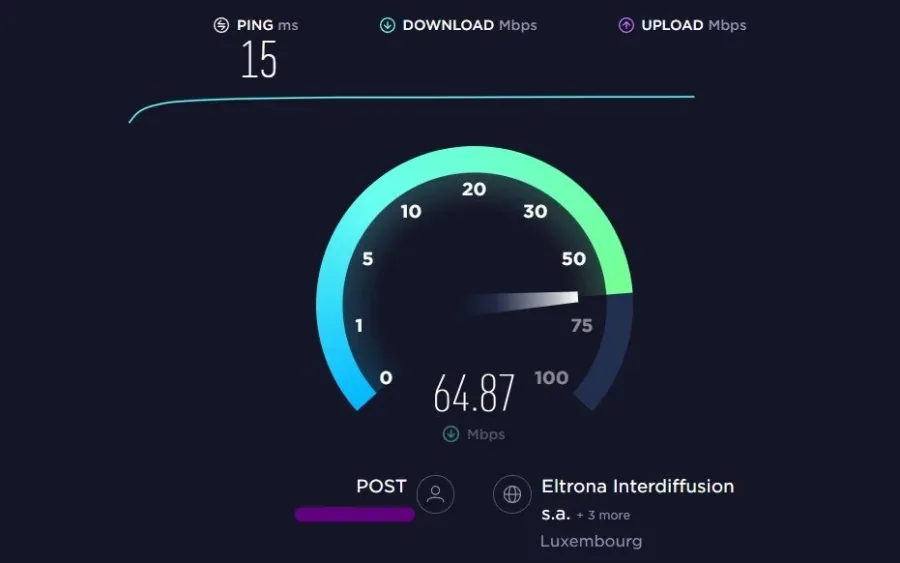
We suggest making sure that your connection issues are not hardware based. To test your connection, visit this page. A normal up & download speed, which is usually above 3 mb/s is crucial for your OS and web browsing to work properly. Use an ethernet cable to ensure the best possible connection. If you have to use a WiFi connection, then restart your router or modem if you haven't done this in a while, and reduce the number of devices connected to the same network.
End Network-Intensive Processes
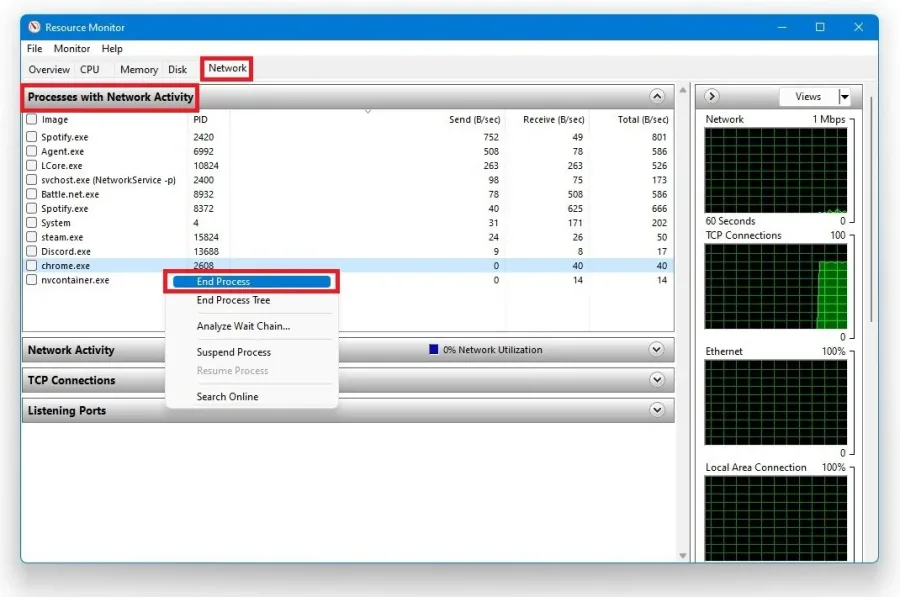
Open up your Task manager by right-clicking your taskbar and selecting it. Navigate to your Resource monitor in the Performance tab. In the Network tab, open the Processes with network activity, and after a few seconds you will see every process using your network connection. This might be your browser running in the background, steam or a download bottlenecking your connection. We suggest you only end the processes you know won't break your operating system.
Video walkthrough
If it does not work
- If the current interface differs, compare it with the recorded video walkthrough.