
Windows 11 · Windows
Speed up a Windows 11 PC
Source-checked About 10 minutes
Answer
Install updates, reduce startup and background load, free storage, scan for malware, and use the correct power mode. Avoid registry cleaners and one-click booster claims.
Confirm the symptom and protect the current Windows state
Record the Windows build, affected app or device, exact message, and the last change before the symptom began. Save open work, keep installers and recovery credentials, and create a current backup or restore point when the supported recovery may change apps, drivers, partitions, or system files. Test one supported change at a time so a useful result can be attributed and reversed.
Install Windows and driver updates
Install Windows and optional driver updates, then restart.
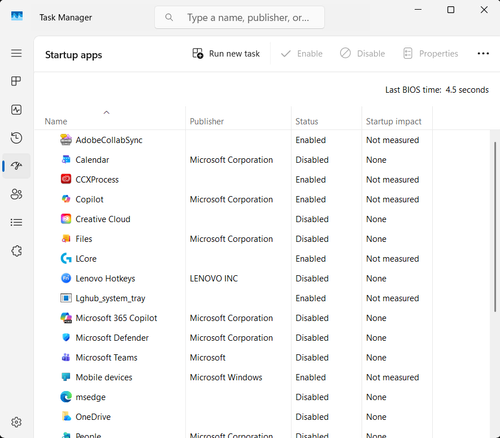
Disable unnecessary startup apps
Disable unnecessary items in Task Manager > Startup apps.
Free storage space
Use Storage settings to remove temporary files and keep adequate free space.
Scan for malware and review power mode
Run a Microsoft Defender scan and choose the power mode that matches battery life versus performance.
Verify the intended result before broader recovery
Restart the PC and repeat the same slow task while Task Manager is open. Compare startup time and the CPU, memory, and disk load with the starting measurement; keep only changes that produced a measurable improvement.
Video walkthrough
If it does not work
- If Windows remains slow, reproduce the delay while Task Manager shows CPU, memory, disk and startup impact, then address the single measured bottleneck. Preserve files before cleanup and avoid debloat scripts, service-disabling lists, registry cleaners and unsupported claims of universal performance gains.
Sources and verification
Checked against official documentation on . Scope: Windows.
Follow the linked first-party guidance if labels differ after a platform update.