Mac OS · macOS

How To Speed up Your Mac & Fix Lag

Original source date

Answer

The easiest way to quickly improve your Mac performance is by closing apps that are taking up a lot of resources. Click on the magnifying glass icon in your menu bar and search for Activity Monitor to open up the application. Your Activity Monitor will allow you to see all the applications and processes that take up most of your CPU and GPU resources. This could be Chrome, Adobe applications, or other resource-intensive applications. To completely close apps and prevent them from running in the background, use the shortcut command and Q to exit the app.

Show All Processes in Activity Monitor

The easiest way to quickly improve your Mac performance is by closing apps that are taking up a lot of resources. Click on the magnifying glass icon in your menu bar and search for Activity Monitor to open up the application.

Open Activity Monitor

Your Activity Monitor will allow you to see all the applications and processes th…

Your Activity Monitor will allow you to see all the applications and processes that take up most of your CPU and GPU resources. This could be Chrome, Adobe applications, or other resource-intensive applications. To completely close apps and prevent them from running in the background, use the shortcut command and Q to exit the app.

Activity Monitor > CPU

Force Quit Apps

Alternatively, you can navigate to the Apple icon on the top left corner of your screen and, from here, click on Force Quit. You can then select which applications should be closed.

Force Quit Applications

Mac Operating System Update

After closing your background apps, open up your System Preferences. On this window, click on Software Update. Make sure to update your Mac if an update is available. You will be required to restart your device after the download is completed, which can further improve performance if you rarely restart your system.

System Settings > Software Update

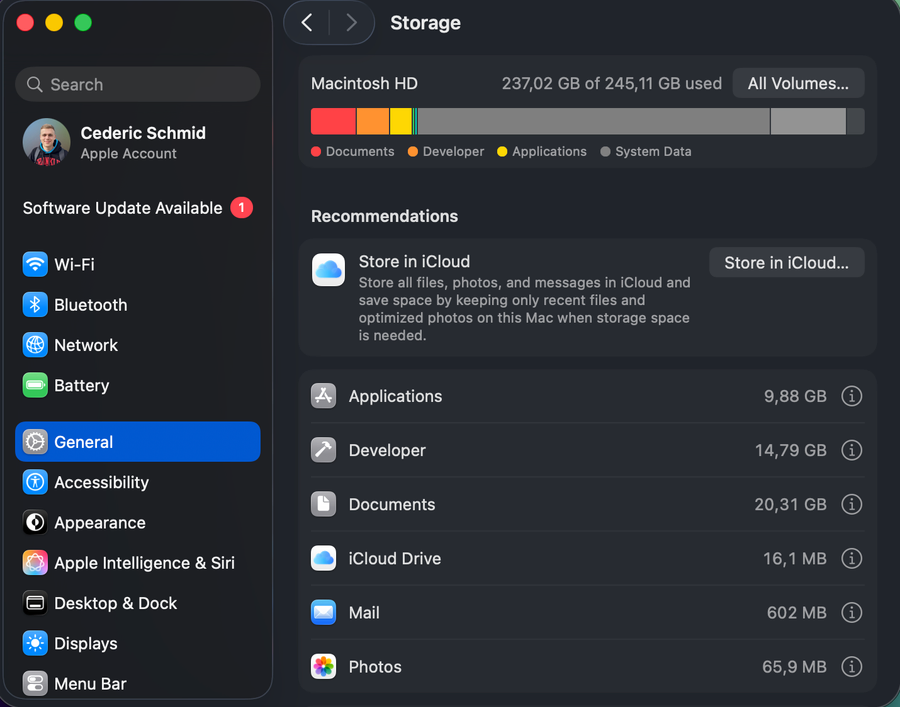
Mac OS Storage Overview

When this is done, ensure you have enough available storage space left. Having a low amount of storage left is often the culprit to low performance, as some programs require disk space to run correctly. To quickly free up some storage, you can empty your bin and delete unneeded files or applications. You can preview how much available storage you have left when clicking on the Apple icon and selecting About This Mac. In the Storage section, you can see how much storage your apps, photos, and other files are taking up.

About this Mac > Storage

Optimize Game & App Settings

Lastly, make sure that the application you’re trying to run is optimized for your device. In many cases, applications allow you to change some graphics or display settings which can have a lot of impact on the performance of your Mac. Games can be demanding on your system, but they allow you to lower your graphics settings in most cases.

Optimize Game & App Settings

Disable Power Saver Mode

While using your Mac, ensure you’re not running out of battery or plugging it in, as your device will lower its overall performance to preserve battery life.

Disable low-power mode

Video walkthrough

If it does not work

  • What causes Macs to slow down?. There are many factors that can contribute to a slow Mac, including a cluttered hard drive, outdated software, and a lack of RAM. Additionally, some Macs may be impacted by malware or viruses, which can significantly slow down performance.
  • Can I improve my Mac's performance by adding more RAM?. Yes, adding more RAM can significantly improve your Mac's performance, especially if you use resource-intensive apps like video editing software or games. Upgrading your RAM is a simple process and can be done by an Apple-certified technician, or by yourself if you know what you’re doing.