
Windows 11 · Windows
Fix a slow Windows 11 laptop
Source-checked About 10 minutes
Answer
Use Task Manager to find heavy apps, reduce startup work, free storage, install updates, and check heat or hardware limits before considering a reset.
Record one repeatable slow workload
Choose one startup or application task that is consistently slow and note its duration, charger state, free storage, and Task Manager CPU, memory, and disk use.
Match the change to the bottleneck
Close or disable only the measured cause. Do not combine startup changes, driver updates, cleanup, and power adjustments before retesting the same workload.
Measure the bottleneck
Open Task Manager and check CPU, Memory, Disk and Startup apps while the laptop is slow.
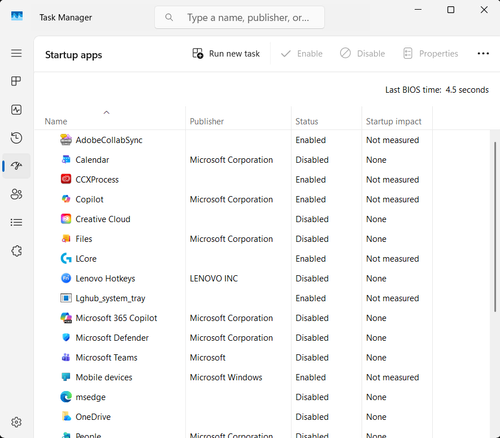
Reduce unnecessary work
Close unused apps and tabs and disable nonessential high-impact Startup apps.
Free space and update
Use Storage settings to remove unneeded files, then install Windows and manufacturer driver updates.
Check power and hardware
Use Balanced or Best performance as appropriate, keep vents clear, and run manufacturer diagnostics before replacing hardware or resetting Windows.
Verify the result for the laptop slowdown
Startup and the representative workload improve across two restarts while security, updates, battery health, and needed applications remain intact. Repeat the original task once after reopening the relevant app or settings page, so a temporary screen refresh is not mistaken for a completed result.
Narrow down problems with the laptop slowdown
If the drive reports errors, memory remains exhausted, heat lowers clock speed, or one unidentified process returns after every restart, stop broad resets and return to the last known state. Capture the exact error, versions, hardware or account scope, and failed step before using the linked official support channel.
Video walkthrough
If it does not work
- If the laptop slowdown is unchanged after the documented check, return to the first observed condition and identify whether it affects one app, account, device, or every task before repeating steps.
- If the labels differ after an update or the device is managed, retain the exact condition and use the linked owner source before removing data, resetting Windows, or installing an unrelated tool.
Sources and verification
Checked against official documentation on . Scope: Windows.
Follow the linked first-party guidance if labels differ after a platform or app update.