Windows 11 · Windows
How To Fix Slow Internet Speed on Windows
Original source date
Answer
First, open up your Task Manager. Right-click your taskbar and select Task Manager, or search for it in your start menu search. On this window, navigate to the Performance section. On Windows 11, click on this burger menu icon and select Resource Monitor. On Windows 10, you will see the Open Resource Monitor option at the bottom of this window.
End Network Intensive Processes
First, open up your Task Manager. Right-click your taskbar and select Task Manager, or search for it in your start menu search. On this window, navigate to the Performance section. On Windows 11, click on this burger menu icon and select Resource Monitor. On Windows 10, you will see the Open Resource Monitor option at the bottom of this window.

Navigate to the Network section and expand the Processes with Network Activity
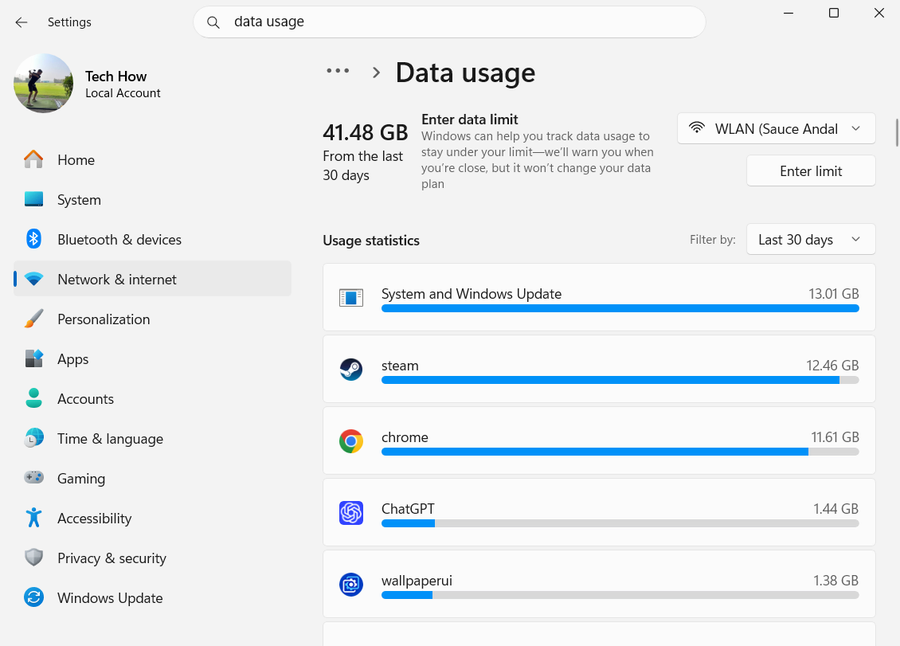
Navigate to the Network section and expand the Processes with Network Activity. This will allow you to preview all processes currently using your internet connection. Apps with higher bandwidth requirements are the Google Chrome browser, game launchers such as Steam, or other apps that allow you to download content, such as Spotify.

Application Download Settings
In some cases, applications such as Steam or the Creative Cloud will download updates in the background and clog up your bandwidth temporarily. To prevent this from happening, open up the app in question, in this example, “Steam”. Navigate to the app settings. In the Downloads section, limit your download bandwidth to around a third of your download speed. This will also come down to the write speeds of your PC’s storage. Apply the bandwidth limit, which in this case is 8MB/s.

Disable VPN Connection
After preventing applications from using your network bandwidth, open your Windows settings. Navigate to the Network & internet section and click on VPN. Prevent any VPN or proxy connection when troubleshooting a slow internet connection, as a VPN can induce slower speeds and a higher latency when enabled.

Update Network Adapter Driver
Next, make sure that your network adapter driver is up to date. Close your Windows settings and open up your Device Manager. On this window, expand your Network Adapters. Right-click the one you are using and select Update Driver. Click on Search automatically for drivers, which will take a couple of seconds to ensure your network adapter driver is up to date. If you need help determining which network adapter you are using, repeat this step for each one in this list.

Prevent Malware from Running on your PC
When this is done, prevent malware from running on your Windows PC. You can run a malware scan using your anti-virus application and ensure your Windows Firewall is active. You can scan your PC for malware using the Windows defender firewall, but it’s usually suggested to use additional security on your PC.

Reset Network Connection
You should reset your network connection if the slow internet speed problem persists. Open up your Control Panel. Make sure to view by: Category and click on Network and Internet.

Navigate to your Network and Sharing Centre, and click on Change adapter settings
Navigate to your Network and Sharing Centre, and click on Change adapter settings. Finally, right-click your active network connection and select Disable. After waiting a few seconds, right-click the connection again and choose Enable.

Delete Temporary Files
To further optimize your network connection and Windows PC, you should delete your temporary files from time to time. Open up your Windows settings. Under System, click on Storage. It might take a few seconds to load your storage information and select Temporary Files. Ensure that the Temporary Files option is selected and other files you might want to get rid of to clear up your hard drive and prevent unnecessary loading. This will include the recycle bin, Windows Update files and the content of my downloads folder.

Flush DNS Cache in Command Prompt
Lastly, reset your domain name system, or DNS, to allow a faster server connection. Search for CMD in your start menu search and open up your Command Prompt. On this window, use the command ipconfig /flushdns. This will flush and reset the content of your DNS resolver cache. If your network speed is generally slow, you must contact your ISP and ask about options for upgrading your plan, router, or both. Command: ipconfig /flushdns

Video walkthrough
If it does not work
- What causes slow internet speed on Windows?. There could be multiple reasons for slow internet speed on Windows, including outdated drivers, interference from other devices, network congestion, and incorrect network settings.
- How can I test my internet speed?. You can use an online speed test tool, such as Speedtest.net, to determine your current internet speed and identify any issues.
- Can other devices interfere with my internet speed?. Yes, other devices connected to the same network can consume bandwidth and slow down your internet speed.
- How can I reduce network congestion?. You can limit the number of devices connected to your network, prioritize bandwidth for important tasks, and disconnect from any unused networks.
- What if these steps don't work for me?. If these steps don't resolve the issue, it's possible that you have a more complex problem, such as a malfunctioning modem or router. In such cases, you may need to contact your internet service provider for further assistance.
- Can I improve my internet speed without making any hardware changes?. Yes, many simple software tweaks and optimizations can significantly improve your internet speed. These steps can help you get the most out of your existing hardware.