
Windows 11 · Windows
Show Internet Speed on the Windows 11 Taskbar
Source-checked About 10 minutes
Answer
Windows 11 does not show a live numeric transfer rate on the taskbar by default. Use a current Microsoft Store meter, or check network activity in Task Manager.
Choose live throughput or occasional inspection
Windows 11 does not provide a built-in numeric upload and download rate on the taskbar. For occasional checks, open Task Manager and review network activity. Install a persistent meter only if an always-visible third-party readout is worth its permissions and background activity.
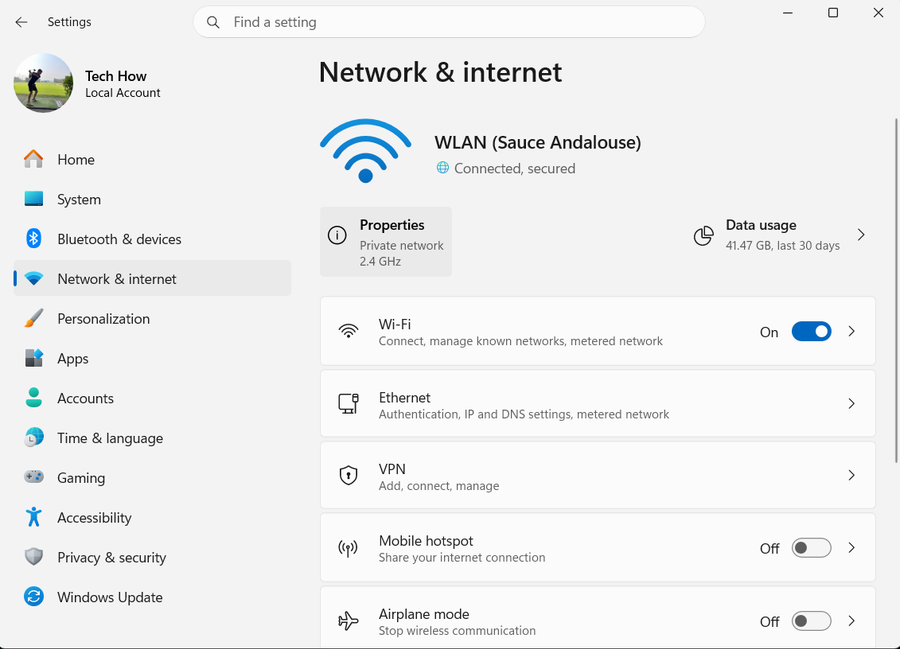
Establish a Task Manager baseline
Open Task Manager with Ctrl + Shift + Esc. In Processes, sort by Network to find active apps; in Performance, open Wi-Fi or Ethernet to view current send and receive activity. Start a permitted download and note which adapter and process actually carry the traffic.
Review the current Store listing
Open the official Net Speed Meter listing in Microsoft Store. Confirm the product ID, current publisher, supported devices, permissions, recent update information and reviews before selecting Install. The preserved video shows an older interface, so its buttons and placement may no longer match.
Configure the meter using its current controls
Open the installed app and select the units and display position it currently supports. If it offers taskbar placement, startup or keep-on-top behavior, enable only the controls you need. Avoid granting unrelated permissions or installing similarly named copies from download sites.
Distinguish throughput from connection capacity
The meter reports traffic moving at that moment, not the maximum speed of the internet plan or Wi-Fi link. A value near zero is expected when nothing is transferring. For capacity testing, pause other traffic and use a reputable speed test while connected to the intended adapter.
Optional sponsored privacy service
A VPN is not required for Task Manager or the speed meter and may change routing, latency and throughput. The original sponsored destinations are retained only for readers who independently want to evaluate a privacy service; they are not a speed fix.
Retained optional sponsored links
The supported monitoring procedure above does not require a VPN. These original destinations remain available for continuity; Tech How may earn a commission at no extra cost if a reader independently chooses the service.
Video walkthrough
If it does not work
- If the meter shows zero during an active download, compare it with Task Manager, confirm the app is reading the active Wi-Fi or Ethernet adapter, and review its unit and startup settings. Repair or reinstall only from Microsoft Store if Task Manager shows traffic but the meter remains inactive.
Sources and verification
Checked against official documentation on . Scope: Windows.
The current written procedure supersedes obsolete behavior or terminology shown in the preserved legacy video.