
Mac OS · macOS
Set Up Discord on Mac for Better Voice and Performance
Source-checked About 10 minutes
Answer
Install Discord from its official site, select the correct input and output devices, run the microphone test, and reduce optional effects if calls stutter.
Install Discord and secure the account
Confirm the exact device, account, application version, and intended result. Record the starting state and change one supported control at a time so the original configuration remains recoverable. Begin by confirming this task-specific prerequisite: Download from discord.com, sign in, enable multi-factor authentication, and review startup behavior.
Install and secure Discord
Download from discord.com, sign in, enable multi-factor authentication, and review startup behavior.
Choose audio devices
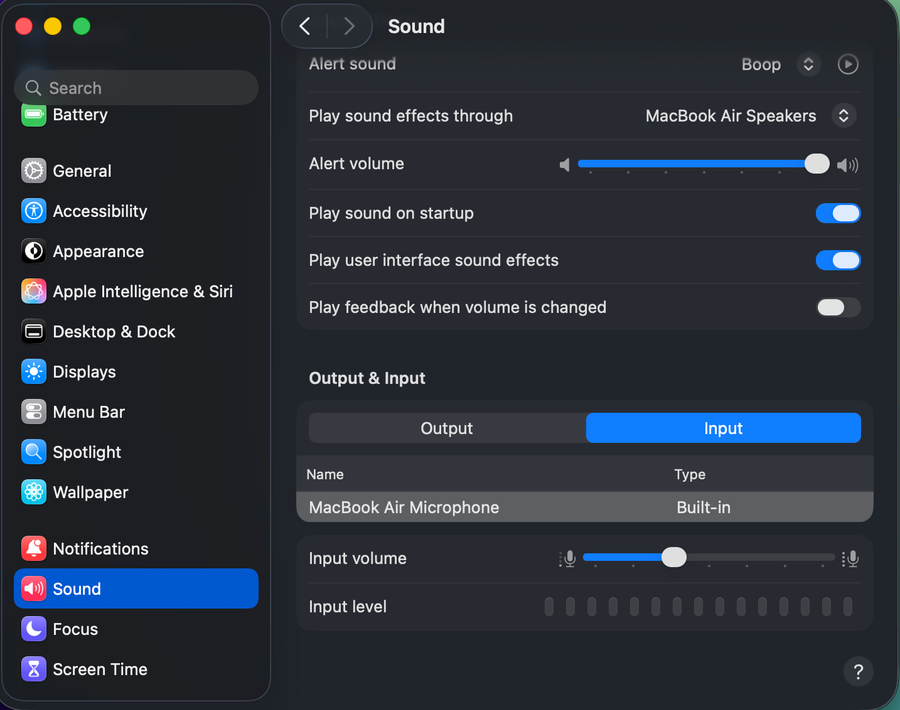
Open User Settings > Voice & Video, select the intended microphone and output, then run the mic test.
Tune voice detection
Use Voice Activity or Push to Talk and adjust sensitivity only when automatic detection misses speech or transmits noise.
Reduce call load
Close heavy apps, use a stable network, and disable optional video backgrounds or effects when calls stutter.
Run a voice and performance test
Repeat the intended action with a harmless test and confirm this final condition: Close heavy apps, use a stable network, and disable optional video backgrounds or effects when calls stutter. Reopen the relevant settings, destination, account, project, device, or output and compare it with the recorded starting state before deleting an original or relying on the change.
Collect a clean Discord voice test
If voice still stutters, test Discord’s microphone check with effects and automatic sensitivity disabled one at a time. Record the selected input and output, macOS version, Discord version, network type, and whether another calling app works before contacting Discord Support.
Video walkthrough
If it does not work
- If “Set Up Discord on Mac for Better Voice and Performance” remains unresolved, identify the first numbered step that produces a different result and preserve that screen, file, log, or message. Recheck the specific account, permission, storage, connection, source-media, or hardware prerequisite above, then follow only the matching Discord Support recovery path; do not combine unrelated resets, bypasses, unofficial installers, or third-party repair tools.
Sources and verification
Checked against official documentation on . Scope: macOS.
Follow the linked first-party guidance if labels differ after a platform or app update.