
Mac OS · macOS
Clear Safari History, Cache, Cookies, and Website Data on Mac
Source-checked About 10 minutes
Answer
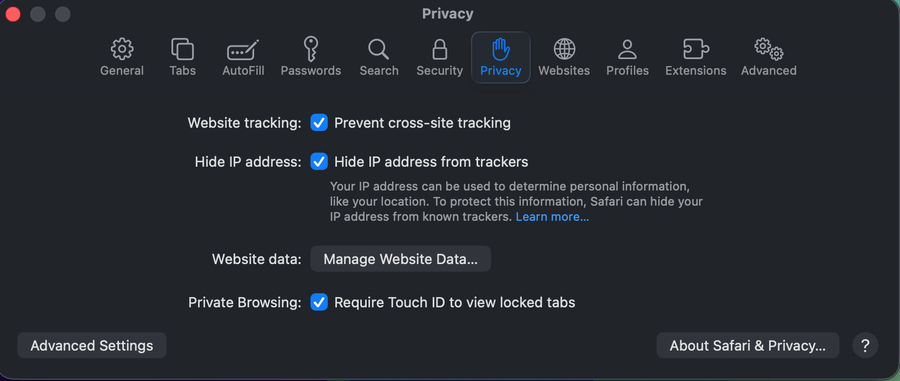
Use History > Clear History for browsing records, or Safari > Settings > Privacy > Manage Website Data to remove cookies and cached site data selectively.
Choose site-specific or all-history cleanup
Confirm the exact device, account, application version, and intended result. Record the starting state and change one supported control at a time so the original configuration remains recoverable. Begin by confirming this task-specific prerequisite: Clear one site's website data for a site-specific problem; clear all history only when you intend to remove broader browsing records.
Choose the right cleanup
Clear one site's website data for a site-specific problem; clear all history only when you intend to remove broader browsing records.
Remove website data
Open Safari > Settings > Privacy > Manage Website Data, select sites, and choose Remove or Remove All.
Clear browsing history
Choose History > Clear History and select the time range; iCloud Safari may clear history on your other devices too.
Expect sign-outs
Removing cookies can sign you out and reset website preferences; downloaded files are not deleted by clearing history.
Confirm the intended records were removed
Repeat the intended action with a harmless test and confirm this final condition: Removing cookies can sign you out and reset website preferences; downloaded files are not deleted by clearing history. Reopen the relevant settings, destination, account, project, device, or output and compare it with the recorded starting state before deleting an original or relying on the change.
Retest the affected website
Quit and reopen Safari, revisit the site, and sign in again if its cookies were removed. If only that site still fails, test a Private window and contact the site owner; clearing all website data repeatedly will not repair a server-side problem.
Video walkthrough
If it does not work
- If “Clear Safari History, Cache, Cookies, and Website Data on Mac” remains unresolved, identify the first numbered step that produces a different result and preserve that screen, file, log, or message. Recheck the specific account, permission, storage, connection, source-media, or hardware prerequisite above, then follow only the matching Apple Support recovery path; do not combine unrelated resets, bypasses, unofficial installers, or third-party repair tools.
Sources and verification
Checked against official documentation on . Scope: macOS.
Follow the linked first-party guidance if labels differ after a platform or app update.