
Gaming · Platform not recorded
Roblox - How To Get Old Cursor Back
Original source date
Answer
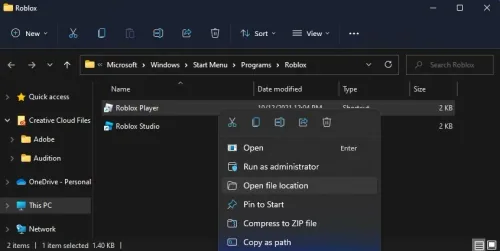
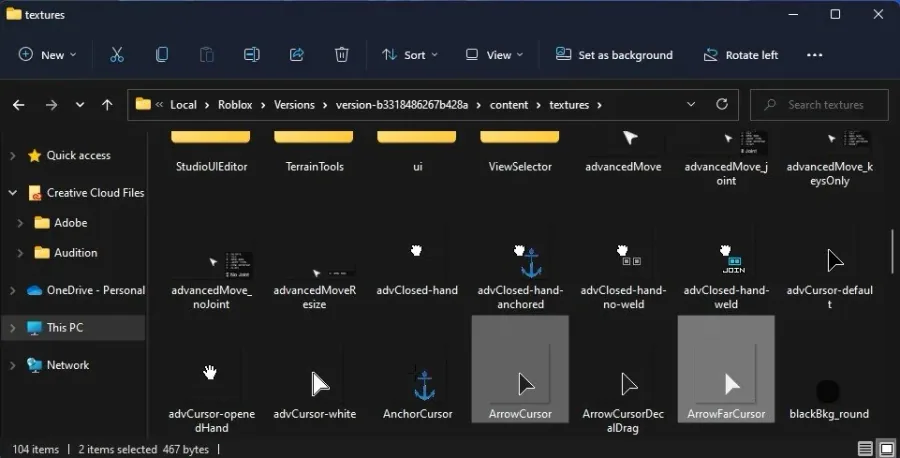
In your start menu or taskbar search, type Roblox Player. Make sure to right-click the app’s icon and select Open file location. Your File Explorer will open up. Right-click the shortcut and select Open file location again. This will open up your Roblox game files. Navigate to content > textures. In this folder, locate the ArrowCursor and ArrowFarCursor image files. Copy both of these files. If you wish to copy them at the same time, hold your CTRL key pressed and select both, use the CTRL + C shortcut to copy both files at the same time.
Copy & Replace the Roblox Cursor Files
In your start menu or taskbar search, type Roblox Player. Make sure to right-click the app’s icon and select Open file location. Your File Explorer will open up. Right-click the shortcut and select Open file location again.
Copy the Roblox Arrow Files
This will open up your Roblox game files. Navigate to content > textures. In this folder, locate the ArrowCursor and ArrowFarCursor image files. Copy both of these files. If you wish to copy them at the same time, hold your CTRL key pressed and select both, use the CTRL + C shortcut to copy both files at the same time.
Replace Arrow Files
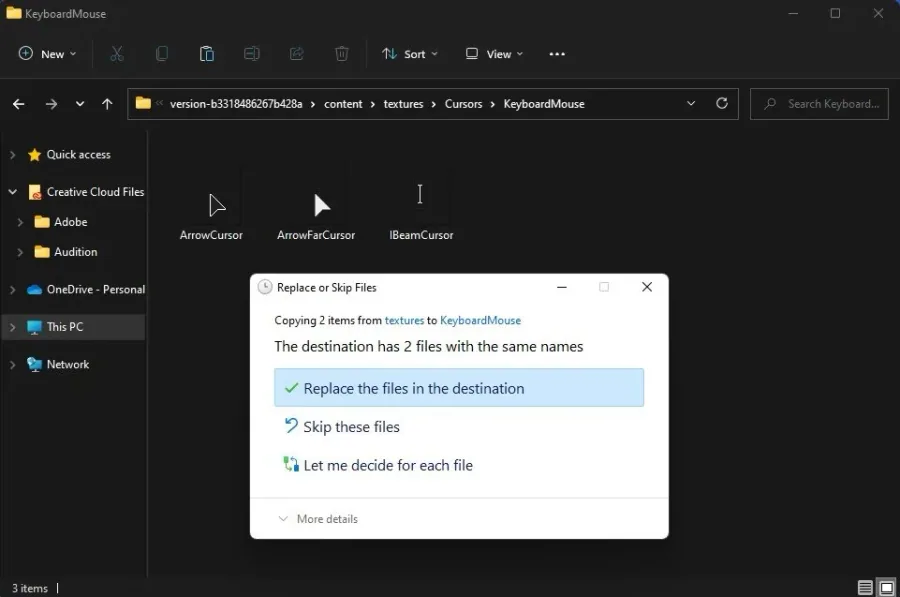
After copying these files, navigate to the Cursors folder and then KeyboardMouse. Paste your copied cursor images into the folder using the shortcut CTRL + V, or right-click in the folder and select Paste. You will be asked if you want to replace or skip the files, select Replace the files in the destination. This will allow you to use the old cursor when playing Roblox on your PC.
Video walkthrough
If it does not work
- If the current interface differs, compare it with the recorded video walkthrough.