
Gaming · PC & mobile
Roblox Mobile - How To Fix Network Lag, High Ping & Packet Loss
Original source date
Answer
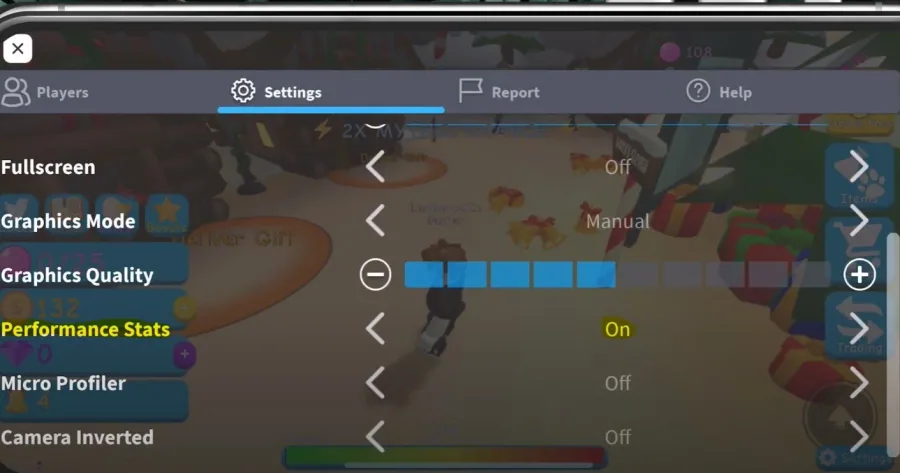
While in-game, navigate to your settings. Enable the Performance Stats option to see which effect each tweak has on your device. Especially your Ping, Up- and Download speed to the server are important to keep in mind. Close Roblox and all other applications from running in the background. You should also consider restarting your device before following any of the following tweaks, to get the most out of your device.
Enable the Roblox Performance Stats
While in-game, navigate to your settings. Enable the Performance Stats option to see which effect each tweak has on your device. Especially your Ping, Up- and Download speed to the server are important to keep in mind.
Close Background Applications
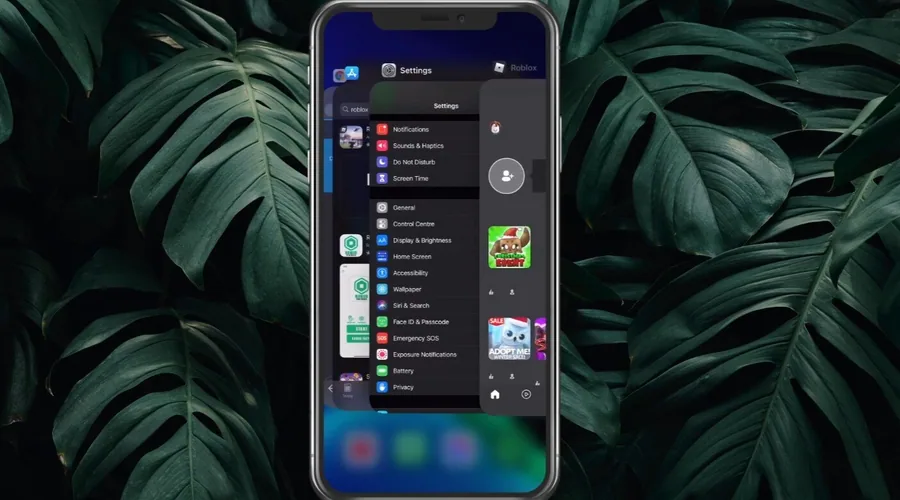
Close Roblox and all other applications from running in the background. You should also consider restarting your device before following any of the following tweaks, to get the most out of your device.
Update the Roblox App
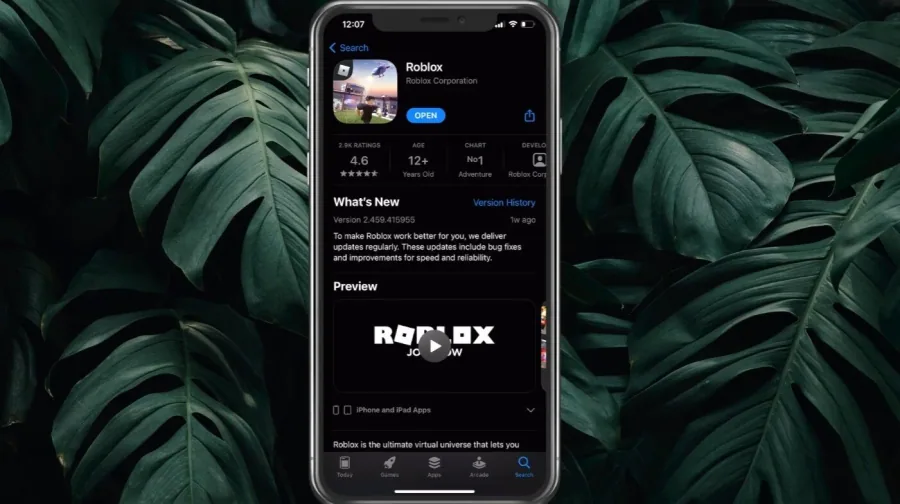
Open up your App Store or Google Play Store and ensure the Roblox app is up to date. Search for the game and select it to see if it’s up to date or not.
Test and Improve your Internet Connection
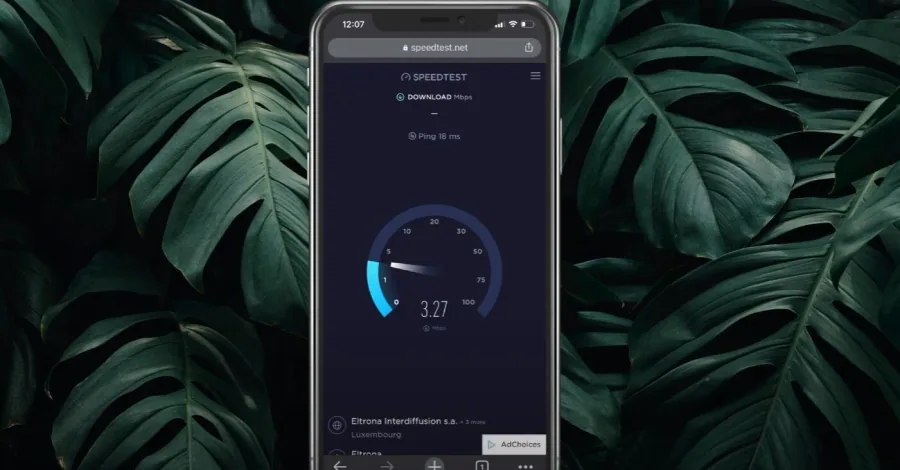
Ensure you’re using a reliable network connection by testing it on speedtest.net. You can compare your WiFi’s up & download speed to your cellular connection and see which has a better latency. In case you have to use a WiFi connection, restart your router or modem if you haven’t done this in a while and reduce the number of devices connected to the same network.
Ensure Enough Storage for Roblox
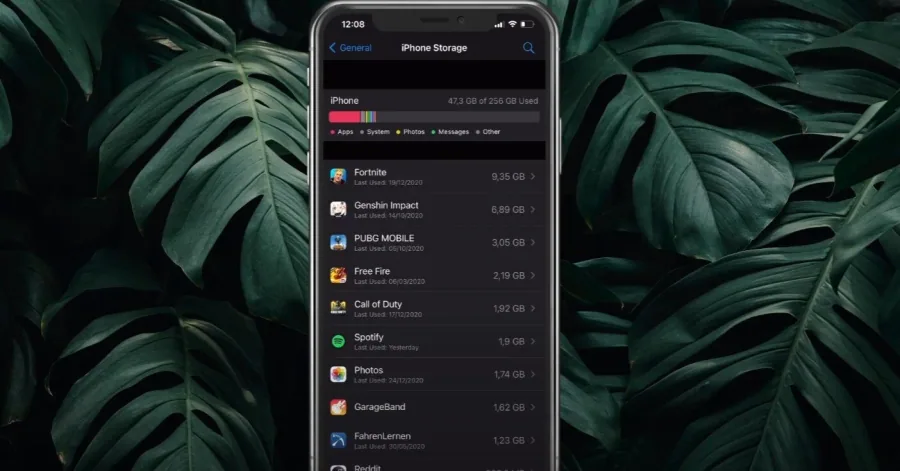
After tweaking your settings and testing your connection, open up your native settings application. Under General, tap on Storage. As you might know, your mobile device will decrease performance if your storage fills up. In case your storage is almost full, you should really consider deleting apps and movies which you no longer use on your mobile device. You can also enable the Offload unused apps option, automatically deleting unused apps.
iOS or Android Software Update
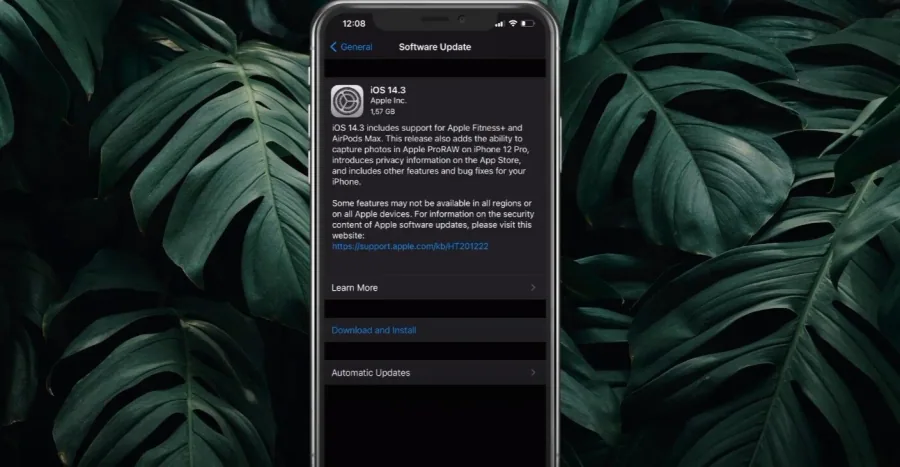
Back in the General section of your settings, tap on Software Update. Update your device in case it’s not up to date yet. This should take a couple of minutes to download and install the newest software update. Back in the general section, tap on Background app refresh. Disable this option while playing Roblox, as it will prevent other applications from using up your network connection while in-game.
Reset your Device Network Settings
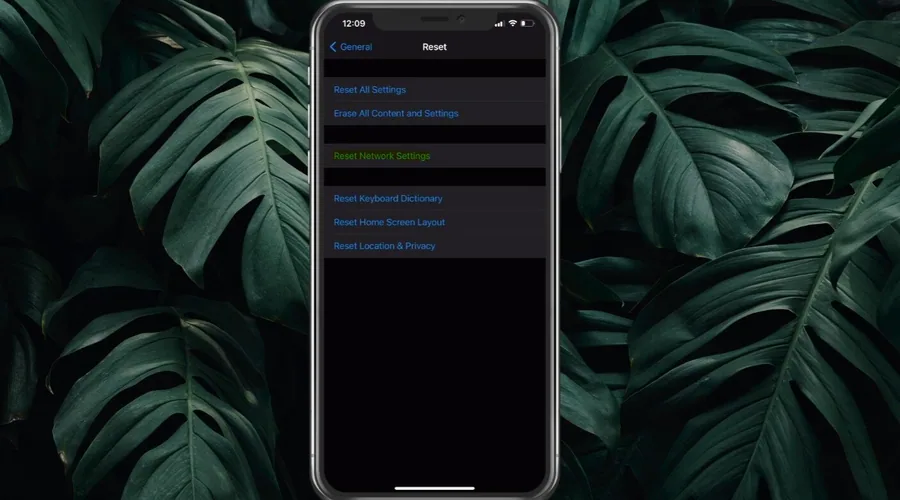
Ensure not to use a VPN service, which can sometimes induce lag and packet loss. If nothing helped you out, you will have to reset your network settings. Tap on Reset, and then Reset network settings. This should help you out, in case you made some changes to your settings that worsen your connection.
Video walkthrough
If it does not work
- If the current interface differs, compare it with the recorded video walkthrough.