
Gaming · Windows
How To Fix Roblox Game Instantly Crashing on Startup - Windows Tutorial
Original source date
Answer
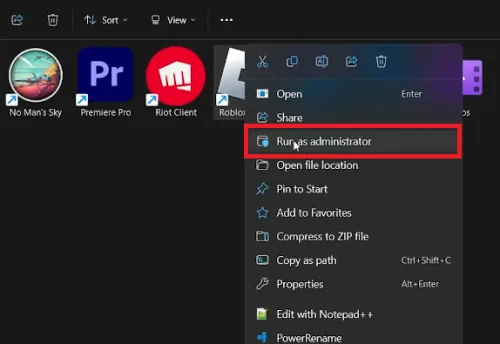
Before diving into the more technical solutions, a simple restart of your PC can work wonders. This action can clear out any minor bugs or temporary glitches that might be causing Roblox to crash as soon as you try to play. Sometimes, a recent update in Roblox might change how the game interacts with your computer. A quick fix can be to run Roblox as an "administrator" which grants it additional permissions. Here's how you do it: Right-click on the Roblox launcher icon on your desktop or search for it in the start menu.; From the menu that appears, choose "Run as administrator."
Fresh Start with a Restart
Before diving into the more technical solutions, a simple restart of your PC can work wonders. This action can clear out any minor bugs or temporary glitches that might be causing Roblox to crash as soon as you try to play.
Granting Admin Access to Roblox
Sometimes, a recent update in Roblox might change how the game interacts with your computer. A quick fix can be to run Roblox as an "administrator" which grants it additional permissions. Here's how you do it: Right-click on the Roblox launcher icon on your desktop or search for it in the start menu.; From the menu that appears, choose "Run as administrator."
Tackling Compatibility Issues
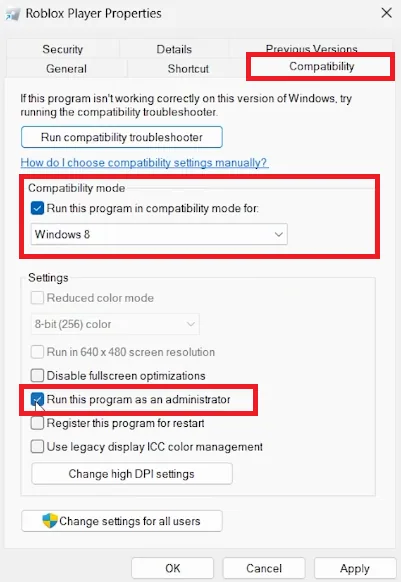
In case the admin trick doesn’t do the charm, your game might be facing compatibility issues with your Windows. Adjusting a few settings can help: Right-click on the Roblox launcher and choose "Properties."; Go to the "Compatibility" tab.; Tick the box for "Run this program in compatibility mode" and select "Windows 8" from the list.; Also, tick "Run this program as an administrator" again.; Click "Apply" and then "OK" to save these settings. Now, try launching Roblox again and see if these steps have sent the crashing issues packing!
Fresh Installation of Roblox
Sometimes, the best way to tackle persistent crashing issues is to reinstall Roblox. Here's a step-by-step guide to do it:
Uninstall Roblox:
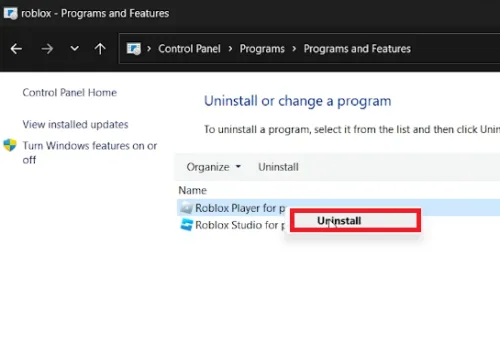
Click on the Start Menu and type "Control Panel," then press Enter.; In the Control Panel, find and click on "Uninstall a Program."; Now, look for Roblox in the search bar at the top right corner.; Click on Roblox-related applications like Roblox Player or Roblox Studio and choose to uninstall them.
Reinstall Roblox:
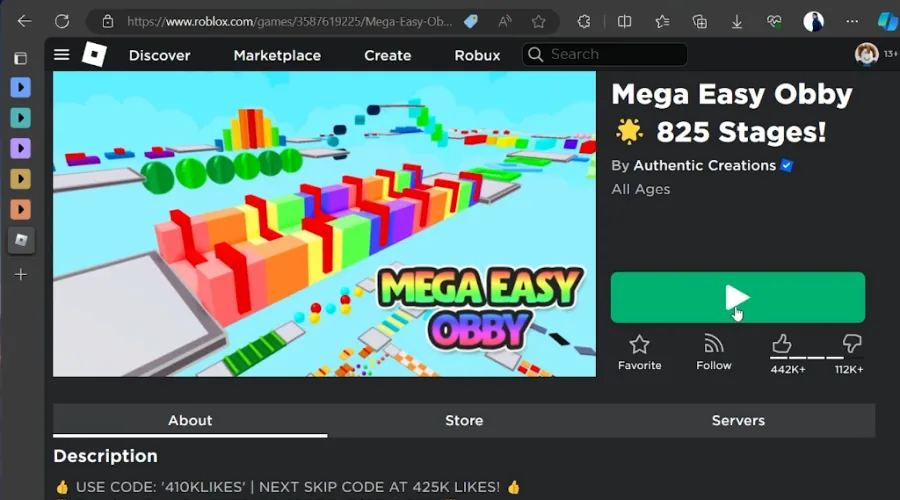
Open your web browser and go to www.roblox.com.; Log in to your Roblox account.; Try to play any game on Roblox. If Roblox isn't installed, your browser will prompt you to download and install the Roblox Launcher.; Follow the on-screen instructions to reinstall Roblox. With these simple steps, you'll be back in the game. Enjoy your crash-free Roblox experience!
Video walkthrough
If it does not work
- Why is my Roblox game crashing on startup?. Roblox game might crash due to temporary bugs, glitches, or compatibility issues on your PC. A recent game update could also alter your default access rights, leading to crashes.
- How can I fix the Roblox crashing issue on my Windows PC?. Initially, try restarting your PC. If that doesn't resolve the issue, run Roblox as an administrator, adjust the compatibility settings, or as a last resort, reinstall Roblox.
- How do I run Roblox as an administrator?. Right-click the Roblox launcher on your desktop or in your start menu, and select "Run as administrator" from the drop-down menu to run Roblox with administrative privileges.
- What compatibility settings should I use for Roblox?. Navigate to the Roblox launcher properties, switch to the “Compatibility” tab, check "run this program in compatibility mode," select Windows 8, and also check "run this program as an administrator.”
- How do I reinstall Roblox on my PC?. Uninstall Roblox via the Control Panel, then navigate to www.roblox.com, log in, and follow the prompts to reinstall Roblox when you attempt to play a game.