
Gaming · Windows
How To Fix Roblox Closes Instantly After Launching on Windows
Original source date
Answer
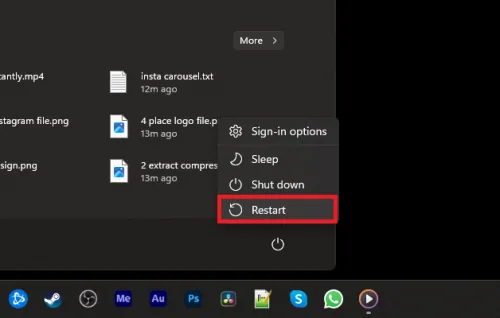
Simple Restart:A straightforward first step is to restart your computer.This can resolve issues caused by temporary files, minor system errors, or software conflicts.; A straightforward first step is to restart your computer.; This can resolve issues caused by temporary files, minor system errors, or software conflicts.
Restarting Your Computer
Simple Restart:A straightforward first step is to restart your computer.This can resolve issues caused by temporary files, minor system errors, or software conflicts.; A straightforward first step is to restart your computer.; This can resolve issues caused by temporary files, minor system errors, or software conflicts.
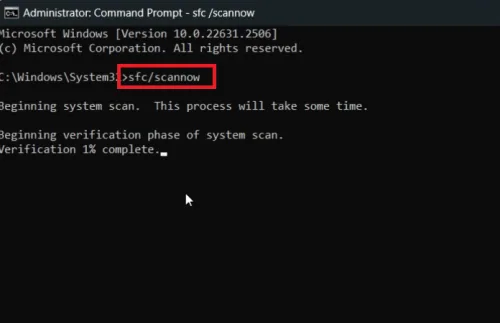
Performing a System File Check
Open Command Prompt:Search for 'Command Prompt' in the Windows search bar.Right-click on it and select 'Run as administrator'.; Search for 'Command Prompt' in the Windows search bar.; Right-click on it and select 'Run as administrator'.; Scan and Repair:In Command Prompt, type sfc /scannow and press Enter.This command initiates a system scan, which can take a few minutes.It checks for corrupted system files and repairs them automatically.; In Command Prompt, type sfc /scannow and press Enter.; This command initiates a system scan, which can take a few minutes.; It checks for corrupted system files and repairs them automatically.; Wait for Completion:Allow the scan to run uninterrupted.A confirmation message will appear once all files are checked and repaired.; Allow the scan to run uninterrupted.; A confirmation message will appear once all files are checked and repaired. These steps can effectively address common issues causing Roblox to close unexpectedly, such as corrupted system files or minor glitches.
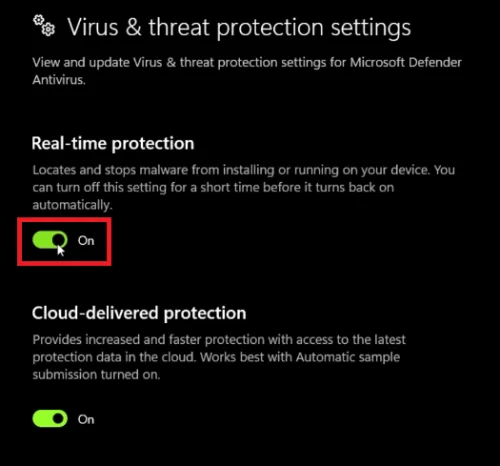
Temporarily Disabling Firewall and Antivirus
Access Antivirus Settings:Open your antivirus program, such as Windows Defender.Navigate to 'Virus & threat protection'.; Open your antivirus program, such as Windows Defender.; Navigate to 'Virus & threat protection'.; Turn Off Protection:Temporarily disable the antivirus protection.Find and switch off relevant options like real-time protection.; Temporarily disable the antivirus protection.; Find and switch off relevant options like real-time protection.; Disable Windows Firewall:Within the same settings window, locate the firewall settings.Temporarily turn off the firewall.; Within the same settings window, locate the firewall settings.; Temporarily turn off the firewall.; Note for Safety:Remember, these steps are just for troubleshooting Roblox issues. Ensure you re-enable these protections after completing the process.; Remember, these steps are just for troubleshooting Roblox issues. Ensure you re-enable these protections after completing the process.
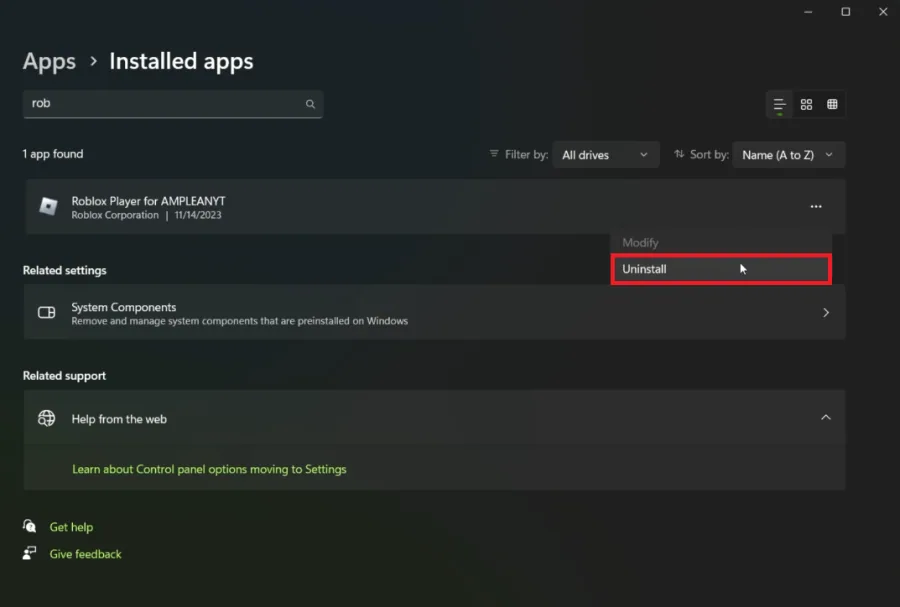
Reinstalling Roblox
Uninstalling Roblox:Press 'Win + I' to open Windows Settings.Go to 'Apps' and find Roblox under 'Installed Apps'.Click on the three dots next to Roblox and select 'Uninstall'.; Press 'Win + I' to open Windows Settings.; Go to 'Apps' and find Roblox under 'Installed Apps'.; Click on the three dots next to Roblox and select 'Uninstall'.
Reinstalling the Game:Visit Roblox.com/download.Download the latest version of Ro…
Reinstalling the Game:Visit Roblox.com/download.Download the latest version of Roblox.Follow the instructions for reinstallation.; Visit Roblox.com/download.; Download the latest version of Roblox.; Follow the instructions for reinstallation. By following these steps, you can troubleshoot and potentially resolve issues preventing Roblox from launching correctly on your Windows PC. Remember to revert any temporary changes made to your security settings for ongoing protection.

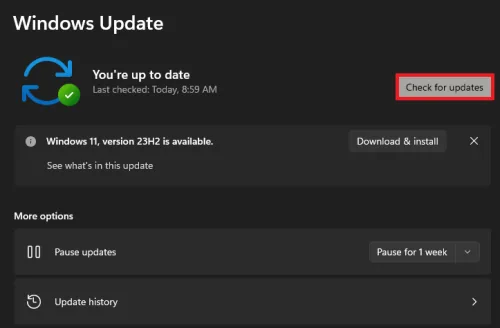
Updating Windows
Check for Windows Updates:Navigate to 'Settings' on your Windows PC.Go to the 'Windows Update' section.Click on 'Check for Updates'.; Navigate to 'Settings' on your Windows PC.; Go to the 'Windows Update' section.; Click on 'Check for Updates'.; Install Available Updates:If updates are available, download and install them.This ensures your system's compatibility with Roblox and other applications.; If updates are available, download and install them.; This ensures your system's compatibility with Roblox and other applications.
Managing VPN Connections
Assess Internet Connectivity:Poor internet connection can often lead to game launching issues.Ensure your connection is stable.; Poor internet connection can often lead to game launching issues.; Ensure your connection is stable.; VPN Considerations:If using a VPN, try disabling it temporarily to check if it resolves the issue.VPNs can sometimes interfere with game connections.; If using a VPN, try disabling it temporarily to check if it resolves the issue.; VPNs can sometimes interfere with game connections.; Using VPN for Access:In rare cases where Roblox might be blocked by a network administrator, consider using a gaming-optimized VPN like PrivadoVPN.This can help bypass network restrictions.; In rare cases where Roblox might be blocked by a network administrator, consider using a gaming-optimized VPN like PrivadoVPN.; This can help bypass network restrictions. By keeping your Windows system up-to-date and managing your VPN settings, you can enhance your chances of a smooth Roblox gaming experience, free from connectivity or compatibility hindrances.

Disclosure: This article includes affiliate links, which means we may receive a c…
Disclosure: This article includes affiliate links, which means we may receive a commission if you click on a link and purchase something that we have recommended. Please note that we are affiliates for PrivadoVPN, a service mentioned in this article. Our affiliation does not affect our editorial content, but it helps support our work in bringing you quality information and recommendations.
Video walkthrough
If it does not work
- Why does Roblox close immediately after launching on Windows?. This issue can be due to various factors, including outdated Windows versions, conflicts with antivirus software, or corrupted game files.
- How can restarting my computer fix the Roblox issue?. Restarting clears temporary files and can resolve minor glitches or software conflicts that might be causing Roblox to close unexpectedly.
- What does running 'sfc /scannow' in the Command Prompt do?. This command scans and repairs corrupted Windows system files, which might be affecting Roblox's performance.
- Can my antivirus interfere with Roblox?. Yes, sometimes antivirus programs mistakenly identify game files as threats, causing issues. Temporarily disabling your antivirus can help identify if this is the case.
- Why is updating Windows important for running Roblox?. An outdated Windows system might lack the necessary components or compatibility updates required for running Roblox smoothly.