
Gaming · Windows
How To Fix Roblox Install Error KB4534310 - Version Error on PC
Original source date
Answer
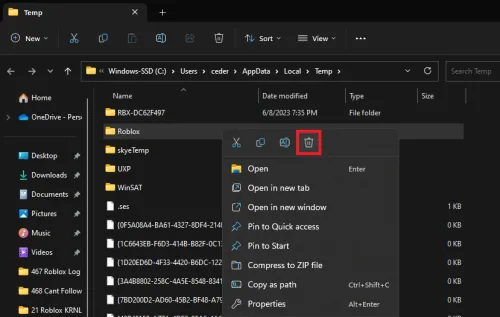
Start the troubleshooting process by locating your Roblox temporary files. To do this, use the search bar in your start menu and type in '%Temp%'. Upon pressing enter, your file explorer will pop open. Now, to find your Roblox folder, either select a random folder and begin typing 'Roblox' or use the search bar within the file explorer. Once you spot the Roblox folder, go ahead and delete it. Don't worry about losing any crucial data - these are merely temporary files that Roblox will automatically reacquire the next time you initiate the app on your PC.
Clearing Roblox Temporary Files
Start the troubleshooting process by locating your Roblox temporary files. To do this, use the search bar in your start menu and type in '%Temp%'. Upon pressing enter, your file explorer will pop open. Now, to find your Roblox folder, either select a random folder and begin typing 'Roblox' or use the search bar within the file explorer. Once you spot the Roblox folder, go ahead and delete it. Don't worry about losing any crucial data - these are merely temporary files that Roblox will automatically reacquire the next time you initiate the app on your PC.
Clearing Roblox Cookies and Cache from Your Browser
The next step to rectify the Roblox install error KB4534310 involves cleaning your browser cache and cookies specific to Roblox. Start by launching your web browser and navigating to its settings. For Google Chrome users, this can be done by clicking the three dots on the top right corner and selecting "Settings" from the dropdown menu. Once you're in the settings, direct yourself to the "Privacy and Security" segment. From there, look for the option that reads "cookies and other site data" and select it.
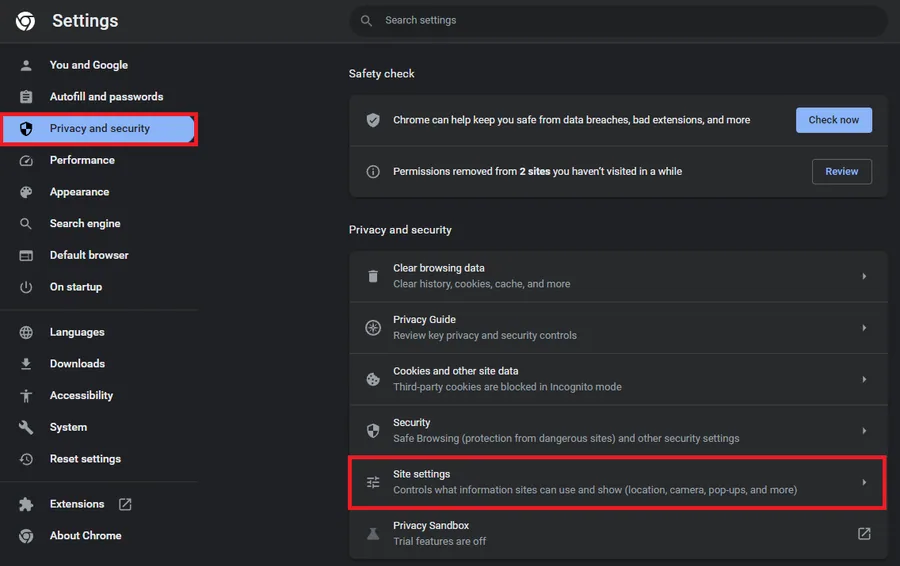
This will take you to another page where you need to find and select "see all sit…
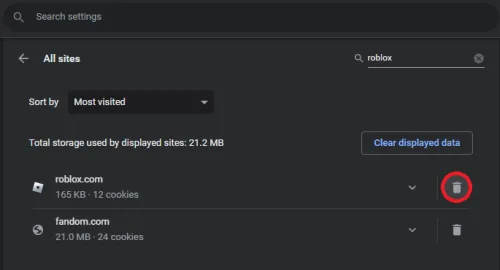
This will take you to another page where you need to find and select "see all sites data and permissions". At this point, use the search box located in the top right corner and type "roblox", keeping the "R" lowercase to ensure you find your Roblox.com site cache and data. When you find the data related to Roblox, simply click on the trash icon to eliminate the cookies. After successfully doing this, make sure to close all open windows and reboot your computer to ensure changes take effect.
Video walkthrough
If it does not work
- What is the Roblox install error KB4534310?. The Roblox install error KB4534310 typically occurs when there are problems with your cached or temporary Roblox files on your PC. It can prevent the game from running smoothly or even launching properly.
- How can I solve the Roblox version error on my PC?. Solving this error involves clearing out old cached files and restarting your computer. This includes deleting the Roblox Temp folder on your PC and removing Roblox cookies and cache from your web browser.
- Why do I need to delete the Roblox Temp folder?. The Roblox Temp folder contains temporary files that could be causing the error. Deleting this folder allows Roblox to redownload necessary files, which can often fix the error.
- Why is it necessary to delete Roblox cookies and cache from the browser?. Similar to temporary files, outdated or corrupted browser cache and cookies can cause errors. By clearing these, you enable your browser to fetch fresh and error-free data from the Roblox website.
- What should I do after deleting Roblox cached files and cookies?. After you've successfully deleted both the Roblox Temp folder and the Roblox cookies and cache from your browser, it's essential to restart your computer. This ensures all changes take effect and your system starts afresh.