
Gaming · Windows
How To Get More FPS & Fix Lag in Roblox on PC
Original source date
Answer
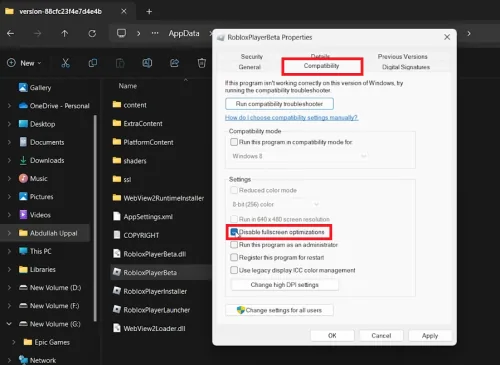
Tackle Lag and Low FPS: Locate Roblox Player: Use the Start Menu search to find 'Roblox Player' and select 'Open file location'.; Access Properties: Right-click the Roblox Player, navigate to its location, then right-click the Roblox Launcher and select 'Properties'.; Modify Compatibility Settings:Disable Fullscreen Optimizations: In the 'Compatibility' tab, check 'Disable fullscreen optimizations'.Change High DPI Settings: Click 'Change high DPI settings' and enable 'Override high DPI scaling behavior', setting it to 'Application'.; Disable Fullscreen Optimizations: In the 'Compatibility' tab, check 'Disable fullscreen optimizations'.; Change High DPI Settings: Click 'Change high DPI settings' and enable 'Override high DPI scaling behavior', setting it to 'Application'. These adjustments can reduce lag and enhance frame rate.
Optimizing Roblox for Better Performance on PC
Tackle Lag and Low FPS: Locate Roblox Player: Use the Start Menu search to find 'Roblox Player' and select 'Open file location'.; Access Properties: Right-click the Roblox Player, navigate to its location, then right-click the Roblox Launcher and select 'Properties'.; Modify Compatibility Settings:Disable Fullscreen Optimizations: In the 'Compatibility' tab, check 'Disable fullscreen optimizations'.Change High DPI Settings: Click 'Change high DPI settings' and enable 'Override high DPI scaling behavior', setting it to 'Application'.; Disable Fullscreen Optimizations: In the 'Compatibility' tab, check 'Disable fullscreen optimizations'.; Change High DPI Settings: Click 'Change high DPI settings' and enable 'Override high DPI scaling behavior', setting it to 'Application'. These adjustments can reduce lag and enhance frame rate.
Enhancing Roblox Performance with Optimized Graphics Settings
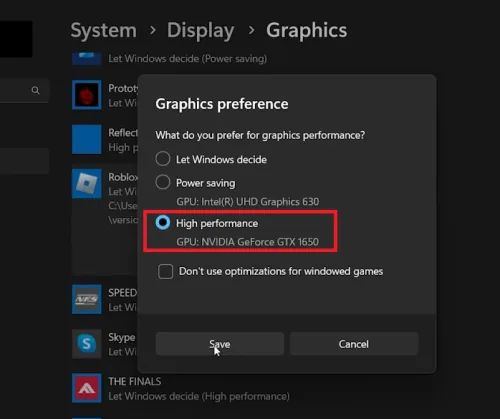
Streamline Graphics Settings: Copy Roblox Launcher Path: In File Explorer, copy the path of your Roblox launcher.; Access Graphic Settings: Search for 'Graphic settings' in the Start Menu and open it.; Add Roblox to Graphic Settings:Click 'Browse' and paste the copied path in the address bar.Select 'RobloxPlayerBeta' and click 'Add'.; Click 'Browse' and paste the copied path in the address bar.; Select 'RobloxPlayerBeta' and click 'Add'.; Enable High Performance: In the settings window, select the 'High Performance' option for Roblox. This ensures your PC's graphics resources are fully utilized for smoother gameplay.
Improving Roblox Performance: Process Priority and In-Game Settings
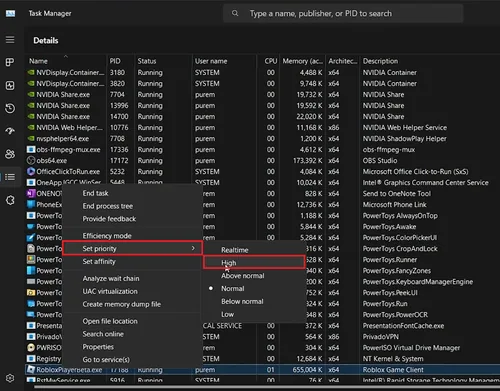
Optimize via Task Manager: Launch Roblox & Open Task Manager: Start Roblox and search for Task Manager in the Start Menu.; Adjust Process Priority:Find 'Roblox Game Client' under Apps.Right-click and go to 'Details'.Right-click 'RobloxPlayerBeta' and select 'Set Priority' to 'High'.; Find 'Roblox Game Client' under Apps.; Right-click and go to 'Details'.; Right-click 'RobloxPlayerBeta' and select 'Set Priority' to 'High'.
Fine-Tune In-Game Settings: Access Settings in Roblox: Once in a game, click the…
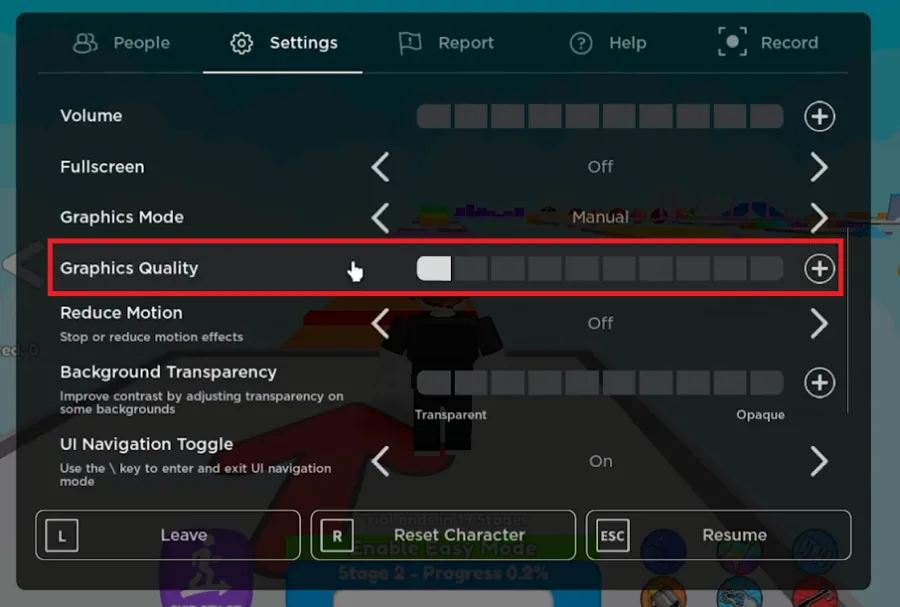
Fine-Tune In-Game Settings: Access Settings in Roblox: Once in a game, click the Roblox icon, then go to the Settings tab.; Adjust Graphics Quality: Lower the graphics quality for better performance. If locked, switch 'Graphics Mode' to 'Manual'. By following these steps, you can achieve smoother gameplay in Roblox by prioritizing its processes and adjusting in-game graphics settings.
Video walkthrough
If it does not work
- How can I boost FPS in Roblox?. Optimize your PC's performance by adjusting Roblox's compatibility settings and graphics settings. Ensure high-priority resource allocation through Task Manager.
- Why am I experiencing lag in Roblox?. Lag can be due to various factors, including low PC resources, high in-game graphics settings, or network issues.
- Can changing process priority improve Roblox performance?. Yes, setting Roblox’s process priority to 'High' in Task Manager can allocate more resources, enhancing performance.
- Should I use automatic or manual graphics mode in Roblox?. For better control over performance, switch to 'Manual' graphics mode and adjust settings according to your system’s capability.
- Does optimizing fullscreen settings affect Roblox gameplay?. Disabling fullscreen optimizations can help in reducing lag and improving frame rates in Roblox.