
Gaming · Platform not recorded
How To Fix Roblox Fluxus Injection Failed - LoadLibFail DLL Not Found
Original source date
Answer
If you're facing the "Injection Failed - LoadLibFail" or "DLL Not Found" errors in Roblox, it's often due to missing or outdated files in your Roblox installation. Here's how to address this issue: Visit the GitHub Link: Follow this GitHub link to access the download page for a specific version of Roblox, namely RobloxUWP.
Resolving the "Injection Failed - LoadLibFail" Error
If you're facing the "Injection Failed - LoadLibFail" or "DLL Not Found" errors in Roblox, it's often due to missing or outdated files in your Roblox installation. Here's how to address this issue: Visit the GitHub Link: Follow this GitHub link to access the download page for a specific version of Roblox, namely RobloxUWP.
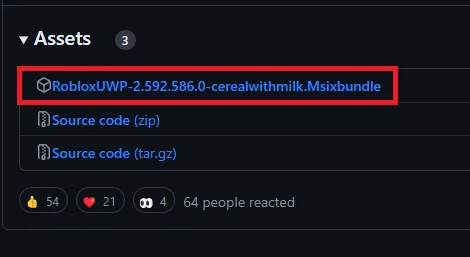
Download RobloxUWP: Once you're on the GitHub page, click on the download link fo…
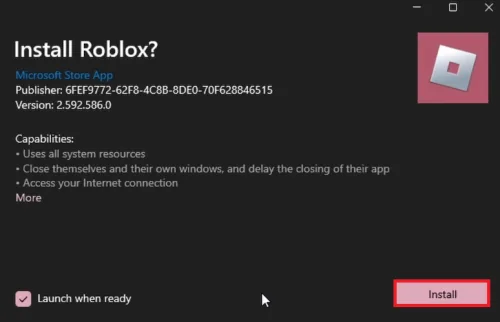
Download RobloxUWP: Once you're on the GitHub page, click on the download link for RobloxUWP.; Install RobloxUWP:After downloading, run the installer file.During installation, you'll be prompted to install or reinstall Roblox.This process reinstalls an older, but stable version of Roblox that includes the required LoadLibFail DLL file.; After downloading, run the installer file.; During installation, you'll be prompted to install or reinstall Roblox.; This process reinstalls an older, but stable version of Roblox that includes the required LoadLibFail DLL file. By following these steps and installing RobloxUWP, you should be able to resolve the error and get back to playing Roblox without any further issues.
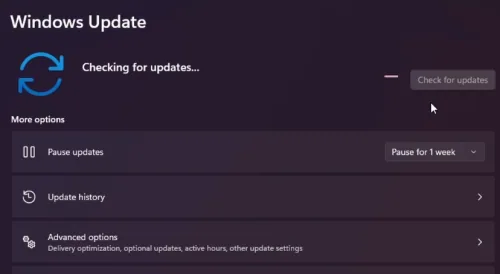
Updating Windows to Enhance Gaming Performance
Ensuring your Windows operating system is up-to-date is crucial for a seamless experience in games like Roblox. Outdated Windows versions can lead to compatibility issues, affecting your gameplay. Here’s how to update your Windows system: Access Windows Update Settings:Open your Windows Settings.Navigate to the “Windows Update” section.; Open your Windows Settings.; Navigate to the “Windows Update” section.; Check for Available Updates:Click on “Check for Updates” to see if any updates are available for your system.; Click on “Check for Updates” to see if any updates are available for your system.; Download and Install Updates:If updates are found, proceed to download and install them.This process might require a restart of your computer.; If updates are found, proceed to download and install them.; This process might require a restart of your computer. Regularly updating Windows not only ensures compatibility with applications like Roblox but also maintains the overall stability and security of your system. Keeping your Windows OS updated is a key step in ensuring an optimal gaming experience.
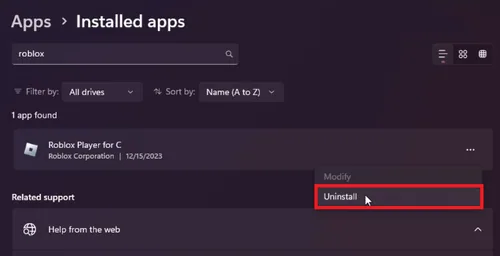
Uninstalling Roblox
If updating Windows and installing RobloxUWP doesn’t fix the issue, a complete reinstallation of Roblox may be necessary. Here’s how to do it: Uninstall Roblox:Go to Windows Settings.Navigate to 'Apps'.In the 'Installed Apps' section, search for “Roblox”.Click on the burger menu icon (three horizontal lines) next to Roblox.Select “Uninstall” to remove all installed versions of Roblox, including those from the web and Microsoft Store.; Go to Windows Settings.; Navigate to 'Apps'.; In the 'Installed Apps' section, search for “Roblox”.; Click on the burger menu icon (three horizontal lines) next to Roblox.; Select “Uninstall” to remove all installed versions of Roblox, including those from the web and Microsoft Store.
Clearing the Roblox Cache
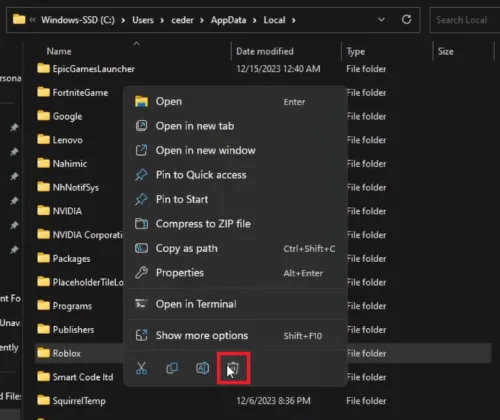
Removing the cache is an important step in a clean reinstallation: Access the Cache Folder:Use the start menu search to find %AppData%.Navigate to 'AppData' > 'Local'.; Use the start menu search to find %AppData%.; Navigate to 'AppData' > 'Local'.; Delete the Roblox Folder:Locate the folder named “Roblox”.Delete this folder to clear all cache, which helps in removing corrupted or outdated files.; Locate the folder named “Roblox”.; Delete this folder to clear all cache, which helps in removing corrupted or outdated files.
Reinstalling Roblox
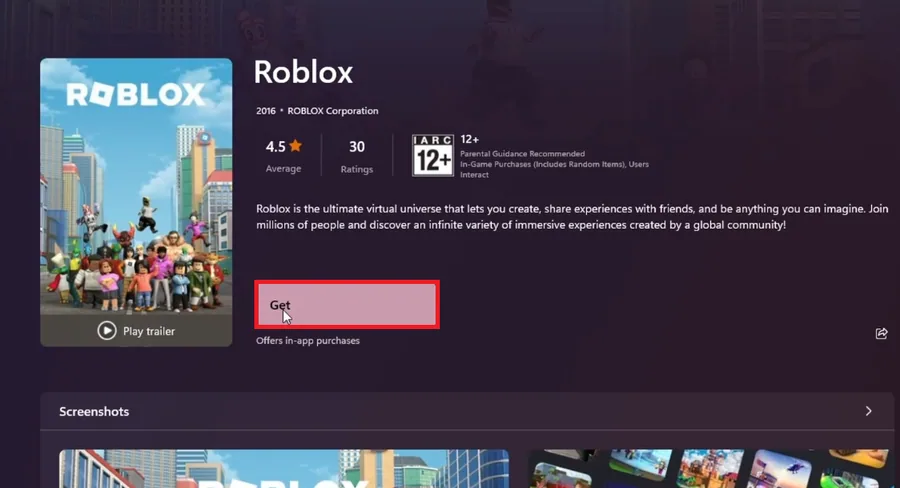
Once the uninstallation and cache clearing are done: Reinstall Roblox:Download Roblox again from the Microsoft Store.This ensures you get the most recent and stable version of the game.; Download Roblox again from the Microsoft Store.; This ensures you get the most recent and stable version of the game. By following these steps, you can ensure a fresh installation of Roblox, potentially resolving any errors and improving game stability.
Video walkthrough
If it does not work
- What causes the "Injection Failed - LoadLibFail" error in Roblox?. This error typically occurs due to missing or outdated files in the Roblox installation, often related to the LoadLibFail DLL file.
- How can I fix the "Injection Failed - LoadLibFail" error?. Start by installing RobloxUWP from the provided GitHub link. If that doesn't work, try updating Windows and reinstalling Roblox.
- Is reinstalling Roblox necessary to fix this error?. If the initial steps don’t resolve the issue, a complete reinstall of Roblox, including clearing the cache, is often necessary.
- Will updating Windows help fix Roblox errors?. Yes, keeping Windows up-to-date can resolve compatibility issues and is a recommended step for fixing Roblox errors.
- How do I clear the Roblox cache on my PC?. To clear the cache, search for %AppData% using the start menu, navigate to 'AppData' > 'Local', and delete the “Roblox” folder.