Gaming · Windows

How To Fix Microphone Issues with Roblox on PC

Original source date

Answer

Correctly configuring your microphone settings in Windows is the essential first step to resolving Roblox microphone issues. Below, you'll find the process for ensuring your microphone settings are properly set up: Access Sound Settings: Right-click the speaker icon in your system tray (usually located in the bottom-right corner of your screen).; Select 'Open Sound settings': This will lead you to the 'Input' section.; Choose the Default Microphone: Make sure your desired microphone (e.g., an external USB microphone or your laptop's built-in mic) is selected as the default device.; Configure Additional Settings: For further adjustments, click on 'Device properties' to customize your microphone's properties, such as adjusting the volume level or enabling specific enhancements. By following these instructions, you ensure that your microphone is properly configured to work with Roblox, allowing for clear and seamless communication within the game.

Verify your Microphone Settings in Windows

Correctly configuring your microphone settings in Windows is the essential first step to resolving Roblox microphone issues. Below, you'll find the process for ensuring your microphone settings are properly set up: Access Sound Settings: Right-click the speaker icon in your system tray (usually located in the bottom-right corner of your screen).; Select 'Open Sound settings': This will lead you to the 'Input' section.; Choose the Default Microphone: Make sure your desired microphone (e.g., an external USB microphone or your laptop's built-in mic) is selected as the default device.; Configure Additional Settings: For further adjustments, click on 'Device properties' to customize your microphone's properties, such as adjusting the volume level or enabling specific enhancements. By following these instructions, you ensure that your microphone is properly configured to work with Roblox, allowing for clear and seamless communication within the game.

windows mic settings

Update Audio Driver for Your Microphone

A common cause of microphone issues with Roblox is outdated or corrupted drivers. To ensure optimal performance, it is crucial to keep your audio drivers up-to-date. Here's a step-by-step guide to help you update the microphone drivers on your PC: Open Device Manager: Right-click on the 'Start' button (usually found at the bottom-left corner of your screen), and select 'Device Manager.'; Navigate to Audio Inputs and Outputs: Expand this section to find the list of available audio devices.; Identify Your Microphone: Right-click on your microphone (it may be labeled as an external USB microphone, headset, or internal device).; Select 'Update Driver': Click on this option to initiate the update.; Follow On-Screen Instructions: The system will guide you through the process, which might include options for an automatic search or manual selection of the driver file.; Restart Your PC: After successfully updating the driver, restart your PC to apply the changes.; Check Roblox Microphone Functionality: Launch Roblox and test if the microphone is working as expected. By keeping your microphone drivers updated, you enhance the audio quality and compatibility with Roblox, ensuring a smooth and immersive gaming experience.

update mic driver
update mic driver

Allow Roblox to Access Your Microphone

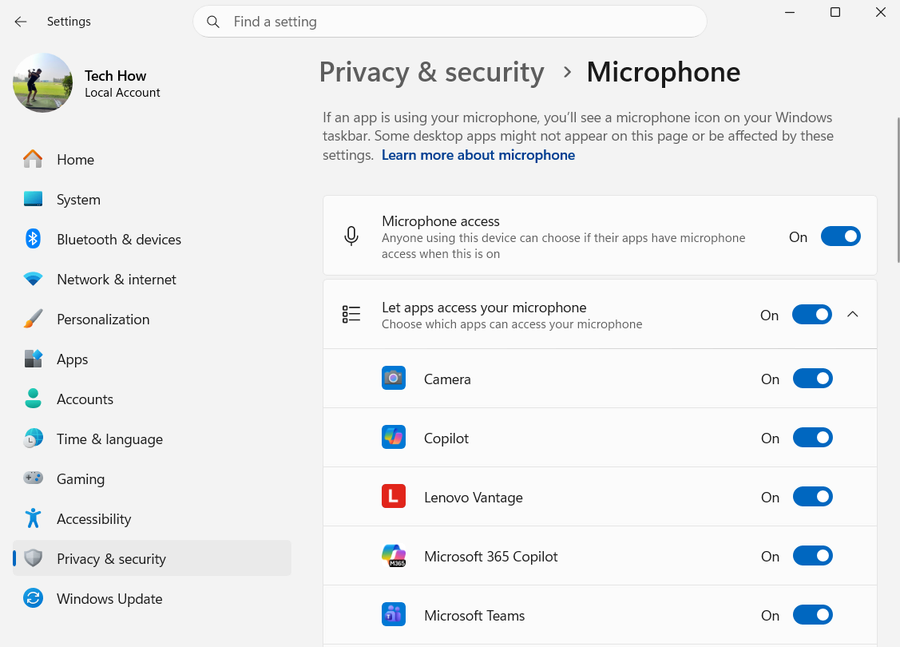
Ensuring that Roblox has the necessary permissions to access your microphone is crucial for an interactive gaming experience. Windows 10 and 11 provide specific privacy settings to control microphone access for different apps. Here’s a brief guide to enabling microphone access for Roblox: Access Windows Settings: Click on 'Start,' then 'Settings.'; Navigate to Privacy Settings: Select the 'Privacy' option.; Choose Microphone Settings: On the left sidebar, click 'Microphone.' This will display various microphone-related options.; Enable Microphone Access for Apps: Make sure the toggle next to 'Allow apps to access your microphone' is turned on.; Find and Enable Roblox: Scroll down the list of apps until you find Roblox. Make sure it is listed and enabled for microphone access. By following these steps, you grant Roblox the necessary permissions to use your microphone. This enhances the gaming experience, allowing you to communicate effectively with fellow players. If you encounter any further issues with your microphone in Roblox, refer to other troubleshooting methods such as updating drivers or verifying microphone settings.

allow apps to use mic

Test Your Microphone with Windows

Determining whether the issue lies with Roblox or your microphone is a crucial step in troubleshooting. To do this, you can test your microphone with other applications or directly through the Windows advanced sound settings. Here's a step-by-step guide: Using Voice Recorders or Video Conferencing Apps: You can quickly test your microphone using tools like Windows Voice Recorder or third-party video conferencing apps like Zoom or Skype.; Windows Sound Settings Test: Alternatively, you can check the microphone through Windows settings: a. Right-click on the speaker icon in your system tray. b. Select 'Open Sound settings' or navigate to more sound settings if needed. c. Under the 'Input' section, select your microphone, and use the 'Test your microphone' feature. By testing your microphone in these ways, you can quickly identify whether the issue resides with Roblox or the microphone itself, allowing you to proceed with the appropriate troubleshooting steps.

test microphone
test microphone

Video walkthrough

If it does not work

  • What should I do if my microphone is still not working in Roblox after following these steps?. You may want to check for any system-wide issues or conflicts with other software. Consider reaching out to Roblox Support for personalized assistance.
  • Can I use these same steps for troubleshooting microphone issues with other applications on Windows 10 or 11?. Yes, the steps related to verifying microphone settings, updating drivers, and testing the microphone can generally apply to other applications as well.
  • Where can I find the latest drivers for my microphone?. Usually, Windows will automatically find the appropriate drivers. If not, visit the microphone manufacturer's website and search for the drivers corresponding to your specific model.
  • How do I make sure that Roblox has access to my microphone on Windows 11?. The process is the same as Windows 10. Navigate to 'Settings,' then 'Privacy,' followed by 'Microphone,' and ensure that Roblox is listed and enabled.
  • What other issues might cause my microphone not to work with Roblox?. Conflicts with other software, incorrect system settings, or hardware problems could cause microphone issues. If the problem persists, consult with a technical support specialist.