
Gaming · Platform not recorded
Roblox - Failed To Connect To The Game Fix
Original source date
Answer
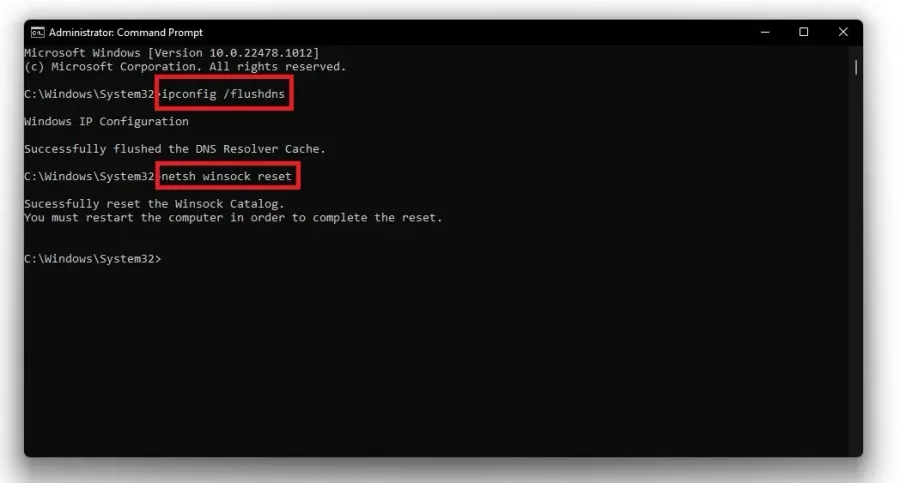
Ensure your Roblox Player is closed and not running in the background. Next, search for CMD in your start menu search and hit enter to open up your Command Prompt. Use the command ipconfig /flushdns. This will flush and reset your DNS resolver cache's content and help you fix the “Failed to connect to the game” error for Roblox. Next, you will need to reset your network connection. You can do this by using the command: netsh winsock reset This will take a few seconds to reset the Winsock Catalog. You can then proceed to close your command prompt.
Reset your Network Connection
Ensure your Roblox Player is closed and not running in the background. Next, search for CMD in your start menu search and hit enter to open up your Command Prompt. Use the command ipconfig /flushdns. This will flush and reset your DNS resolver cache's content and help you fix the “Failed to connect to the game” error for Roblox. Next, you will need to reset your network connection. You can do this by using the command: netsh winsock reset This will take a few seconds to reset the Winsock Catalog. You can then proceed to close your command prompt.
Change DNS Server Addresses
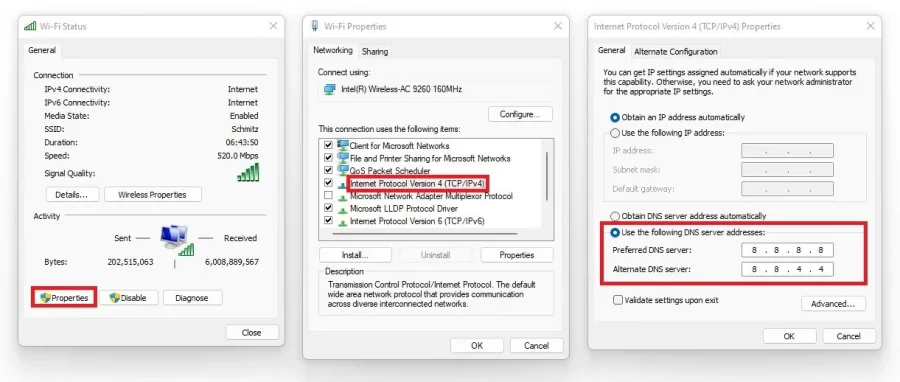
Search for Network Status in your start menu search and select View network status and tasks. Select your connection, and on the new window, select Properties. Double-click Internet Protocol Version 4. On the new window, make sure to Use the following DNS server addresses, and as your Preferred DNS server, use 8.8.8.8, and as your Alternate DNS server, use 8.8.4.4. These are the official Google DNS server addresses that are safe to use.
Video walkthrough
If it does not work
- If the current interface differs, compare it with the recorded video walkthrough.