
Gaming · Windows
Roblox - An Error Occurred During Authentication on PC - Easy Fix
Original source date
Answer
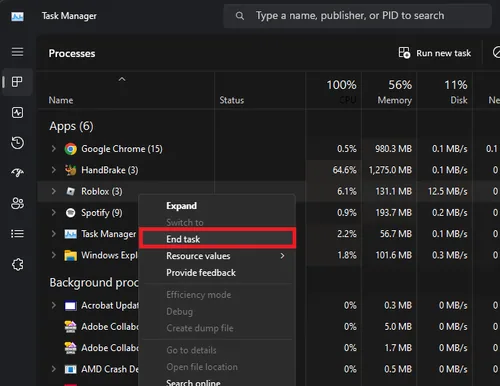
Before attempting any fixes, it's crucial to ensure that no Roblox processes or related services are running in the background on your PC. To do this, simply open up your Task Manager by pressing Ctrl+Shift+Esc or right-clicking the taskbar and selecting Task Manager from the context menu. In the Processes tab, carefully scan through the list and locate any active Roblox app processes (such as RobloxPlayerBeta.exe) or related services that might still be running on your system. To terminate them, right-click each process, and select "End task" from the dropdown menu. By doing so, you'll be able to start with a clean slate when attempting to resolve the authentication error, making it more likely that the issue will be resolved quickly and effectively.
Terminate All Roblox and Associated Processes
Before attempting any fixes, it's crucial to ensure that no Roblox processes or related services are running in the background on your PC. To do this, simply open up your Task Manager by pressing Ctrl+Shift+Esc or right-clicking the taskbar and selecting Task Manager from the context menu. In the Processes tab, carefully scan through the list and locate any active Roblox app processes (such as RobloxPlayerBeta.exe) or related services that might still be running on your system. To terminate them, right-click each process, and select "End task" from the dropdown menu. By doing so, you'll be able to start with a clean slate when attempting to resolve the authentication error, making it more likely that the issue will be resolved quickly and effectively.
Verify the Roblox Server Status
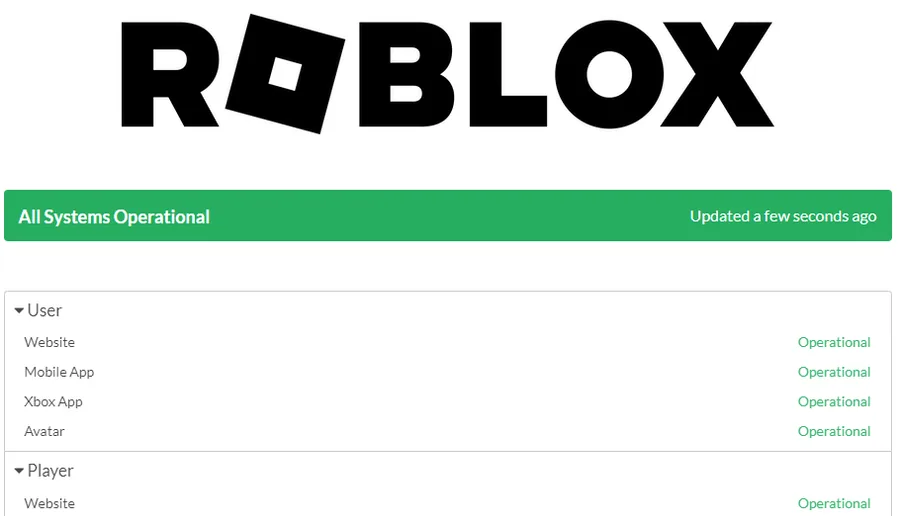
Ensure that the Roblox servers are operational. Navigate to status.roblox.com to preview the user and player service status. If there is a service disruption, you must wait until the problem is resolved, as the servers won’t be able to authenticate your login.
Remove and Reacquire the Roblox Game Files
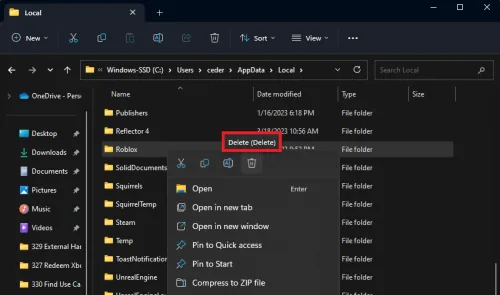
If you've confirmed that the servers are running smoothly, there's a straightforward solution to tackle this issue. You'll need to remove the existing Roblox game files and then reinstall the game through your web browser. This method has been successful in resolving the problem for numerous players. To begin, search for %AppData% in your start menu search bar and press Enter. This action will open a File Explorer window. From there, navigate to AppData > Local and locate the Roblox folder. Delete this folder, and then close the File Explorer. When you attempt to launch a Roblox experience again, the platform will automatically re-download the previously deleted files. Consequently, you should be able to join the game without encountering the "An Error Occurred During Authentication" message. This approach not only helps to troubleshoot the issue but also ensures that you have the most up-to-date game files for an optimal gaming experience.
Maintain a Stable Internet Connection
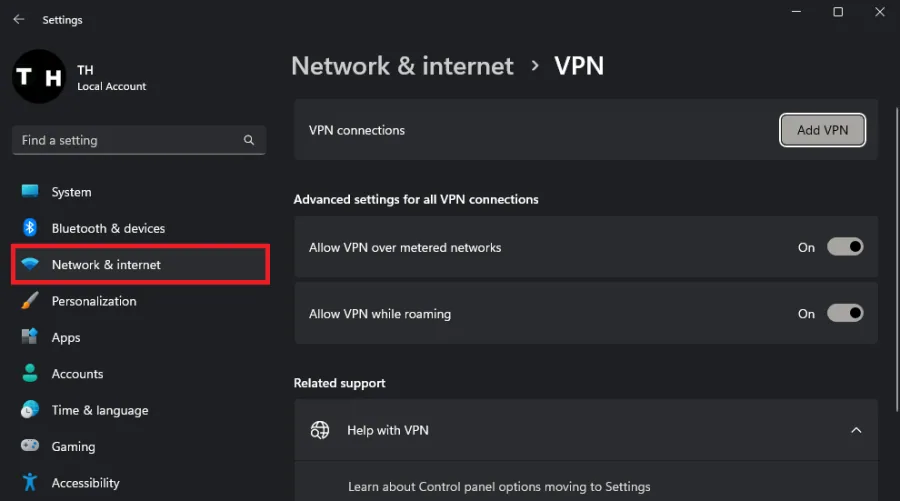
If you're still experiencing the error, it's crucial to confirm that you have a stable and reliable internet connection. A poor or fluctuating network could be the root cause of the authentication error. To check your connection, try accessing other websites or online services to see if they load without any issues. Additionally, if you're using a VPN connection, consider disabling it temporarily, as some VPNs can interfere with Roblox's authentication process. In some instances, it may be helpful to restart your modem or router, as this can often resolve connection-related problems. By ensuring your internet connection is stable and free from potential interference, you'll increase the likelihood of successfully accessing Roblox without any authentication errors. If you are looking for a reliable VPN connection, we recommend PrivadoVPN.
Video walkthrough
If it does not work
- Why does the error "An Error Occurred During Authentication" occur on Roblox?. This error typically occurs when there is an issue with your internet connection, Roblox game files, or the Roblox servers. It can prevent you from joining a game or accessing certain features within Roblox.
- How can I check if the Roblox servers are operational?. You can visit the Roblox Status website (https://status.roblox.com/) to check the current status of Roblox servers. If there are any ongoing issues or scheduled maintenance, it will be displayed on the website.
- Is it safe to delete the Roblox game files to fix the authentication error?. Yes, it is safe to delete the Roblox game files as they will be automatically re-downloaded when you try to launch a Roblox experience. This process has helped many players fix the authentication error.
- Can using a VPN cause the "An Error Occurred During Authentication" error?. Yes, using a VPN can sometimes cause this error, as some VPNs may interfere with the Roblox authentication process. If you are using a VPN, try disabling it temporarily to see if that resolves the issue.