
Gaming · Platform not recorded
How To Fix Roblox Error Code 533 - Your Privacy Settings Prevent You From Joining This Server
Original source date
Answer
First, make sure to run Roblox as an admin. Make sure that your Roblox application is closed on your PC, and search for Roblox in your start menu search. Here, right-click the shortcut and select Open File Location. Your file explorer will open up. Right-click the shortcut and select Open File Location again.
Run Roblox as Administrator
First, make sure to run Roblox as an admin. Make sure that your Roblox application is closed on your PC, and search for Roblox in your start menu search. Here, right-click the shortcut and select Open File Location. Your file explorer will open up. Right-click the shortcut and select Open File Location again.
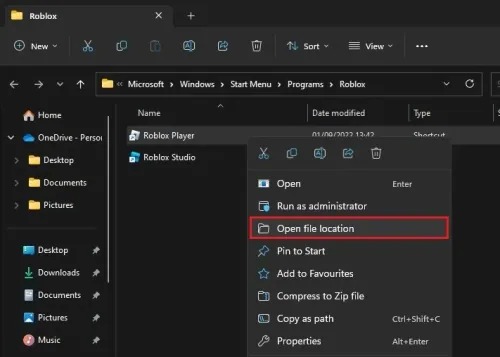
Right-click the RobloxPlayer app and select Properties
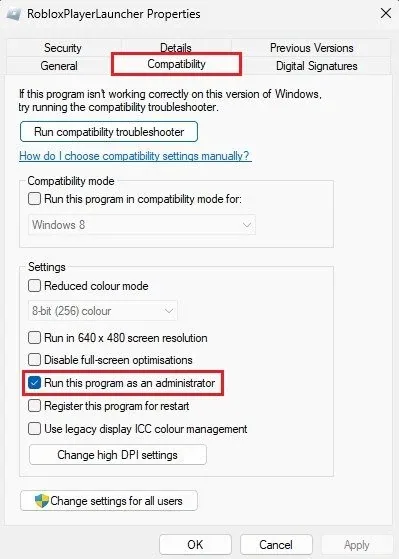
Right-click the RobloxPlayer app and select Properties. In the Compatibility settings of your Roblox properties, enable the Run this program as an administrator option and apply your changes.
Change Roblox Privacy Settings
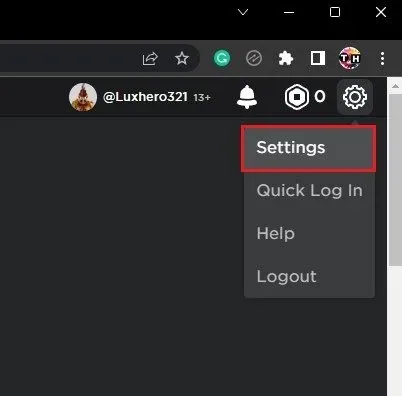
Next, open up your browser of choice, Google Chrome. Navigate to Roblox.com and log in with your account. From here, click on the gear icon on the top right of this window and select Settings.
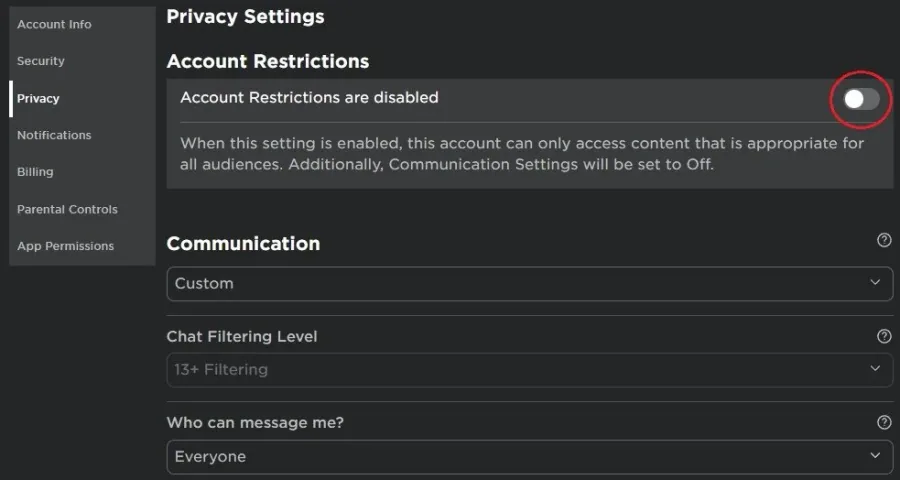
In your Privacy settings, you should, first of all, make sure that your Account R…
In your Privacy settings, you should, first of all, make sure that your Account Restrictions are disabled. When enabled, they will prevent you from joining many Roblox servers. Below, ensure everyone is selected regarding who can chat with you.
Change Browser Security Settings
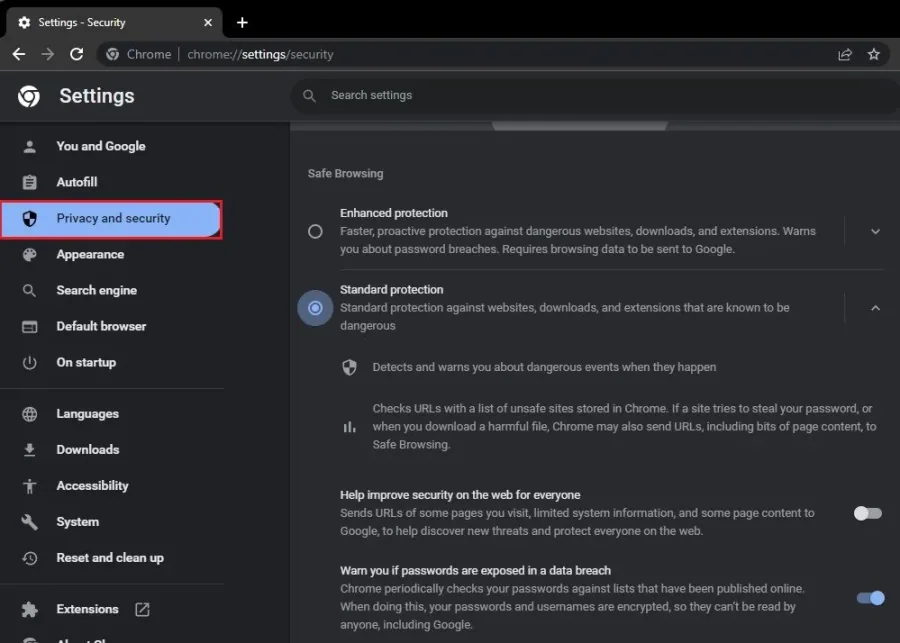
While in your browser, navigate to your settings. For Chrome, click on the burger menu on the top right and select Settings. Under Privacy and security, click on Security and change this option to Standard protection to see if this potentially fixes the error you are getting. Most users don’t have to change this setting, which has helped resolve error code 533 for many Roblox players.
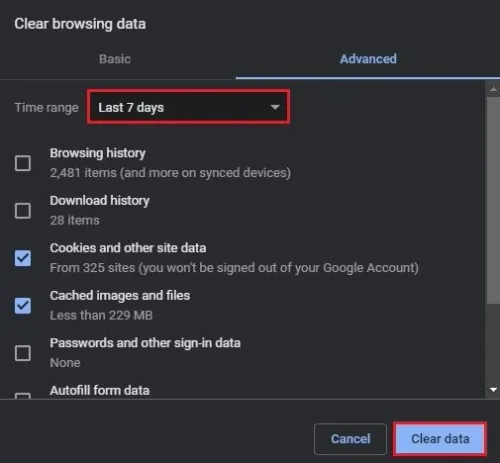
While in your Chrome settings, search for Browsing and click on Clear browsing data
While in your Chrome settings, search for Browsing and click on Clear browsing data. Delete your Cookies and other side data for the last seven days. You can then close your settings and try to join the Roblox server again.
Allow Browser Through Firewall
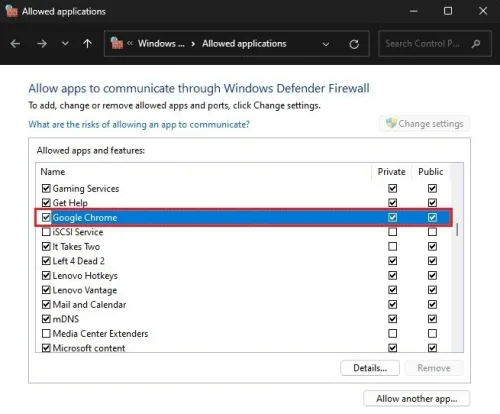
If nothing helps you, then make sure that your browser, in my case Google Chrome, is not blocked by your anti-virus application or firewall. Search for firewall in your start menu search to open up your Firewall & Network Protection system settings window. Here, select Allow an app through the firewall. On this window, click on Change settings, look up your browser, and ensure that both checkboxes are checked before closing this window.
Delete Temporary Files
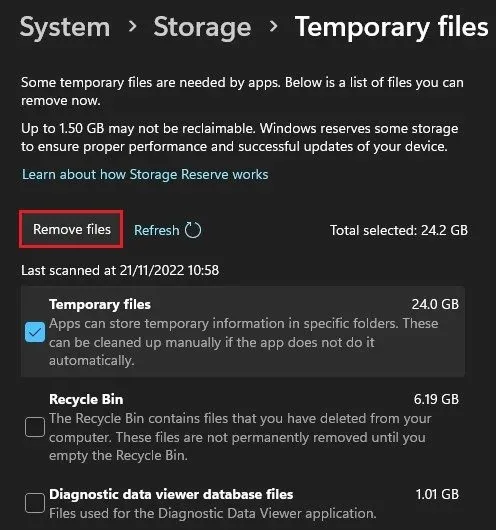
Next, search for “temporary files” to open your Delete temporary files system settings. Here, proceed to delete your temporary files.
Disable VPN Connection
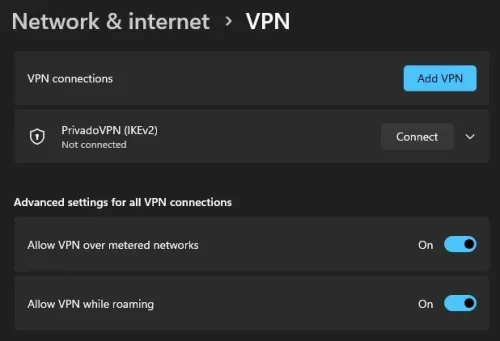
Lastly, you should ensure your VPN connection is disabled when trying to join a Roblox server. A VPN connection can be very useful, but it can also cause errors when joining a server. If you are looking for a reliable VPN connection, we recommend PrivadoVPN.
Video walkthrough
If it does not work
- If the current interface differs, compare it with the recorded video walkthrough.