
Gaming · Windows
How To Fix Roblox Error Code 400 Bad Request on PC
Original source date
Answer
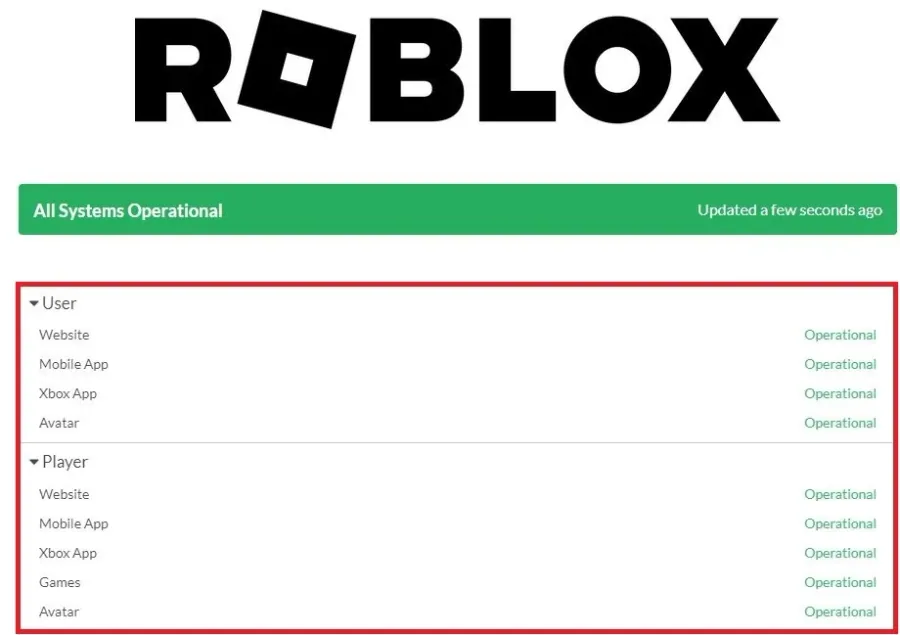
The Roblox servers or your network connection usually cause this error. First, open up your browser of choice and navigate to status.roblox.com or click on the link in the description to get to this page. Here, expand the User and Player tabs to ensure that the servers are operational. You can also preview current server issues in the history below. If the servers are undergoing maintenance, you will have to wait a few minutes to fix the error code 400: Bad Request.
Check Roblox Server Status
The Roblox servers or your network connection usually cause this error. First, open up your browser of choice and navigate to status.roblox.com or click on the link in the description to get to this page. Here, expand the User and Player tabs to ensure that the servers are operational. You can also preview current server issues in the history below. If the servers are undergoing maintenance, you will have to wait a few minutes to fix the error code 400: Bad Request.
Test Network Connection
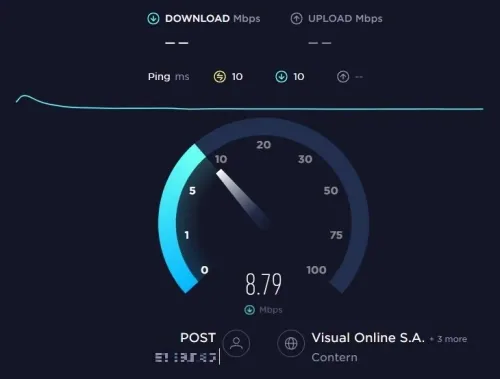
If the servers are all operational, then the problem is related to your network connection. You can use a speed testing site or application such as Speedtest to quickly test your average upload and download speed and your latency to the nearest server. If you experience an unreliable download speed, you must make a few changes to your network connection. Reduce the number of devices connected to the same network and restart your router or modem if you haven’t done this in a while.
Run Internet Connections Troubleshooter
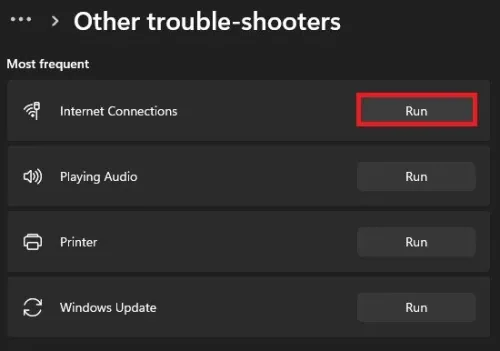
Next, open up your system settings. On Windows, navigate to the Troubleshoot section, and under Other Trouble-Shooters, run the Internet Connections troubleshooter. This will detect problems and might apply changes to your settings to improve your connection to the internet.
Change DNS Server Addresses
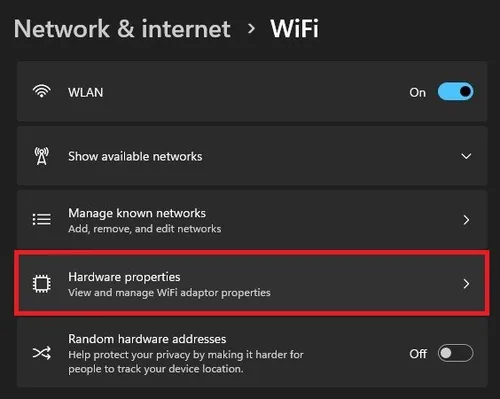
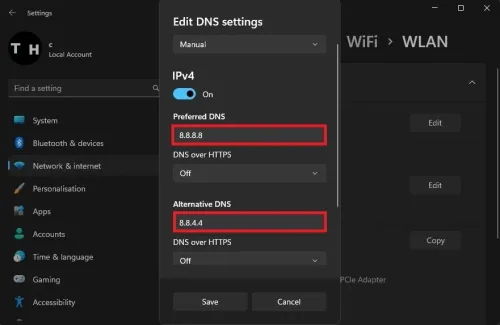
In case the problem persists, then you will have to change your DNS server addresses to fix any issues with your connection to the Roblox servers. While in your settings, navigate to the Network & internet section. Select your connection and then navigate to Hardware Properties.
Edit your DNS settings, and under IPv4, set your Preferred DNS server address to…
Edit your DNS settings, and under IPv4, set your Preferred DNS server address to 8.8.8.8 and Alternative DNS address to 8.8.4.4. These are the official DNS server addresses from Google, which are safe to use and will fix the error code 400 you are getting when trying to join the Roblox servers.
Video walkthrough
If it does not work
- Is it safe to clear my browser cache and cookies?. Yes, clearing your browser cache and cookies is safe and will not harm your computer in any way. Clearing the cache and cookies simply removes temporary files that are stored on your computer to speed up the loading of websites.
- Can the Roblox Error Code 400 Bad Request be caused by my Internet connection?. Yes, a slow or unreliable Internet connection can also cause the Roblox Error Code 400 Bad Request. You can check your Internet connection by visiting a website like speedtest.net and running a speed test.
- Is the Roblox Error Code 400 Bad Request permanent?. No, the Roblox Error Code 400 Bad Request is not permanent and can be fixed with the right troubleshooting steps. If you follow the solutions outlined in this article, you should be able to resolve the issue in no time.
- Can other games be affected by the Roblox Error Code 400 Bad Request?. No, the Roblox Error Code 400 Bad Request only affects Roblox. Other games or websites will not be impacted.