
Gaming · Platform not recorded
How To Fix Roblox Does Not Support Admin Installation, Please Rerun - Guide
Original source date
Answer
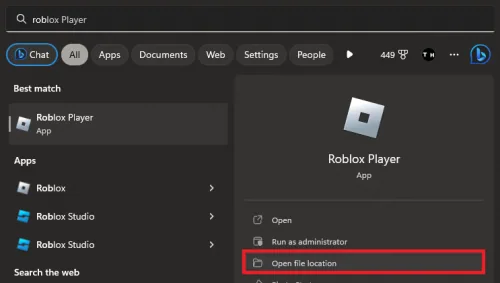
The error message “Roblox does not support admin installation” is common and often confusing, especially since it suggests a problem with admin permissions. Here’s a step-by-step guide to resolving this issue: Ensure Roblox Client is Not Running: Close the Roblox client if it's currently open to make sure it’s not interfering with the changes you’re about to make.; Locate the Roblox Player App:Search for “Roblox” in your start menu search.Select to open the file location for the 'Roblox Player' app.In your file explorer, right-click the shortcut and select 'Open File Location' again.; Search for “Roblox” in your start menu search.; Select to open the file location for the 'Roblox Player' app.; In your file explorer, right-click the shortcut and select 'Open File Location' again.
Fixing the "Roblox Does Not Support Admin Installation" Error by Running as Administrator
The error message “Roblox does not support admin installation” is common and often confusing, especially since it suggests a problem with admin permissions. Here’s a step-by-step guide to resolving this issue: Ensure Roblox Client is Not Running: Close the Roblox client if it's currently open to make sure it’s not interfering with the changes you’re about to make.; Locate the Roblox Player App:Search for “Roblox” in your start menu search.Select to open the file location for the 'Roblox Player' app.In your file explorer, right-click the shortcut and select 'Open File Location' again.; Search for “Roblox” in your start menu search.; Select to open the file location for the 'Roblox Player' app.; In your file explorer, right-click the shortcut and select 'Open File Location' again.
Modify the Application's Properties:Right-click the highlighted RobloxPlayerLaunc…
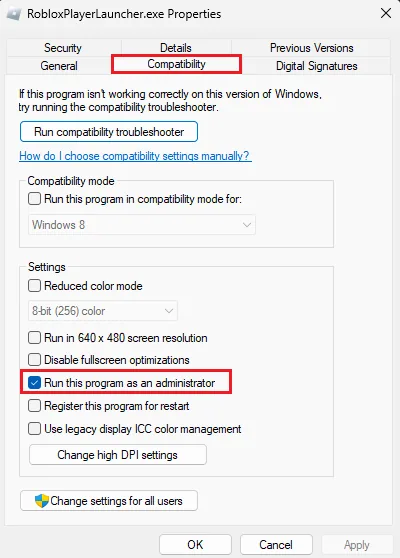
Modify the Application's Properties:Right-click the highlighted RobloxPlayerLauncher.exe application to access its properties.In the compatibility section, check the “Run this program as an administrator” box.; Right-click the highlighted RobloxPlayerLauncher.exe application to access its properties.; In the compatibility section, check the “Run this program as an administrator” box.; Apply Changes: Click on 'Apply' and then 'OK' to save these changes.; Launch Roblox: You can now close this window and try to launch a Roblox experience. The error should be resolved. By following these straightforward steps, you grant the necessary permissions to the Roblox client, allowing it to run without encountering the aforementioned error. If the problem persists, further troubleshooting may be necessary, such as reinstalling the application.
Reinstalling Roblox: A Step-by-Step Guide
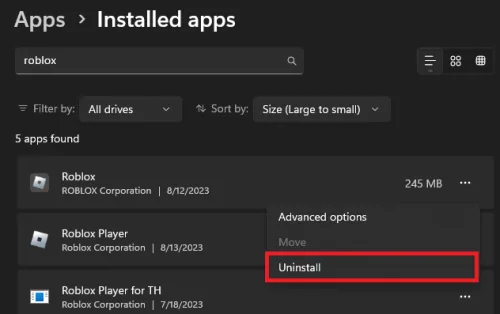
If the "Roblox does not support admin installation" error continues to trouble you even after running the application as an administrator, reinstalling Roblox might be the solution. Here's a concise guide to help you through the process: Close Roblox: If the Roblox application is running, close it to prevent any conflicts during the uninstallation.; Navigate to Installed Apps:Open up your Windows settings.Go to the 'Apps' section.Select 'Installed Apps'.; Open up your Windows settings.; Go to the 'Apps' section.; Select 'Installed Apps'.; Uninstall Roblox:Look up 'Roblox' in the list of installed applications.Click on the menu icon next to 'Roblox'.Proceed to uninstall the application.; Look up 'Roblox' in the list of installed applications.; Click on the menu icon next to 'Roblox'.; Proceed to uninstall the application.
Reinstall Roblox:Head over to Roblox.com.Try to launch an experience.Follow the o…
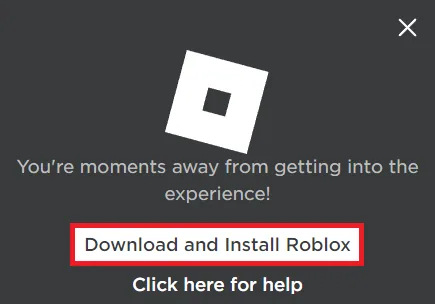
Reinstall Roblox:Head over to Roblox.com.Try to launch an experience.Follow the on-screen prompts to re-download the necessary files.; Head over to Roblox.com.; Try to launch an experience.; Follow the on-screen prompts to re-download the necessary files.; Launch Roblox: Roblox should now open up automatically, free from the previous error. Reinstalling the application is a common troubleshooting step that can resolve various issues, including permission-related errors. By following this guide, you ensure a fresh and error-free installation of Roblox, enabling you to enjoy your gaming experience without hindrance.
Video walkthrough
If it does not work
- What causes the "Roblox does not support admin installation" error?. This error typically occurs when you don't have the necessary permissions to launch and run the Roblox Client. Running Roblox as an administrator or reinstalling the application usually fixes this issue.
- How do I run Roblox as an administrator to fix the error?. Right-click the RobloxPlayerLauncher.exe application, access its properties, and check the "Run this program as an administrator" box in the compatibility section. Apply the changes, and you can then launch Roblox.
- When should I consider reinstalling Roblox?. If running Roblox as an administrator doesn't solve the problem, reinstalling Roblox can be an effective solution. Follow the step-by-step guide in the main article to reinstall the application properly.
- Will reinstalling Roblox affect my saved games and progress?. No, reinstalling Roblox won't affect your saved games or progress. Your game data is stored on Roblox servers and will be accessible when you log back in.
- Can I reinstall Roblox on other operating systems apart from Windows?. Yes, Roblox can be reinstalled on various operating systems, including macOS and Windows. The uninstallation and reinstallation process may vary slightly depending on the OS, so refer to specific guidelines for your system.