
Gaming · Platform not recorded
Roblox “The Application Encountered an Unrecoverable Error” Problem Fix
Original source date
Answer
Often, the root cause of this problem lies in the Roblox cached files and site data stored in your browser. To start, let's clear the Roblox.com site data from your browser. For those using Chrome, head to your browser settings by clicking the menu icon in the top-right corner.
Resolve the Issue by Clearing Roblox Cookies and Site Data
Often, the root cause of this problem lies in the Roblox cached files and site data stored in your browser. To start, let's clear the Roblox.com site data from your browser. For those using Chrome, head to your browser settings by clicking the menu icon in the top-right corner.
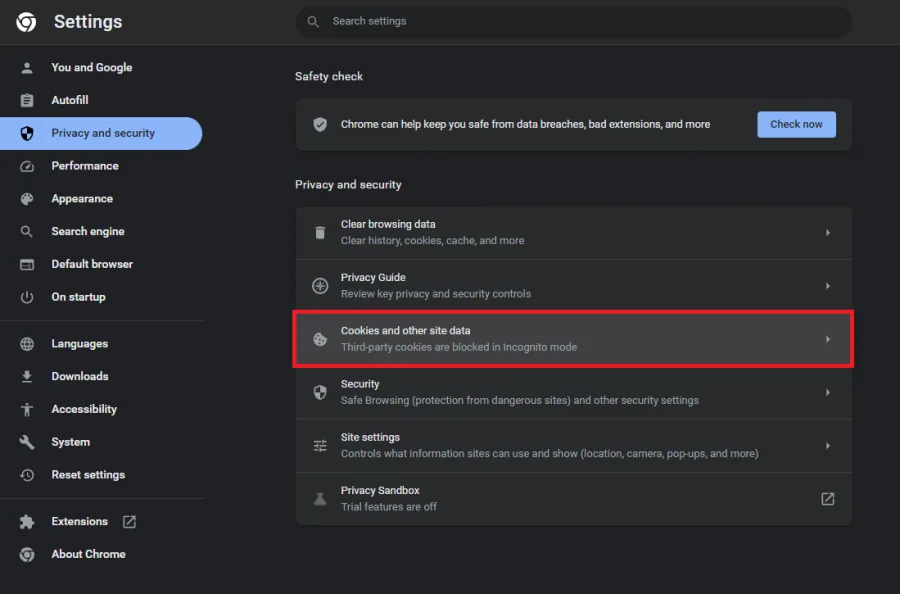
Navigate to Privacy and Security, and then select "Cookies and other site data."…
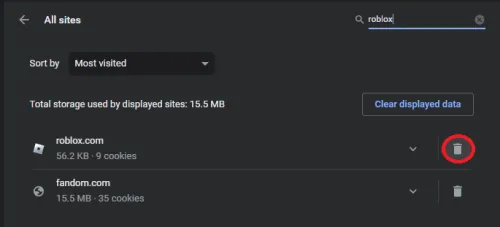
Navigate to Privacy and Security, and then select "Cookies and other site data." From here, click on "See all cookies and site data." This step enables you to search for Roblox and delete the site data associated with the Roblox.com domain. Keep in mind that you'll need to log back into your account afterward, but rest assured that none of your Roblox user data will be lost during this process.
Clear the Roblox Cache
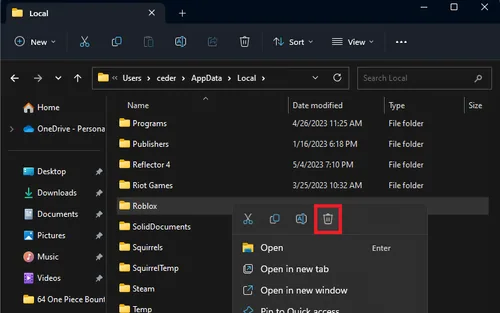
Once you've completed the previous step, close your browser for now. Next, search for %AppData% in your Start menu search bar and press Enter. This action will open up your File Explorer. From here, navigate to: AppData > Local and proceed to delete the Roblox cache folder. This process will help eliminate any residual issues that might be causing the "unrecoverable error" in Roblox.
Uninstall the Roblox Application
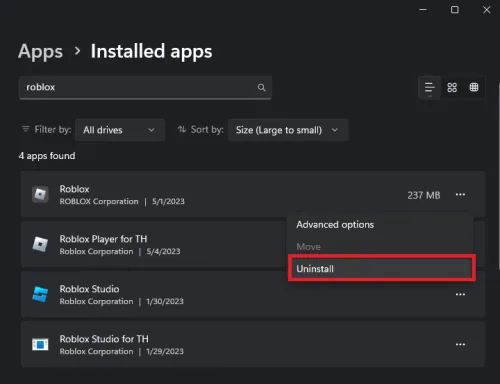
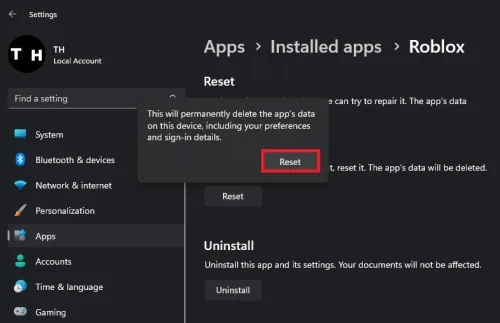
Once the Roblox cache files have been deleted, navigate to your Windows settings. In the Apps section, choose "Apps & Features" and search for Roblox. Locate the Roblox application, click on the menu icon beside it, and select Uninstall. This process will uninstall the Roblox app from your computer, potentially resolving any persisting issues.
Reinstall the Roblox Application
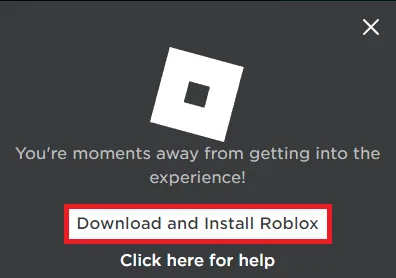
Once you've uninstalled Roblox, visit Roblox.com and log back in using your account credentials. Choose any experience to play. You'll be prompted to download the Roblox installer again. Click on "Download and Install Roblox" and run the RobloxPlayerLauncher application from your downloads folder. The installation process will replace the deleted Roblox files, allowing you to launch the experience without encountering the "application encountered an unrecoverable error" issue on your computer.
Check Your Roblox Account Settings
Visit the Roblox homepage and sign in to your account to make sure that your Parental Controls settings aren't restricting you from joining Roblox games. To guarantee that you can access any Roblox experience without limitations, set this option to "Appropriate for ages 13 and older" and remember to save your changes. This step will help optimize your account settings for a smoother gaming experience and allow you to join any Roblox experience with your account.
Adjust the Roblox Compatibility Settings
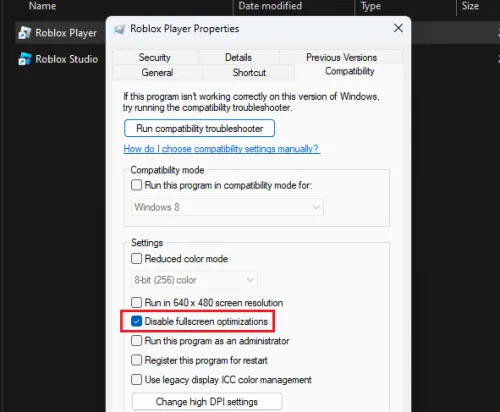
Should the issue persist, it's important to modify your Roblox compatibility settings. In the start menu search, type "Roblox" and choose "Open File Location." In File Explorer, right-click the Roblox Player shortcut to access its properties. Ensure that the game is not currently running on your computer before making any changes. Navigate to the Compatibility tab, enable the "Disable Fullscreen Optimizations" option, and apply your modifications.
Video walkthrough
If it does not work
- What is the "application encountered an unrecoverable error" issue in Roblox?. This error is typically caused by issues with cached files or site data for Roblox stored on your browser or PC. It prevents users from launching and playing Roblox experiences.
- How can I fix this error by clearing my browser's site data?. To fix this issue, navigate to your browser settings, access the "Cookies and other site data" section, and delete the site data for the Roblox.com domain. This process won't remove any of your user data for Roblox.
- What steps should I follow to delete the Roblox cache on my computer?. To delete the Roblox cache, search for %AppData% in your start menu search and hit enter. In File Explorer, navigate to AppData > Local, and delete the Roblox cache folder.
- How can I uninstall and reinstall the Roblox app to fix the error?. Uninstall the Roblox app from your PC through the Windows settings, then visit Roblox.com and log in to your account. Choose to play any experience, and you'll be prompted to download and install the Roblox installer. Run the RobloxPlayerLauncher application to reinstall the app.
- How do I change the compatibility settings for Roblox to address the error?. Search for Roblox in your start menu search, select "Open File Location," and right-click the Roblox Player shortcut to access its properties. In the Compatibility tab, enable the "Disable Fullscreen Optimizations" option and apply your changes.