
Windows 11 · Windows 11
Remove a Windows 11 PIN or Change Your Sign-In Method
Source-checked About 5 minutes
Answer
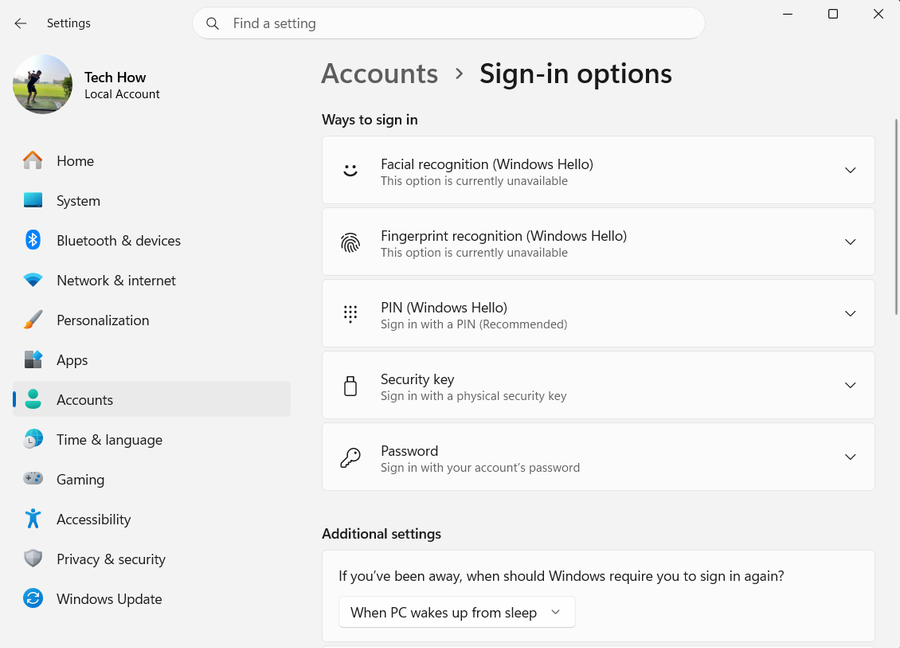
Before removing the PIN, make sure you know the account password and have another sign-in method that works. Open Settings > Accounts > Sign-in options > PIN (Windows Hello), then select Remove if Windows offers it. If Remove is unavailable, Windows Hello-only sign-in may be enabled for a Microsoft account. Turning that protection off makes password sign-in available but reduces sign-in protection.
- Know the passwordTest it before removing the device PIN.
- Open Sign-in optionsThe PIN is under Windows Hello.
- Understand the tradeoffAllowing password sign-in is less resistant to some attacks than Windows Hello.
Test another sign-in method
Confirm you know the Microsoft-account or local-account password. If available, test fingerprint, face, or a security key before removing the PIN.
Open Sign-in options
Press Windows + I, choose Accounts, then Sign-in options. Expand PIN (Windows Hello).
Select Remove
Choose Remove, read the warning, select Remove again, and enter the account password when Windows asks.
Handle a missing Remove button
If Remove is unavailable, look under Additional settings for the option that allows only Windows Hello sign-in for Microsoft accounts. Turn it off only if you intentionally want password sign-in.
Do not confuse PIN and password
The PIN belongs to this device. Removing it does not remove or change the Microsoft-account password.
Lock and verify
Press Windows + L, choose Sign-in options, and confirm the intended password, face, fingerprint, or security-key method works before restarting.
If it does not work
- If you forgot the PIN but want to keep it, choose I forgot my PIN and follow Microsoft's identity check instead of removing account data.
- If the PC is managed by work or school, policy may require Windows Hello and hide Remove. Ask the administrator rather than bypassing the policy.
- If password sign-in is not shown after changing the Hello-only option, restart Windows and check Sign-in options again.
Sources and verification
Checked against official documentation on . Scope: Windows 11.
The written steps follow the current official pages linked below. The saved video is an older walkthrough and may show different labels.