
Gaming · Platform not recorded
PUBG - Fix Lag on NVIDIA GPU
Original source date
Answer
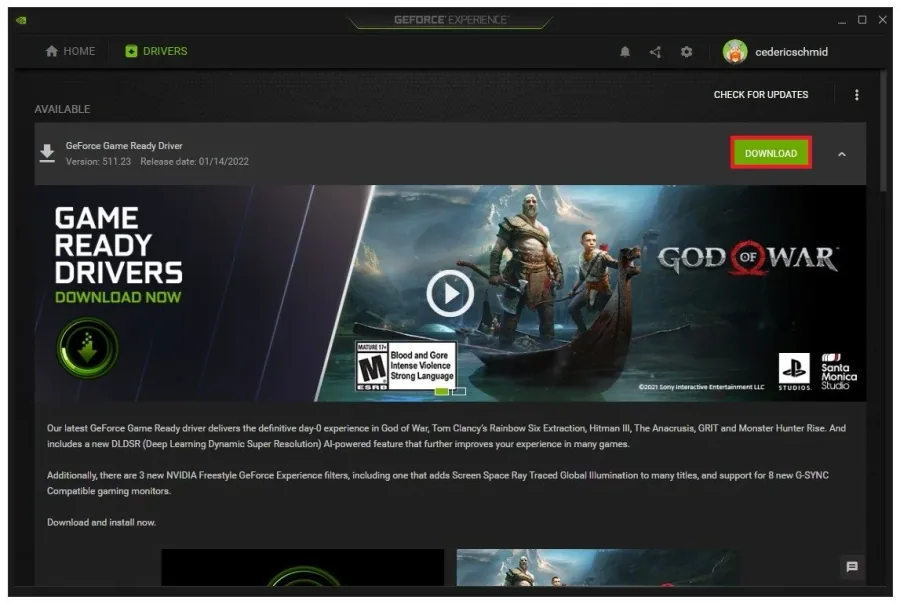
Ensure that your graphics driver is up to date. You can manually download and install the latest driver, and we suggest using the GeForce Experience application for NVIDIA users. This will allow you to download and automatically install the latest GPU driver easily. In the Drivers tab, click download, and the application will automatically download and install the latest driver.
Update Graphics Card Driver
Ensure that your graphics driver is up to date. You can manually download and install the latest driver, and we suggest using the GeForce Experience application for NVIDIA users. This will allow you to download and automatically install the latest GPU driver easily. In the Drivers tab, click download, and the application will automatically download and install the latest driver.
Adjust the NVIDIA Control Panel Options
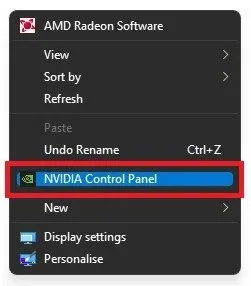
When the installation is done, right-click your desktop and select NVIDIA Control Panel. On Windows 11, right-click your desktop and select Show More Options, and then you can select the NVIDIA Control Panel.
In the Adjust Image settings with preview tab, set the option to Use the advanced…
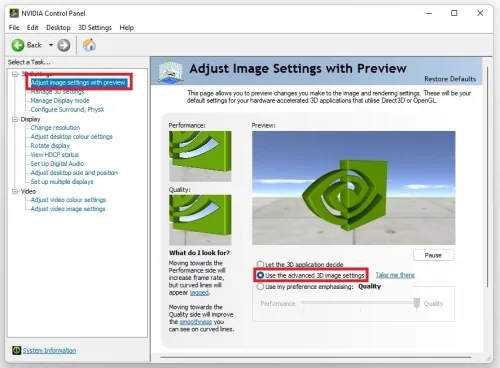
In the Adjust Image settings with preview tab, set the option to Use the advanced 3D image settings and apply your changes.
In the Manage 3D settings tab, navigate to your Global Settings
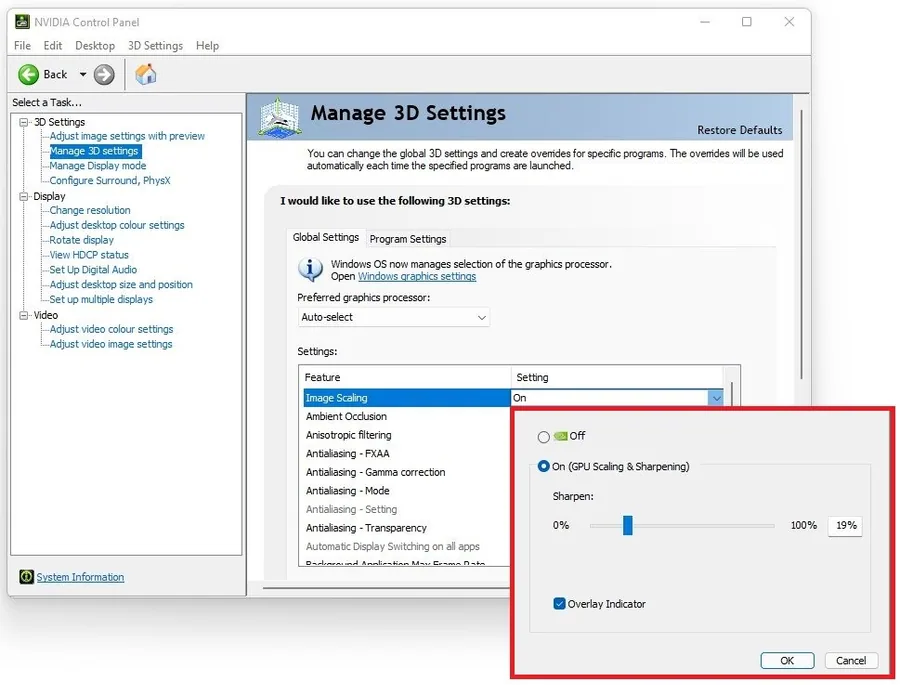
In the Manage 3D settings tab, navigate to your Global Settings. Click on the Image Scaling option, and make sure to enable it. Set the Sharpening option to around 20%. In some cases, you might want to increase it to up to 35%, depending on how much the AI is upscaling your image while using a lower resolution. You should also tick the Overlay Indicator to know if NIS is enabled in-game. After making these changes, make sure to apply your changes.
Enable NVIDIA Image Scaling
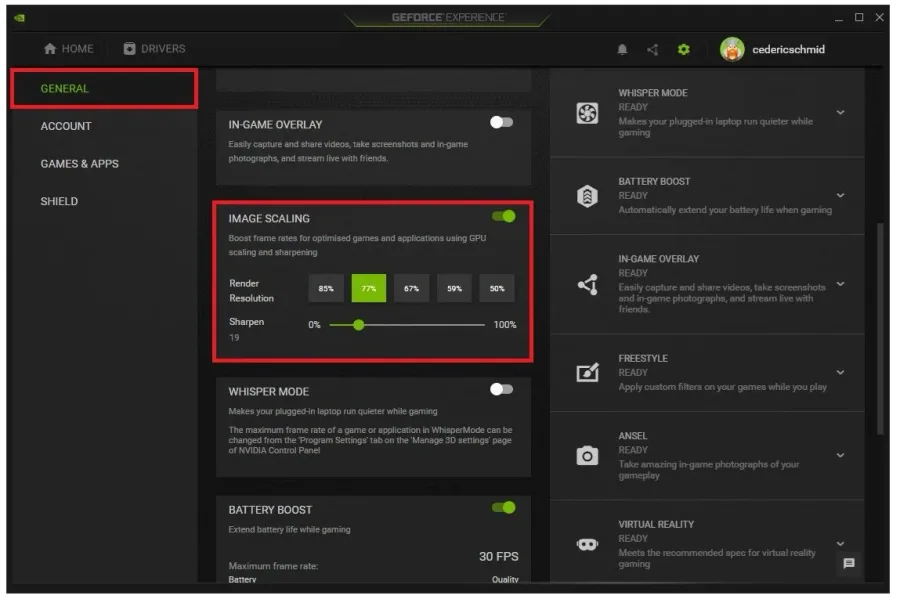
Reopen your GeForce Experience application. Navigate to your settings when clicking on this gear icon, and in the General tab, you will see the Image Scaling settings. Enable Image Scaling from here, and then you can choose the best option according to your native monitor resolution and the resolution you wish to game in. While in your GeForce settings, it’s suggested to disable the in-game overlay and Reward notifications to get the best performance while in-game.
PUBG Optimized Settings for Low-End PCs
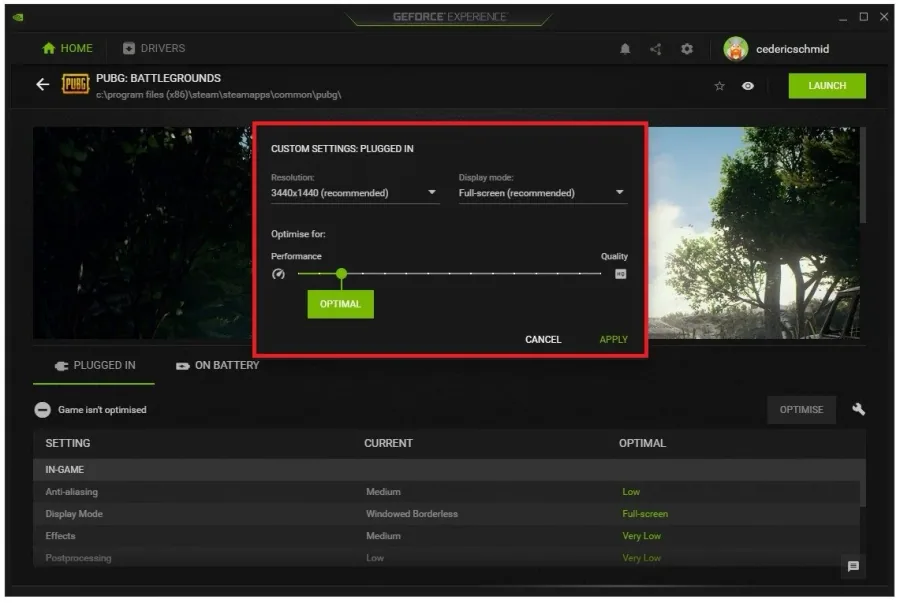
Navigate to the Home in the GeForce Experience application. Click on Details for PUBG to preview the optimal suggested in-game settings here. When clicking Optimise, GeForce will apply the optimal settings according to your system specs. When clicking the wrench icon, you can use this slider system to increase your performance by setting it to Performance. You also have the option to change your in-game Resolution and Display Mode from here.
Video walkthrough
If it does not work
- If the current interface differs, compare it with the recorded video walkthrough.