
Gaming · Windows & macOS
How To Play Sonic The Hedgehog Classic on PC & Mac
Original source date
Answer
To play Sonic The Hedgehog Classic on your PC, you must use an Android emulator, such as Bluestacks. Bluestacks is a popular choice to play mobile games on your PC, as it’s optimized for playing mobile games. This should take a second to complete, and you can follow the install wizard to install the application to your system.
Download & Install BlueStacks
To play Sonic The Hedgehog Classic on your PC, you must use an Android emulator, such as Bluestacks. Bluestacks is a popular choice to play mobile games on your PC, as it’s optimized for playing mobile games. This should take a second to complete, and you can follow the install wizard to install the application to your system.

Download Sonic The Hedgehog Classic
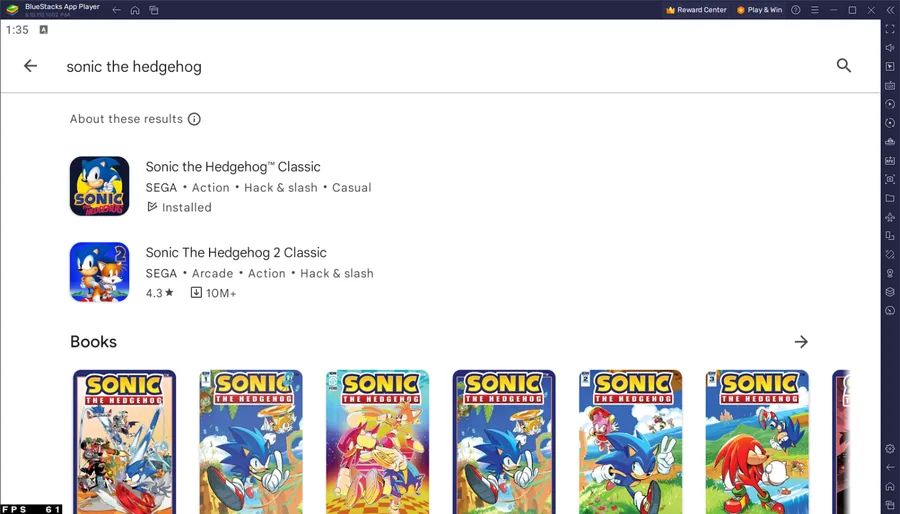
Open your Play Store and log in with your Google account. Search for Sonic The Hedgehog Classic, and download the game to your BlueStacks emulator. This might take a few minutes to complete depending on your network connection.
BlueStacks Performance Settings
While downloading the game, you should look at your emulator settings. Click on this gear icon to access these settings. In the Performance tab, you should set these according to your PC’s performance. Allocate a High amount of CPU cores if you don’t have a lot of other applications running in the background. The same goes for your Memory allocation. For users with 4GB or less RAM, set this option to Low.
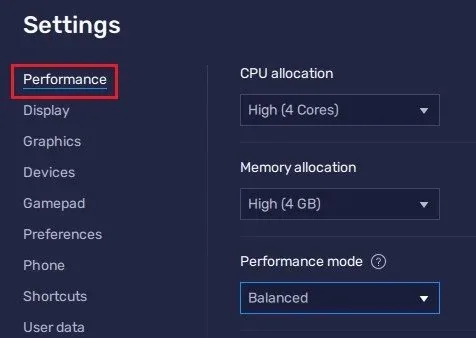
Under Performance Mode, make sure to set this option to Balanced
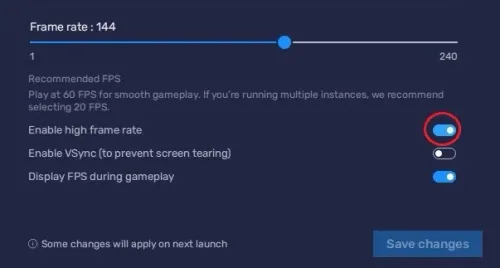
Under Performance Mode, make sure to set this option to Balanced. This will reduce the memory and CPU usage if your PC lags or you otherwise encounter low performance. I prefer to enable the high FPS option and set the frame rate of the emulator according to my screen refresh rate.
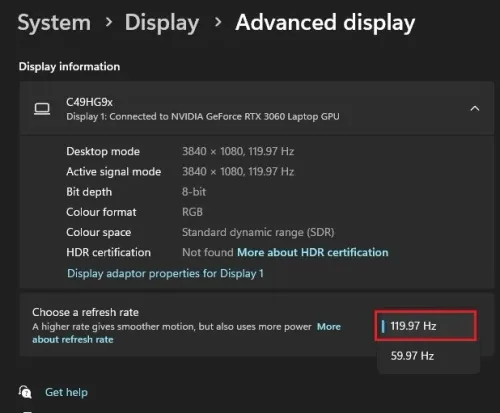
Windows Display Settings
If unsure about your refresh rate, right-click your desktop and select Display Settings. From here, make sure that the correct display is selected, scroll down, and click on Advanced Display. This will allow you to preview your refresh rate and change it if you want. Also, if you want to troubleshoot performance issues, then make sure to enable the FPS counter option.
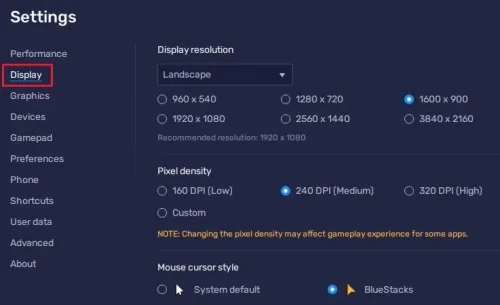
BlueStacks Display Settings
In your Display settings, set the display orientation to landscape, and choose a proper resolution to play Sonic The Hedgehog Classic on your monitor. You can also adjust the size of this window by dragging its corners.
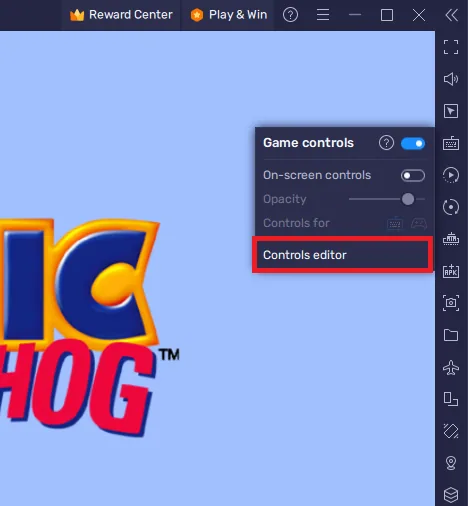
Sonic The Hedgehog Classic Controls
To change your key mapping, navigate to your Controls Editor. You can then drag and change the location of individual controls, change the key and apply other settings to help improve your gaming experience.
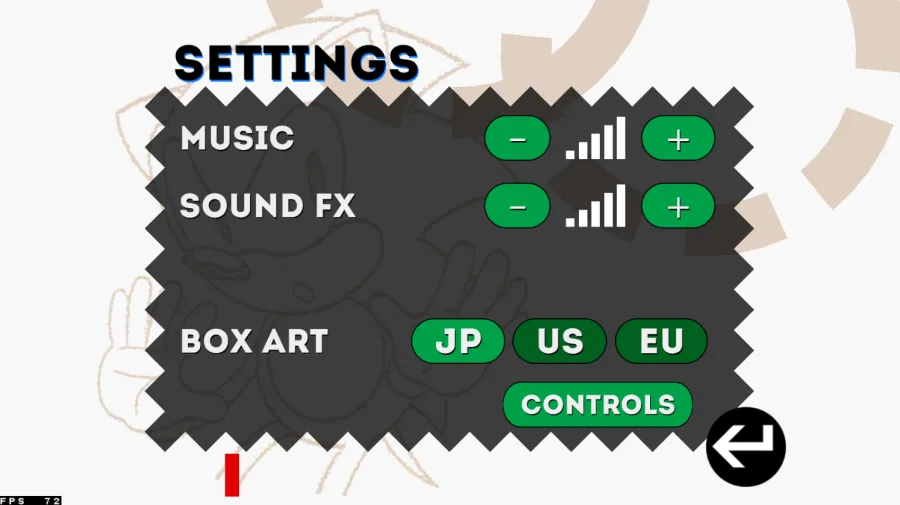
Sonic The Hedgehog Classic In-Game Settings
Your in-game settings allow you to adjust the music and sound effects volume. I’d also suggest lowering the D-Pad Opacity when playing Sonic The Hedgehog on your PC or Mac.
Play Sonic Classic on PC!
Once you've customized your controls, it's time to play Sonic The Hedgehog. The game's objective is to navigate Sonic through various levels and defeat the evil Dr. Eggman. Use the buttons and keys to jump, run, and spin dash your way to victory.

Video walkthrough
If it does not work
- Can I play Sonic The Hedgehog on a Mac with BlueStacks?. Yes, you can play Sonic The Hedgehog on a Mac using BlueStacks. The process is the same as for a PC; you can follow the steps outlined in this article.
- Is Sonic The Hedgehog free to play on BlueStacks?. No, Sonic The Hedgehog is not free to play on BlueStacks. You will need to purchase the game from the Google Play Store before you can play it on BlueStacks. You may also use the free app, which will show you in-game advertisements.
- Can I play other games on BlueStacks besides Sonic The Hedgehog?. Yes, you can play a wide range of Android games on BlueStacks. Simply log in to the Google Play Store and download the games you want to play.