
Gaming · Windows & macOS
How To Play Scary Teacher 3D on PC & Mac
Original source date
Answer
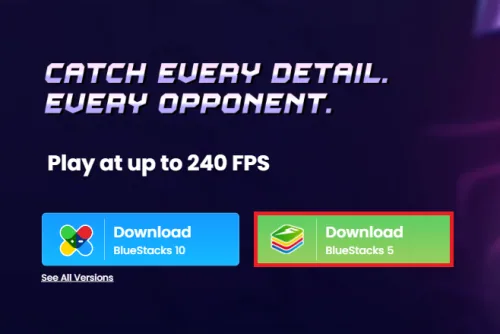
To play Scary Teacher 3D on your PC, you must use an Android emulator, such as Bluestacks. Bluestacks is a popular choice to play mobile games on your PC, as it’s optimized for playing mobile games. This should take a second to complete, and you can follow the install wizard to install the application to your system.
Download & Install BlueStacks
To play Scary Teacher 3D on your PC, you must use an Android emulator, such as Bluestacks. Bluestacks is a popular choice to play mobile games on your PC, as it’s optimized for playing mobile games. This should take a second to complete, and you can follow the install wizard to install the application to your system.
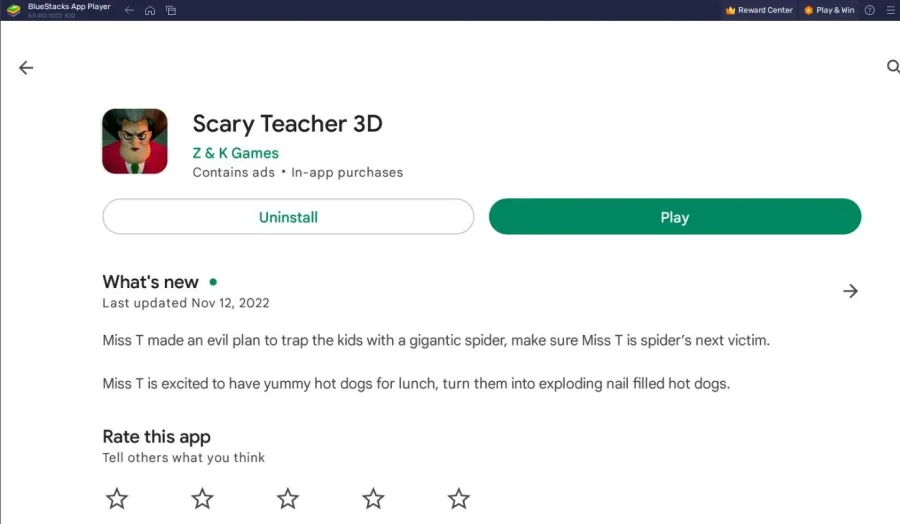
Download Scary Teacher 3D
Open your Play Store and log in with your Google account. Search for Scary Teacher 3D, and download the game to your BlueStacks emulator. This might take a few minutes to complete depending on your network connection.
BlueStacks Performance Settings
While downloading the game, you should look at your emulator settings. Click on this gear icon to access these settings. In the Performance tab, you should set these according to your PC’s performance. Allocate a High amount of CPU cores if you don’t have a lot of other applications running in the background. The same goes for your Memory allocation. For users with 4GB or less RAM, set this option to Low.
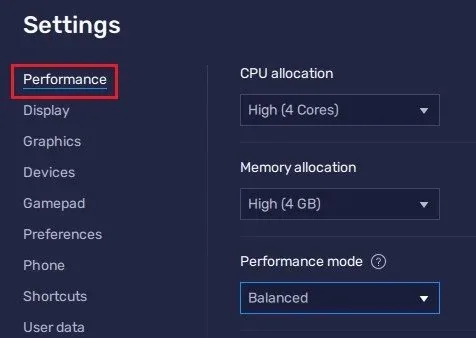
Under Performance Mode, make sure to set this option to Balanced
Under Performance Mode, make sure to set this option to Balanced. This will reduce the memory and CPU usage if your PC lags or you otherwise encounter low performance. I prefer to enable the high FPS option and set the frame rate of the emulator according to my screen refresh rate.
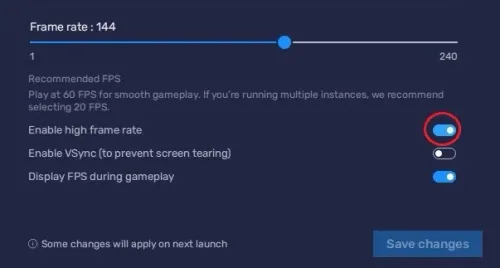
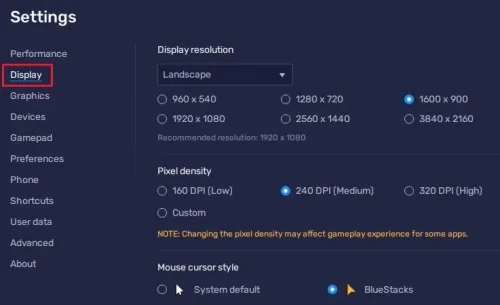
BlueStacks Display Settings
In your Display settings, I like to use a resolution of 1920 x 1080, but you can set this to anything you want. You can leave the other settings to their default option and play Scary Teacher 3D to see how well it runs on your PC.
Play Scary Teacher 3D
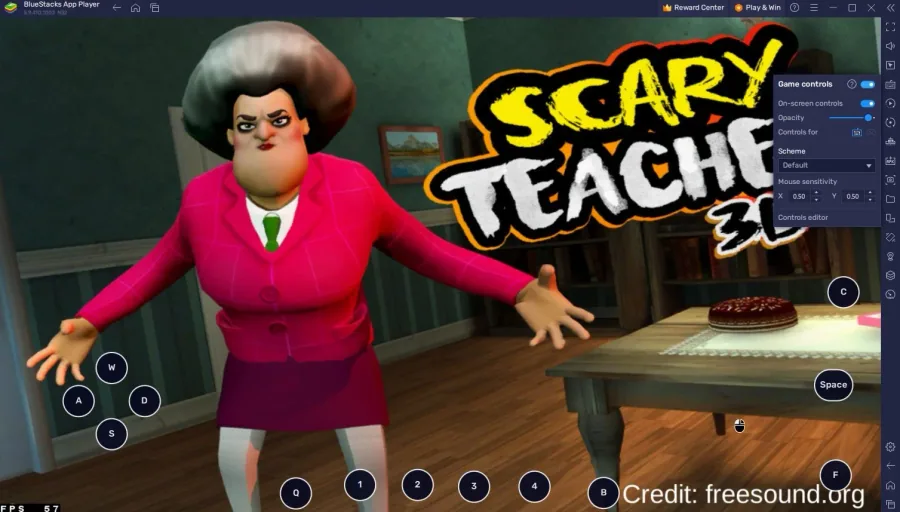
After downloading Scary Teacher 3D and opening the game for the first time, you will be required to finish the tutorial. Click on the keyboard icon in your BlueStacks menu bar on the right-hand side. This will allow you to enable and disable the On-Screen Controls option. This will help you figure out which keyboard keys to play Scary Teacher 3D on your PC.
Tips and Tricks to Play Scary Teacher 3D on PC & Mac with BlueStacks
Here are some tips and tricks to help you enhance your gaming experience while playing Scary Teacher 3D on PC & Mac with BlueStacks: Using the keyboard and mouse controls to play the game is much easier than playing on mobile phones.; Adjust the graphics and performance settings to make the game run smoothly on your computer.; Customize the controls according to your preference to make the game more comfortable.
Video walkthrough
If it does not work
- Can I play Scary Teacher 3D on PC & Mac with BlueStacks offline?. No, Scary Teacher 3D requires an internet connection to play on PC & Mac with BlueStacks.
- Will my progress be saved if I play Scary Teacher 3D on PC & Mac with BlueStacks?. Your progress will be saved if you sign in to your Google account while playing Scary Teacher 3D on PC & Mac with BlueStacks.
- Can I play Scary Teacher 3D on PC & Mac with BlueStacks in multiplayer mode?. No, Scary Teacher 3D is a single-player game and does not have a multiplayer mode.