
Gaming · Windows & macOS
How To Play Rise of Kingdoms on PC & Mac
Original source date
Answer
To play Rise of Kingdoms on your PC, you must use an Android emulator, such as Bluestacks. Bluestacks is a popular choice to play mobile games on your PC, as it’s optimized for playing mobile games. This should take a second to complete, and you can follow the install wizard to install the application to your system.
Download & Install BlueStacks
To play Rise of Kingdoms on your PC, you must use an Android emulator, such as Bluestacks. Bluestacks is a popular choice to play mobile games on your PC, as it’s optimized for playing mobile games. This should take a second to complete, and you can follow the install wizard to install the application to your system.

Download Rise of Kingdoms
Open your Play Store and log in with your Google account. Search for Rise of Kingdoms, and download the game to your BlueStacks emulator. This might take a few minutes to complete depending on your network connection.

BlueStacks Performance Settings
While downloading the game, you should look at your emulator settings. Click on this gear icon to access these settings. In the Performance tab, you should set these according to your PC’s performance. Allocate a High amount of CPU cores if you don’t have a lot of other applications running in the background. The same goes for your Memory allocation. For users with 4GB or less RAM, set this option to Low.
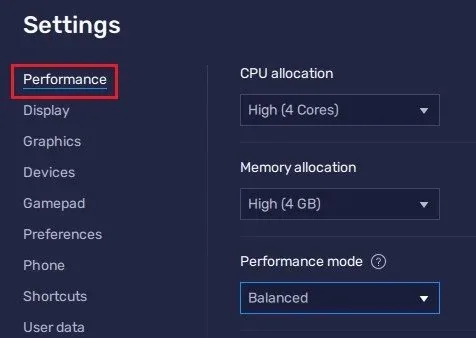
Under Performance Mode, make sure to set this option to Balanced
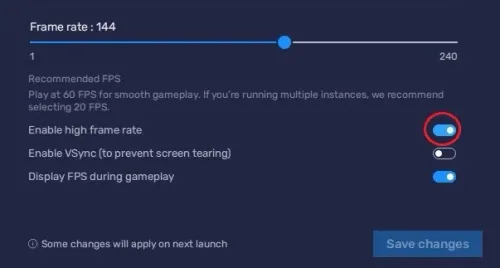
Under Performance Mode, make sure to set this option to Balanced. This will reduce the memory and CPU usage if your PC lags or you otherwise encounter low performance. I prefer to enable the high FPS option and set the frame rate of the emulator according to my screen refresh rate.
BlueStacks Display Settings
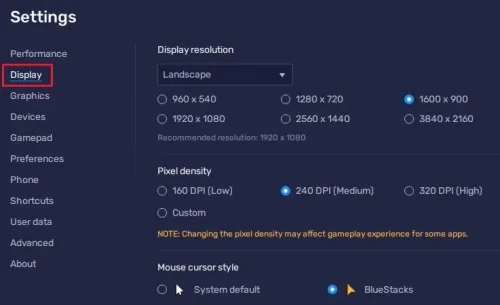
In your Display settings, set the display orientation to landscape, and choose a proper resolution to play Rise of Kingdoms on your monitor. You can also adjust the size of this window by dragging its corners.
Play Rise of Kingdoms
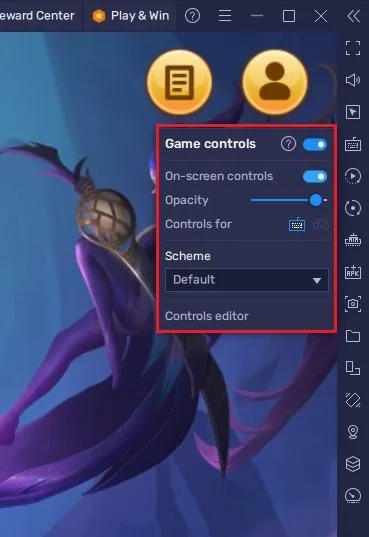
While in-game, click on the keyboard icon in your BlueStacks menu bar on the right-hand side. This will allow you to enable and disable the On-Screen Controls option. This will help you figure out which keyboard keys to play Rise of Kingdoms on your PC.
Rise of Kingdoms Settings
While in-game, navigate to your settings. In your General Settings, reduce the Graphics Quality if you notice any lag or other performance issues with Rise of Kingdoms. Below, increase the Frame Rate option from Medium to High to get smoother gameplay on your PC’s monitor.
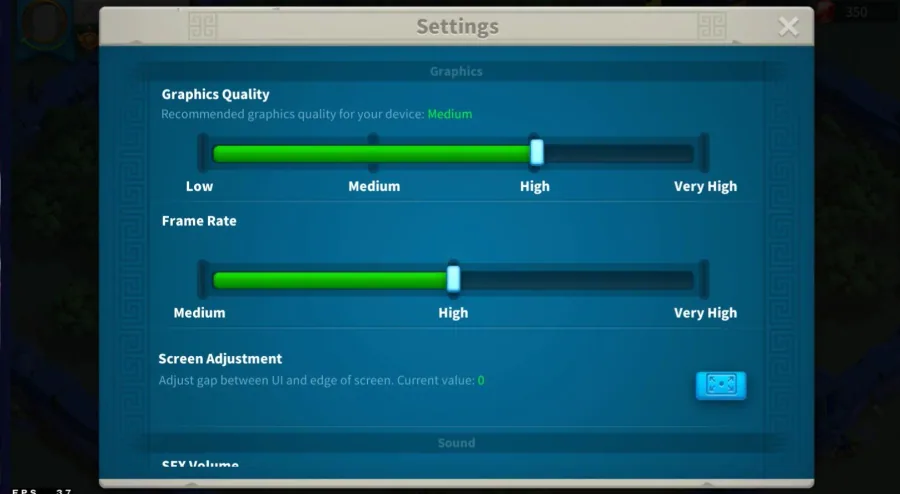
Below, you can enable or disable some additional user interface and visual settings
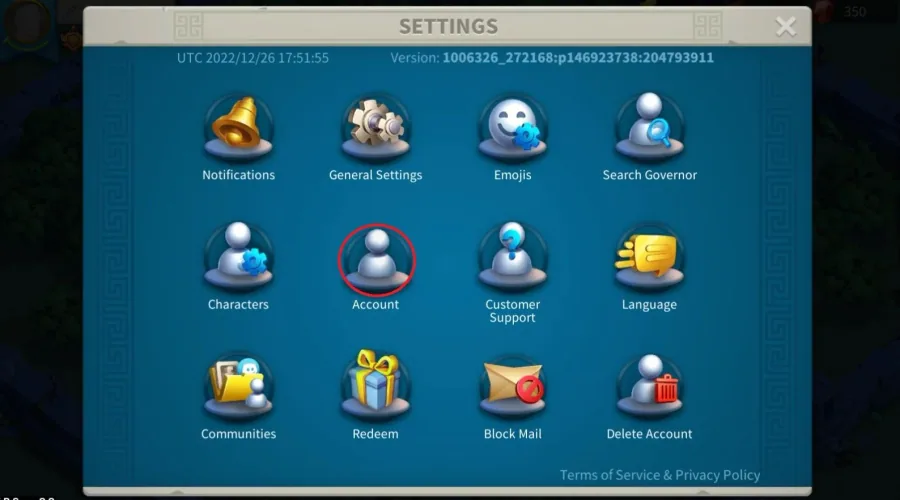
Below, you can enable or disable some additional user interface and visual settings. Back in your settings, click on Account and log in to your existing account to continue playing where you left off.
Tips when playing Rise of Kingdoms on PC and Mac with BlueStacks
Here are some tips that can help you get the most out of playing Rise of Kingdoms on PC and Mac with BlueStacks: Play with a Mouse: Using a mouse is much more convenient than playing touch controls, especially when playing strategy games like Rise of Kingdoms.; Customize Keyboard Shortcuts: BlueStacks allows you to customize keyboard shortcuts, making it easier to access certain features and actions in the game.; Use Multi-Instance Function: BlueStacks' Multi-Instance function enables you to run multiple game instances, allowing you to play on multiple accounts simultaneously.; Take advantage of the bigger screen: The larger screen size of your PC or Mac makes it easier to see the entire game map and monitor your kingdom’s resources and structures.; Keep an eye on notifications: Check notifications regularly to stay on top of events, rewards, and new updates in the game.; Join an alliance: Joining an alliance can provide you with additional support and resources, making it easier for you to conquer enemy kingdoms and protect your own.; Train your army: Regularly training your army is essential to success in Rise of Kingdoms. It's crucial to have a strong army to defend your kingdom and conquer enemy territories. Following these tips, you can maximize your gaming experience and enjoy playing Rise of Kingdoms on PC & Mac with BlueStacks.

Video walkthrough
If it does not work
- Is it safe to play Rise of Kingdoms on PC & Mac with BlueStacks?. Yes, it is safe to play Rise of Kingdoms on PC & Mac with BlueStacks. BlueStacks is a legitimate android emulator that is widely used by millions of users worldwide.
- Can I use my existing Rise of Kingdoms account on BlueStacks?. Yes, you can use your existing Rise of Kingdoms account on BlueStacks. Simply log in to your Google account on BlueStacks, and your account will be automatically synced.
- Do I need a high-end PC to run Rise of Kingdoms on BlueStacks?. No, you don't need a high-end PC to run Rise of Kingdoms on BlueStacks. The game is designed to run on low-end computers, and it requires minimal resources.