
Adobe · Windows
Fix Photoshop Not Detecting Your Graphics Processor on Windows
Source-checked About 10 minutes
Answer
Run Photoshop's GPU Compatibility check, install the driver from the GPU maker, remove conflicting compatibility software, and test without GPU acceleration to isolate the cause.
Prepare the correct account, device, files, and recovery path
Duplicate the Photoshop document or preserve presets, confirm the app and macOS versions, selected document, GPU, plug-ins, scratch storage, and exact crash state before changing anything. Test one variable at a time and keep a recoverable copy. Avoid cracked plug-ins, generic preference cleaners, unofficial GPU packages, and destructive flattening or deletion of the only project.
Run Adobe's compatibility check
In Photoshop, select Help > GPU Compatibility and read every reported issue.
Update the correct driver
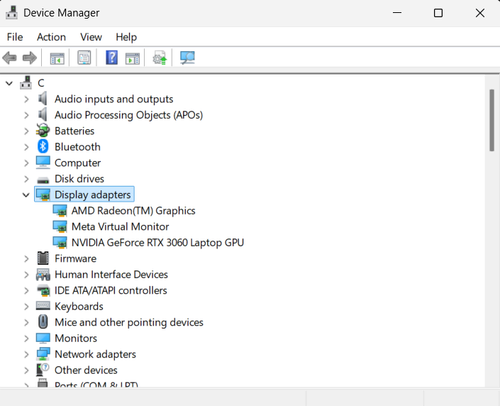
Identify the GPU in Device Manager, then install a current driver from NVIDIA, AMD, Intel, or the laptop manufacturer and restart Windows.
Check Photoshop Performance settings
Open Edit > Preferences > Performance. If Use Graphics Processor is unavailable, compare the GPU and driver with Adobe's current requirements.
Test without acceleration
If Photoshop opens, clear Use Graphics Processor, restart, and retest. If the symptom disappears, the GPU path is the likely cause.
Remove known conflicts
On supported Intel systems, Adobe advises checking for the Microsoft OpenCL/OpenGL Compatibility Pack when Photoshop reports an incompatible processor.
Verify the result before making broader changes
Repeat the exact task described in “Fix Photoshop Not Detecting Your Graphics Processor on Windows” and confirm the intended account, device, file, app, or service now behaves as described in the Answer. Check any changed setting again after one restart or fresh session where appropriate, and preserve the original data until the result is stable. If only one app, account, network, or file remains affected, keep the next recovery step limited to that scope.
Video walkthrough
If it does not work
- If Photoshop still disables the GPU, preserve Compatibility results, GPU model, driver, and crash details for Adobe. Restore stable settings rather than forcing unsupported acceleration.
Sources and verification
Checked against official documentation on . Scope: Windows.
Follow the linked first-party guidance if labels differ after a platform update.