Windows 11 · Windows
How To Fix Monitor Not Detected in Windows 11
Original source date
Answer
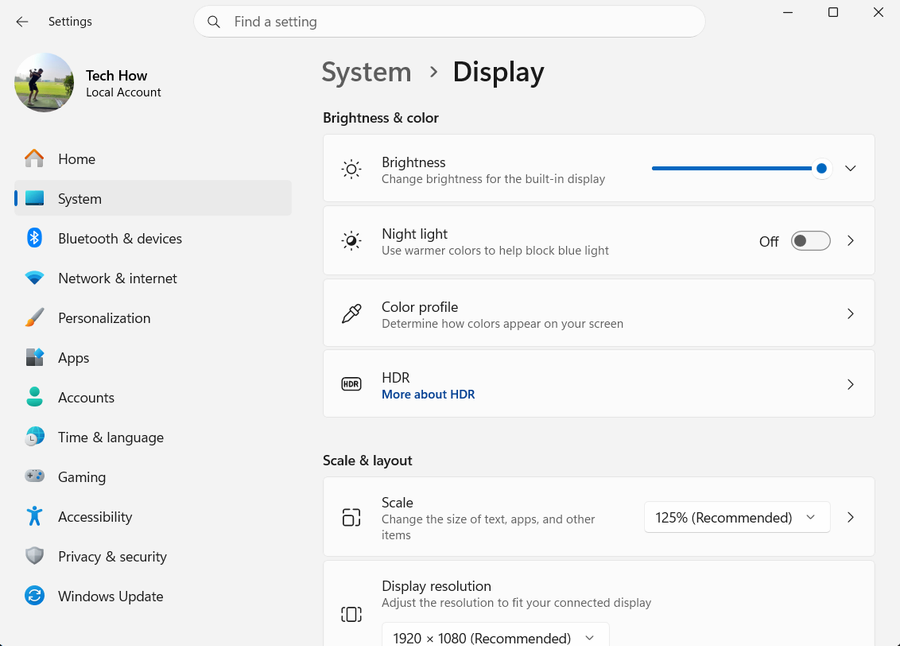
External monitor detection problems often arise due to improper system settings, outdated graphics or display drivers, hardware malfunctions, or incorrect cables. To diagnose and resolve these issues, let's begin by examining your display settings. Start by right-clicking on your desktop and selecting "Display Settings." Scroll down to find and expand the "Multiple Displays" options within this menu. Click "Detect" to identify any additional displays connected to your Windows PC. Furthermore, you'll find an option to connect a wireless display below the "Detect" button. While attempting to identify your external monitor, ensure you're using the appropriate cable and try switching to a different HDMI slot, if available. Connect the cable to your motherboard and graphics card to pinpoint the root cause of the problem. Remember to plug in and power on your monitor before attempting to detect it, as this can significantly impact the detection process.
Navigating Windows Display Settings & Tackling Hardware Issues
External monitor detection problems often arise due to improper system settings, outdated graphics or display drivers, hardware malfunctions, or incorrect cables. To diagnose and resolve these issues, let's begin by examining your display settings. Start by right-clicking on your desktop and selecting "Display Settings." Scroll down to find and expand the "Multiple Displays" options within this menu. Click "Detect" to identify any additional displays connected to your Windows PC. Furthermore, you'll find an option to connect a wireless display below the "Detect" button. While attempting to identify your external monitor, ensure you're using the appropriate cable and try switching to a different HDMI slot, if available. Connect the cable to your motherboard and graphics card to pinpoint the root cause of the problem. Remember to plug in and power on your monitor before attempting to detect it, as this can significantly impact the detection process.

Update your Windows Operating System
Should the monitor detection issue persist, it's crucial to ensure that your drivers are up to date. To check for updates, navigate to the Windows Update tab within your Windows settings. Once there, click on "Check for Updates" and proceed to download the most recent Windows update. Following the download, restart your PC to apply the changes. This process not only updates your drivers but also refreshes your PC's processes, which can be instrumental in resolving the monitor detection problem. By staying up-to-date with the latest Windows updates, you'll optimize your system's performance and enhance your overall computing experience.

Scan for Hardware Changes & Update Monitor Driver
Proceed to open your Device Manager to further investigate the monitor detection issue. In the Device Manager window, right-click on "Monitors" and choose "Scan for Hardware Changes." This action will initiate a brief scan to identify any additional monitors connected to your system.

If your monitor appears in the list, right-click on it and opt for "Update Driver…
If your monitor appears in the list, right-click on it and opt for "Update Driver." In the subsequent window, select "Search automatically for drivers" to ensure you're using the most up-to-date driver available. By scanning for hardware changes and refreshing your monitor driver, you'll optimize your display connectivity and pave the way for a seamless visual experience on your Windows 11 system.

Update your Graphics Card Driver
Updating your graphics card using specialized software is highly recommended to fix display and monitor-related problems on your Windows PC. NVIDIA GPU users can leverage the GeForce Experience application, while AMD users can take advantage of the AMD driver suite. Navigate to the "Drivers" section and download the most recent GPU driver update before proceeding with the installation. By keeping your graphics card up-to-date, you'll be able to address a multitude of display and monitor-related issues on your PC, ensuring a smooth and enjoyable visual experience across various applications and games.

Video walkthrough
If it does not work
- How can I check if my monitor is detected in Windows 11 display settings?. Right-click on your desktop, select "Display Settings," scroll down, and expand the "Multiple Displays" options. Click "Detect" to identify any additional displays connected to your Windows PC.
- How can I update my Windows operating system to fix monitor detection problems?. Navigate to the Windows Update tab within your Windows settings. Click on "Check for Updates" and download the latest Windows update before restarting your PC. This process updates your drivers and refreshes your PC's processes.
- How do I scan for hardware changes in Windows 11 to identify monitor issues?. Open your Device Manager, right-click on "Monitors," and choose "Scan for Hardware Changes." This action will initiate a brief scan to identify any additional monitors connected to your system.
- How do I update my monitor driver in Windows 11 to resolve detection issues?. In the Device Manager, right-click on your monitor and select "Update Driver." In the subsequent window, choose "Search automatically for drivers" to ensure you're using the most up-to-date driver available.